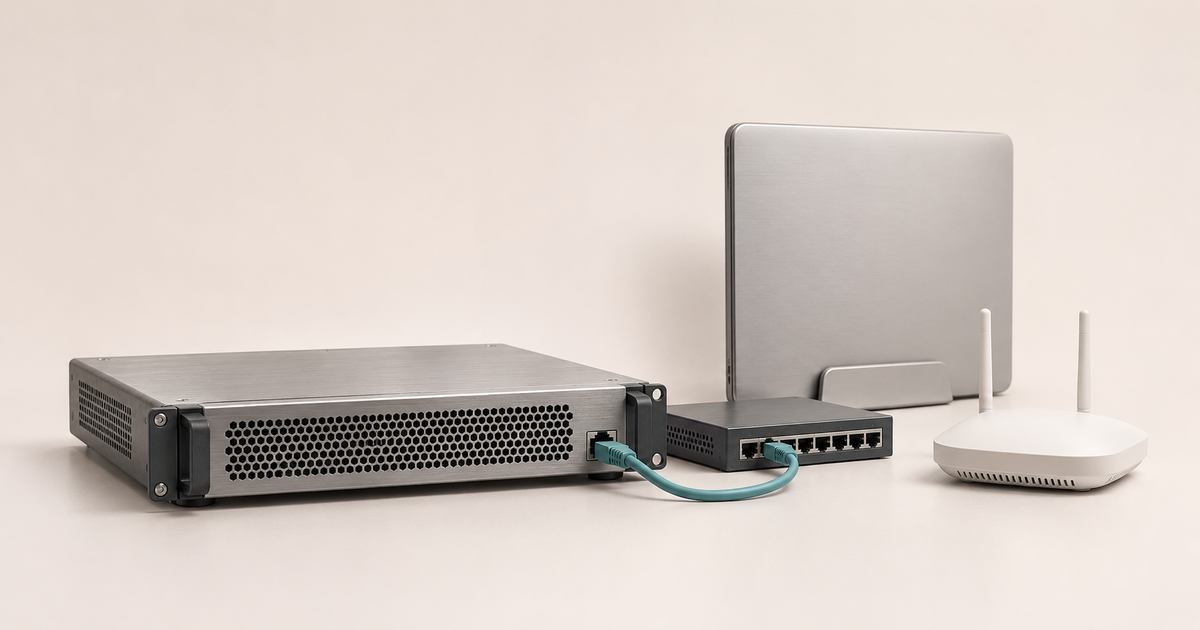
A local area network connects devices in a home, office or building so they can exchange data and share files, printers and internet access. A dedicated server is optional: it becomes useful when you need centralised data storage, access management and shared applications. A router is usually enough for a home network, while an office network should be planned around business applications, data volumes and acceptable downtime.
What is a local area network in simple terms?
A laptop prints a document, an accountant opens a database on a server, and a camera saves a recording: all these activities involve communication within a local network over a cable or Wi-Fi.
This is called a local area network, or LAN. A wireless local area network is a WLAN. A wired computer and a phone connected over Wi-Fi can access the same printer.
A local network lets you:
- store documents in one shared location instead of sending copies around;
- share printers and storage devices;
- work with databases and internal applications;
- manage employee access;
- access the internet through a shared connection.
The internet and a local network operate independently. If the ISP connection fails, folders and printers remain available as long as they do not depend on external services.
Types of computer networks
PAN, LAN, CAN, MAN and WAN
Networks differ in scope and purpose. There is no strict boundary measured in kilometres: management arrangements and the way sites are connected also matter.
| Network type | Scope | Example | Connection technologies |
|---|---|---|---|
| PAN — personal area network | Around one person | Phone, watch, headset | Bluetooth, USB |
| LAN — local area network | A room, building or site | Office with a server and printers | Twisted-pair cable, fibre, switches |
| WLAN — wireless local area network | Local connectivity over radio | Office Wi-Fi | Access points |
| CAN — campus area network | An organisation’s neighbouring buildings | University, factory | Usually fibre between buildings |
| MAN — metropolitan area network | A city or metropolitan area | Network linking sites across a city | Fibre, service provider links |
| WAN — wide area network | Remote sites | Branches in different regions | Service provider links, internet connections |
Local and wide area networks, WAN and WLAN
Local equipment is usually managed by the network owner. Connections between remote offices also depend on service providers’ links.
The internet connects many independent networks. It is not synonymous with every WAN: a network linking branches can use private connections without access to the public internet.
WAN describes a network covering a wide area; WLAN describes wireless connectivity within a local network. On a home router, the WAN port usually connects to the ISP, while LAN ports connect to devices at home.
A VPN is not a separate category of network size. In an office, it provides a secure connection over another network for employee access and communication between branches.
What makes up a local network?
End devices and intermediary devices
End devices, or nodes, include computers, servers, printers, cameras and storage devices. They need a network adapter and software with the appropriate permissions configured.
Intermediary devices deliver data between nodes:
- A switch connects wired devices and forwards frames within a local segment using MAC addresses.
- A router forwards IP packets between networks: for example, between an office and its ISP, or between employee devices and a server subnet.
- An access point connects wireless devices to the local network. It usually needs a connection to a router to provide internet access.
- A firewall allows or blocks connections according to rules.
A home router combines several roles. The Servermall catalogue includes switches and network equipment for routing tasks.
Properly configured Layer 3 switches route traffic between subnets. Conventional Layer 2 models do not. Read more in our articles on Layer 1, 2 and 3 switches and routers.
Choosing the Right Equipment
Our specialists will contact you and answer all your questions
Copper cables, fibre and Wi-Fi
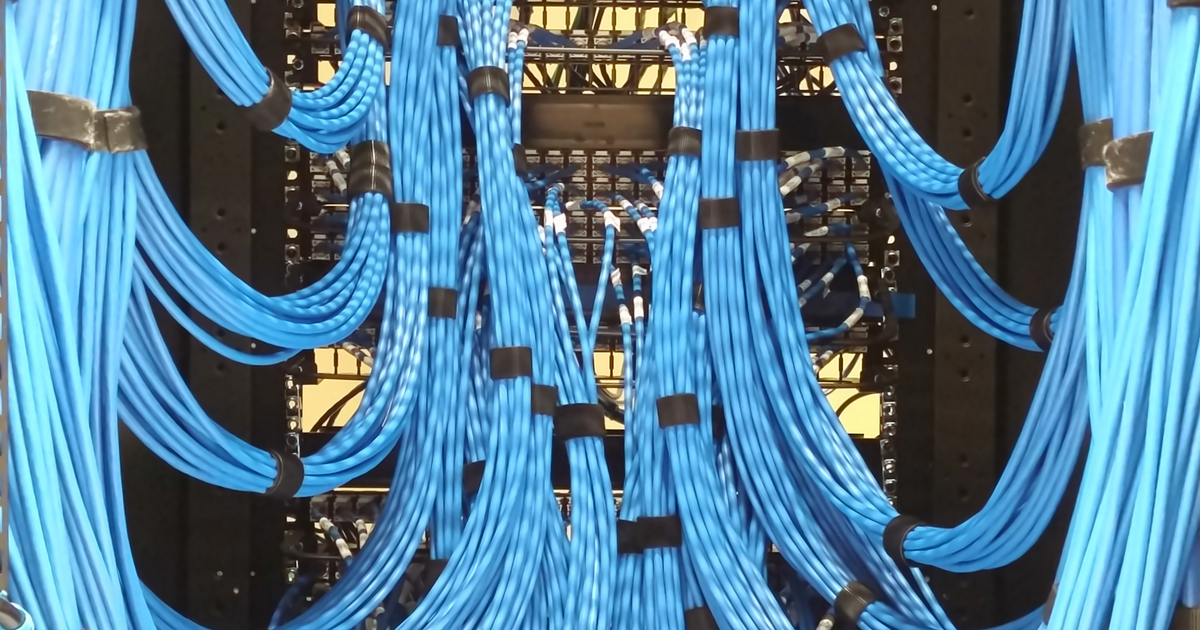
Cabling at the rear of a patch panel. Photo: Kbh3rd / Wikimedia Commons, CC BY 4.0.
Twisted-pair cable suits workstations, printers and many server connections. A common guideline for copper Ethernet is a channel length of up to 100 metres. Supported speeds depend on the standard, cable category and quality of the entire link.
Fibre is useful between floors and buildings, as well as for high-speed connections. Cables, transceivers and ports must be compatible: matching connector shapes do not guarantee that the equipment supports a particular module.
Wi-Fi provides mobility, but its performance depends on interference, walls, distance and the number of active devices. The wireless link rate is not the same as file transfer speed. Servers and fixed workstations handling sustained workloads are usually connected by cable.
Ethernet belongs to the IEEE 802.3 family of standards; wireless local area networks use IEEE 802.11.
How a local network works: addresses, DHCP and DNS
Why MAC and IP addresses are needed
A MAC address helps deliver data within a local segment. A switch learns which port leads to each address and uses this table to forward frames.
A MAC address is not a computer’s permanent identity. Different adapters have their own addresses, and modern operating systems can randomise Wi-Fi MAC addresses for privacy.
An IP address is needed for communication between nodes and routing between networks. The subnet mask helps determine whether the destination is in the same subnet or must be reached through a gateway.
A computer at 192.168.10.25 and a server at 192.168.10.10, both using the mask 255.255.255.0, are in the same subnet. Within a shared segment, the switch forwards data between them. To reach an external website, the computer uses a gateway, such as 192.168.10.1.
Private addresses and internet access
RFC 1918 reserves the following IPv4 ranges for private networks:
- 10.0.0.0–10.255.255.255;
- 172.16.0.0–172.31.255.255;
- 192.168.0.0–192.168.255.255.
Unconnected offices can use the same addresses. However, overlapping subnets interfere with routing when sites are linked through a VPN.
Private addresses are not routed over the public internet. To provide ordinary internet access for devices using these IPv4 addresses, a router generally performs NAT: it translates internal addresses to an external address and tracks connections. Access through a proxy server is another option.
A private IP address is not a substitute for security. Access is restricted through firewall rules, permissions and service settings. Port forwarding can expose an internal service to the internet; remote access to office resources is usually provided through a VPN.
DHCP and DNS
DHCP automatically supplies devices with an IP address, subnet mask, gateway and DNS server addresses. The IPv4 protocol is described in RFC 2131. In a small network, DHCP is usually handled by the router; in an organisation, it may run on a router or server.
An address is assigned for a limited lease period, which is then renewed. Servers, printers and network equipment need predictable addresses. These can be set manually outside the automatic allocation range or reserved for the device on the DHCP server.
A second DHCP server with conflicting settings can supply the wrong gateway or DNS server.
DNS maps names to IP addresses, allowing employees to access a server by name rather than typing numbers. Its foundations are described in RFC 1034 and RFC 1035. DNS does not grant folder permissions or provide security on its own.
In a domain network, DNS is also needed to locate domain services. Replacing internal DNS with a public DNS address can disrupt user sign-in and access to resources.
How a file is opened on a server
- The computer resolves the server’s name to an IP address if it does not already have a cached answer.
- It determines whether to send data directly within the segment or through a gateway.
- It connects to the file service.
- The server checks the user account and permissions, then sends the data that the user is allowed to access.
Even when Wi-Fi works correctly, DNS, service or permission errors can prevent access.
A server in a local network
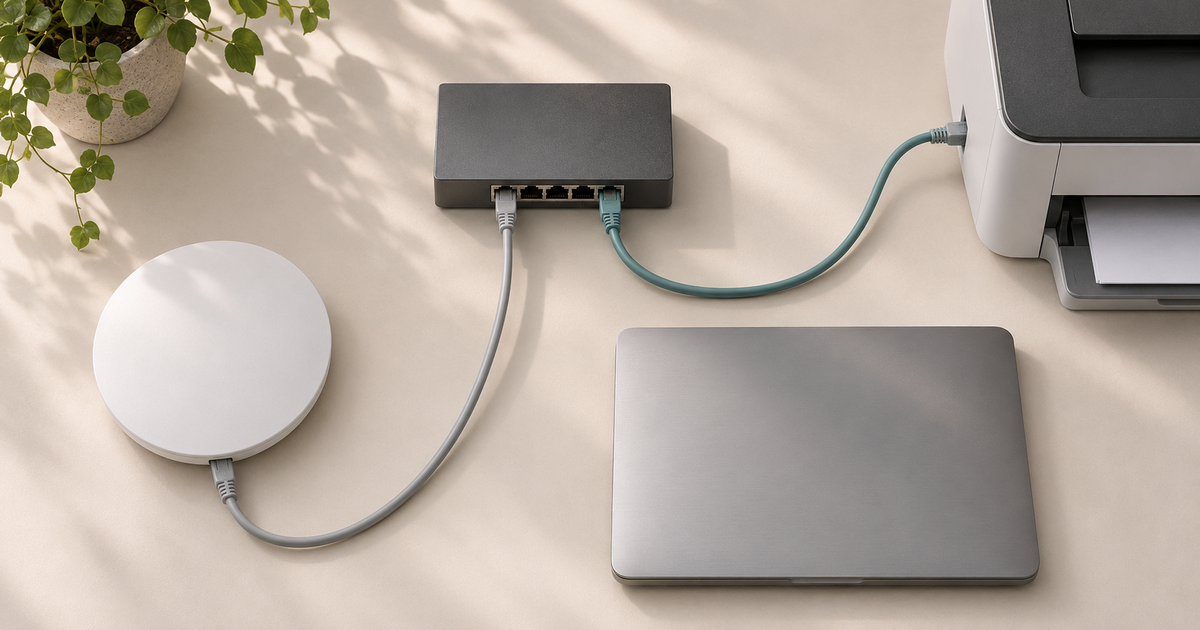
What tasks does a server handle?
A server is a computer or software service that responds to requests from other devices. In an office, the term often refers to a dedicated machine. One machine can run several server roles, including in separate virtual machines:
- User accounts. A domain controller helps centrally manage users, computers and policies.
- Shared files. A file server stores documents and controls access.
- Applications. A server runs databases and internal web services.
- Printing. A print server manages queues and printer connections.
- Backup. A server collects copies of data for recovery.
- Network services. DHCP supplies network settings, while DNS handles names.
Resources no longer depend on an employee’s computer. However, a single machine remains a point of failure: data backups are essential, and strict availability requirements also call for redundant hardware and services.
Platform options are available in the office servers section. We explain how to select memory, processors and drives in “How to Choose a Server for a Small Business or Office”.
Peer-to-peer networking or a network with a server
In a peer-to-peer network, computers share each other’s resources without a dedicated centre: one hosts a shared folder, while another has a printer connected. This is convenient for a few people, but there are limitations:
- a computer’s shared folder becomes unavailable when it is switched off;
- user accounts and permissions must be coordinated across different machines;
- data is scattered, making backups harder to organise;
- the computer owner’s work competes for resources with requests from colleagues.
Desktop Windows also has limitations. Microsoft’s terms for Windows desktop operating systems allow up to 20 other devices to connect for specified services, including file sharing and printing. Technical connection limits depend on the version and service; the licence does not guarantee adequate performance for 20 employees.
A server simplifies data and permission management, but requires configuration and maintenance.
When a NAS is enough and when you need a server
A NAS is a network-attached storage device with its own operating system. It also performs server functions, primarily storing and serving files. Here, “server” means a general-purpose platform for applications and other roles.
| Office size | When to consider a NAS | When a server is needed |
|---|---|---|
| Up to 5 workstations | Documents, archives, backups | A server-hosted database |
| 5–20 workstations | Shared files with permissions and backups | A domain, applications, virtual machines |
| 20–50 workstations | Dedicated file storage | Centralised management of users and applications |
| More than 50 workstations | Part of the storage and backup infrastructure | Application hosting, access management, service redundancy |
Headcount is only a guideline. Five engineers can put more load on a network than dozens of users working with documents. A NAS can suit a large team, while application requirements may make a server necessary for just two employees.
Assess application compatibility, capacity, speed and recovery time. RAID helps a system survive certain drive failures, but does not replace a backup.
Read more in our articles on choosing a file server and the differences between servers and storage arrays, including NAS, SAN and DAS.
Choosing the Right Equipment
Our specialists will contact you and answer all your questions
Models for an office network
HPE ProLiant ML30 is a tower platform for a small site. Check the capabilities of the relevant generation against the ML30 Gen10 Plus specification hosted on the Servermall website.
HPE ProLiant DL380 is a rack-mount option with expansion headroom for virtual machines and other workloads. Compare the Gen9–Gen12 platforms in the HPE ProLiant DL380 range. Account for noise, cooling and power requirements.
How to connect a server to a local network
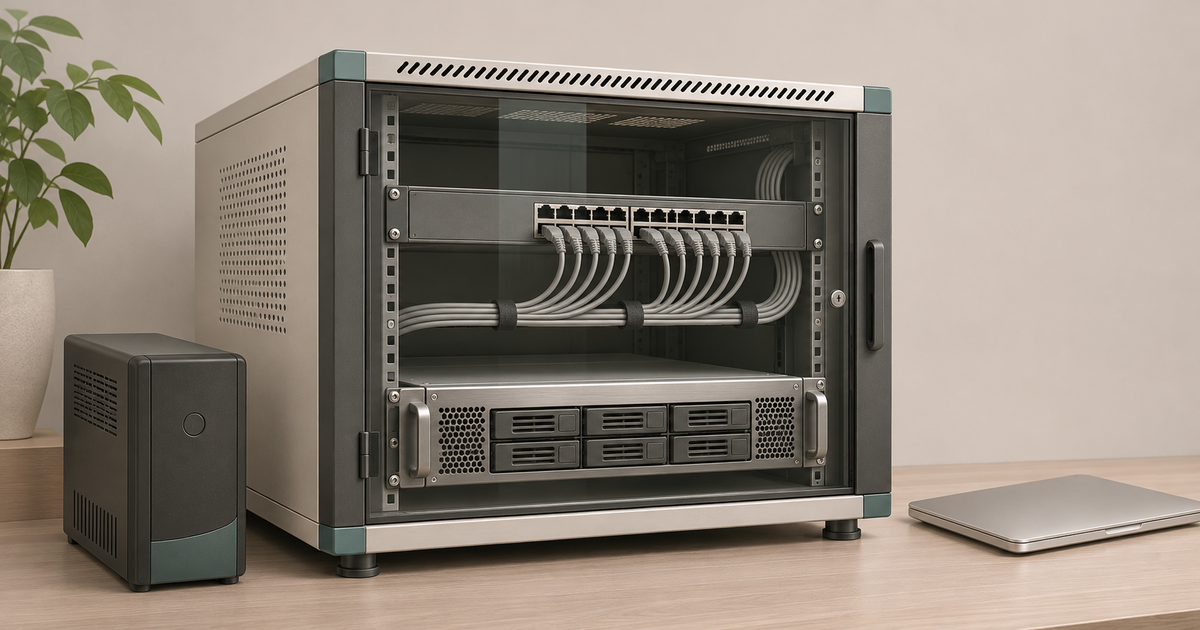
A server is usually connected to a switch by cable. A 1 Gbit/s link may be enough for light document sharing; for large files, backups and multiple virtual machines, consider 10 Gbit/s or faster.
When connecting the server, consider:
- Address and name. Choose a static IP address or DHCP reservation according to the role’s requirements. A domain controller generally uses a static configuration and internal DNS.
- The speed of the entire link. The adapter, port and cable must support the required speed, and the drives must be able to deliver data quickly enough.
- Two network ports. These can provide redundancy or link aggregation. LACP requires matching configurations on the server and switch.
- Power and location. A UPS should allow enough time for a clean shutdown. To keep connections available, provide backup power for the necessary network equipment too.
- Access. Allow administrators to use management interfaces, and restrict production services to the users and subnets that need them.
Aggregating two 1 Gbit/s ports can increase the total throughput of multiple connections, but usually does not make a single stream run at 2 Gbit/s. Two connections to the same switch do not protect against failure of the switch itself.
We explain how to assess the workload in “How to size a server network: when 10GbE is enough, and when 25/40/100GbE is needed”.
What are localhost and a local web server?
localhost and 127.0.0.1
“Local” can also describe a server running on the user’s own computer. This is a different meaning of the word: no separate office network is required.
localhost is a special name for the computer itself, not a server. It normally resolves to the IPv4 address 127.0.0.1 within the 127.0.0.0/8 loopback range, or to ::1 in IPv6. The name’s purpose is defined in RFC 6761; the IPv4 range appears in the registry described by RFC 6890.
These requests are handled within the operating system and do not leave the computer. On two neighbouring computers, localhost refers to different machines: each addresses itself.
To open a website, web server software must be running on the relevant port. In http://localhost:8080, the number 8080 identifies the application’s port. The name localhost does not start any software by itself.
A local development server
A developer installs a web server and database on their computer to test a website before publishing it. They can use individual programs or ready-made packages such as XAMPP and Open Server Panel.
Access depends on the application and firewall settings. If the program listens only on 127.0.0.1, it cannot be accessed from outside the computer. To allow access, configure it to accept connections on the machine’s network address, such as 192.168.10.25, on the required port.
How to create a local network at home or in an office
Start with a layout plan: a powerful router cannot compensate for missing cables or a poorly positioned access point.
- Count your devices. Include computers, phones, printers, cameras, the server, access points and room for growth.
- Draw a network diagram. Mark the ISP connection, switch, workstations, cable routes and Wi-Fi coverage areas.
- Choose equipment. A multifunction router is usually enough at home; separate managed devices are more convenient in an office.
- Create an addressing plan. Define a private subnet, DHCP range and permanent addresses. Subnets at future branches must not overlap.
- Connect and configure. Connect devices and configure DHCP, DNS and Wi-Fi. Use WPA2-AES or WPA3 where the equipment supports it, and change default management passwords.
- Separate guest access. Guests usually need internet access only. In an office, use VLANs—virtual local area networks—and rules governing communication between them to separate networks.
- Test everyday tasks. Open a shared folder with a standard user account, print a document and launch an application. Successfully opening one website does not prove that the whole network is ready.
Save the connection diagram, addressing plan and equipment settings.
Frequently asked questions
Does a local network need a server?
No. Computers can exchange data through a switch or router without a dedicated server. A server is useful for shared applications, centralised user accounts and other tasks that are inconvenient to run on workstations.
Can a local network work without the internet?
Yes. Connections and correct settings are enough. Local folders and printers work without an ISP connection, but cloud applications and services that require external authentication may become unavailable.
How does a local network differ from the internet?
A local network connects devices within a limited site. The internet links many networks around the world. A local network does not need an internet connection to exist.
What is localhost in simple terms?
It is a name a computer uses to address itself. To connect to another machine, use that machine’s address or name.
Why can’t a computer see another computer on the network?
Possible causes include different subnets, guest isolation, DNS errors, sharing settings or permissions. Try accessing the required service directly. If a folder opens by IP address but not by name, check name resolution; if the server denies access, check the account and permissions.
Where to start when choosing equipment
For an office, first decide where applications will run, who can access the data and how long recovery after a failure can take. Use those requirements to choose a server or NAS, network speed and backup arrangements. This planning helps avoid unnecessary purchases while leaving room for expansion.
Choosing the Right Equipment
Our specialists will contact you and answer all your questions