A router is a device that connects different networks and forwards data packets between them using IP addresses. At home, it links your home network to your internet service provider’s network; in a business, it connects offices, servers and external services. A router with built-in Wi-Fi is usually suitable for a flat. For business use, the choice depends on performance with VPN and filtering enabled, the ports required and redundancy options.
What is a router in simple terms?
A home network connects your laptop, phone, TV and printer. Your ISP’s network and the network hosting the website you want to visit are separate networks. Routers forward packets between them, helping data reach its destination.
Think of a post office. A member of staff looks at the address on a parcel and decides where to send it next. They do not need to know every street on the planet: choosing the next sorting centre is enough. A router works in much the same way, except that it handles packets with electronic addresses.
Routers are useful beyond internet access. They can connect an office to a warehouse, an employee network to a server subnet, or two branches. An external network is just one possible destination.
The Servermall network equipment catalogue offers solutions for different needs. The choice depends on the workload and the services running on the device.
The router
A single enclosure typically combines:
- a router, which forwards data between networks;
- a switch, which connects several devices by cable;
- an access point, which connects wireless devices to the local network.
How a router works
Data travels across a network in units called packets. An IP packet has a header containing the sender’s and recipient’s addresses. The router reads the destination address and determines which interface and neighbouring device to use to forward the packet.
A router does not plan the entire journey to a website in advance: each subsequent router makes its own decision. The reply may take a different path back.
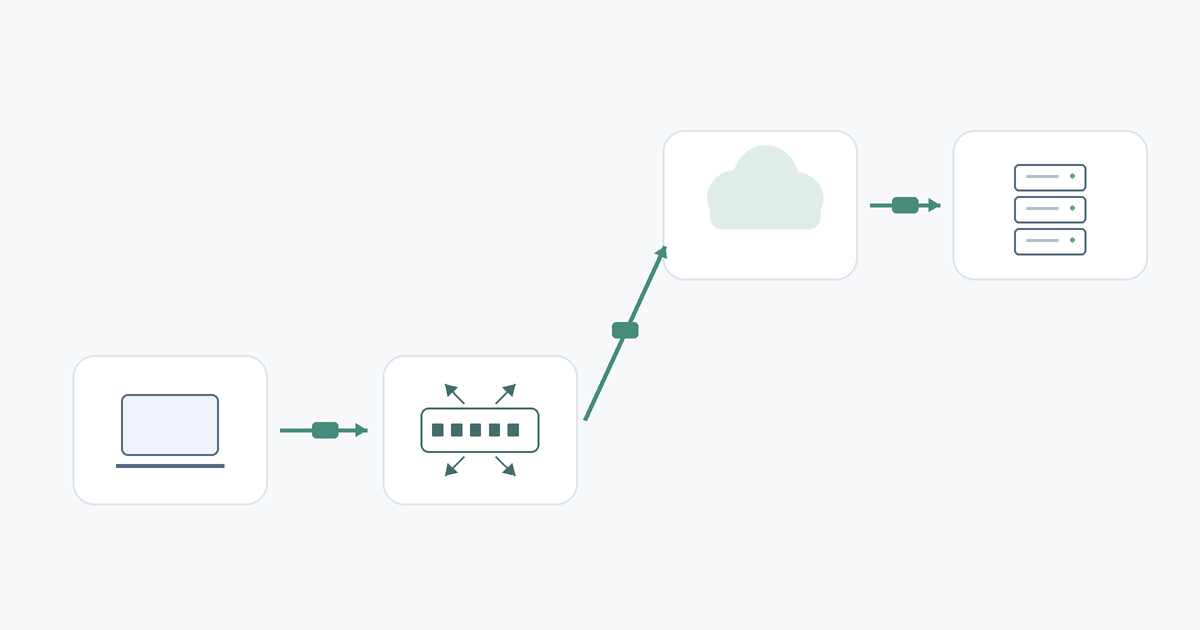
A packet’s journey from a laptop to a website
Suppose you open a website on a laptop connected to your home Wi-Fi. In simplified terms, the following happens:
- The laptop finds the website’s IP address. It normally uses DNS, the system that maps website names to addresses, unless the answer is already cached.
- It sends the packet to the default gateway. The destination is outside the home subnet, so the data goes to the router.
- The router selects a path towards the ISP. When private IPv4 addresses are used, it usually also performs NAT, or network address translation.
- The packet passes through other networks. Intermediate routers forward it to the destination network and the website’s server.
- The reply returns to the laptop. When NAT is in use, the home router identifies the correct recipient using its stored mappings.
The routing table and default gateway
The routing table contains information about reachable networks and how to forward packets to them: the outgoing interface and, where necessary, the address of the next router.
When several routes match in conventional IP routing, the most specific route is selected. A dedicated route to a branch takes precedence over a general “send everything else to the ISP” route. This selection process is described in RFC 1812.
The default gateway is the neighbouring device to which a computer sends packets when no more specific route is available. For a laptop, it is often the home router; for the router, the next gateway may be the ISP’s equipment.
Static and dynamic routing
With static routing, an administrator configures routes manually, such as a route to a branch subnet. This is convenient in a small, stable network. Automatic failover requires additional mechanisms to monitor reachability.
Dynamic routing allows devices to exchange information and update routes:
- RIP compares paths by the number of router hops. Its maximum is 15 hops, making it unsuitable for large networks. RIPv2 is described in RFC 2453.
- OSPF uses Dijkstra’s algorithm to select the path with the lowest total link cost. Cost is configured and is often related to bandwidth rather than directly to latency. It is described in RFC 2328.
- BGP exchanges routes between autonomous systems, such as ISP and organisation networks. Selection depends on routing policies and attributes, rather than path length alone. The base specification is RFC 4271.
Choosing the Right Equipment
Our specialists will contact you and answer all your questions
What functions does a router perform?
Forwarding packets between networks is a router’s main task. Its other capabilities depend on the model, software and licences.
NAT and DHCP
NAT stands for network address translation. In a typical home setup, several devices with private IPv4 addresses share one external address. The router changes the source address and port numbers, retaining mappings for replies. This arrangement is described in RFC 3022.
NAT hides internal addresses, but it does not replace a firewall. Changing an address and allowing a connection are different tasks, even when both functions are handled by the same device.
DHCP assigns network settings automatically. A computer receives a time-limited IP address lease, a subnet mask, a gateway address and DNS server addresses. DHCP for IPv4 is described in RFC 2131.
At home, the DHCP server often runs on the router. In an organisation, it may run on a separate server, with the router relaying requests between subnets.
Firewall and port forwarding
A firewall permits or blocks traffic according to defined rules, taking account of addresses, ports, protocols and connection state. For example, it can give a guest network internet access while preventing it from reaching a work server.
Port forwarding directs an incoming connection from an external address and a specific port to the appropriate device behind NAT. Forwarding alone does not protect the exposed service: access still needs to be restricted.
If the ISP uses shared NAT for several subscribers, port forwarding on the home router alone is usually insufficient. Inbound access may require a public IP address or another arrangement, such as a VPN established through an outbound connection.
VPN and IPv6
A VPN creates a logical connection over another network; in typical secure implementations, the data is encrypted. Businesses use it to connect offices over the internet or give employees remote access.
Check the device’s role, whether a client, server or site-to-site endpoint, along with the supported protocol, compatibility with the other endpoint and performance with the chosen encryption. A “VPN” entry in a specification is not enough.
IPv6 is the next version of IP, with a much larger address space. It removes the usual need for multiple devices to share one IPv4 address. Firewall rules remain necessary. IPv4 and IPv6 often run alongside each other.
Wi-Fi and guest networks
The built-in access point connects wireless devices to the local network. The router then determines whether their packets need to be forwarded to another network. Replacing Wi-Fi with a cable does not change the routing principle.
A guest network gives visitors a separate connection. It can be isolated from work computers and servers while retaining internet access. Isolation comes from network segmentation and access rules, rather than simply using a different Wi-Fi name.
QoS and bandwidth allocation
QoS manages traffic queues and priorities. When a link is congested, it can help keep voice calls or video meetings usable while large files are transferred at the same time.
QoS does not increase the speed of your internet plan: the equipment allocates the bandwidth already available. The result depends on the configuration and on where congestion occurs.
What a router looks like and what is inside

TP-Link Deco XE75 is a home networking device with internal antennas that can operate in router mode.
Source: TP-Link.
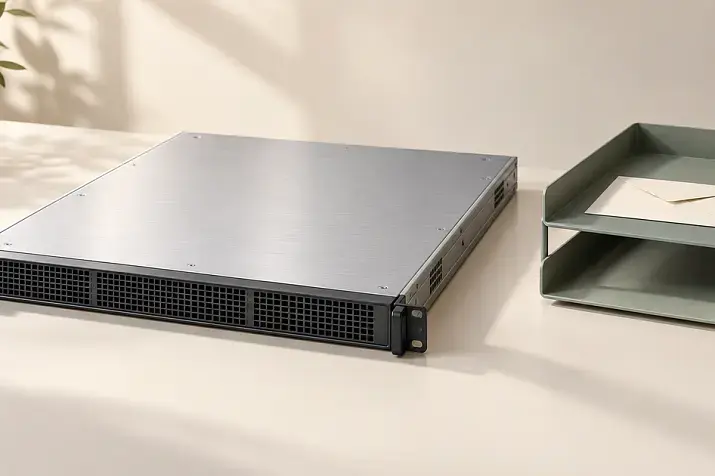
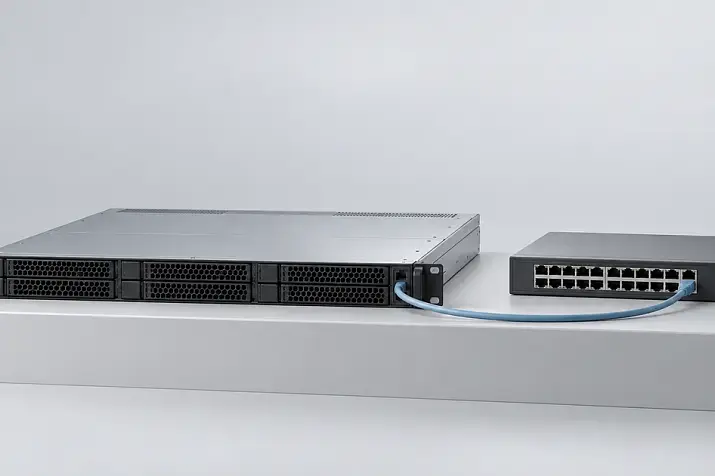
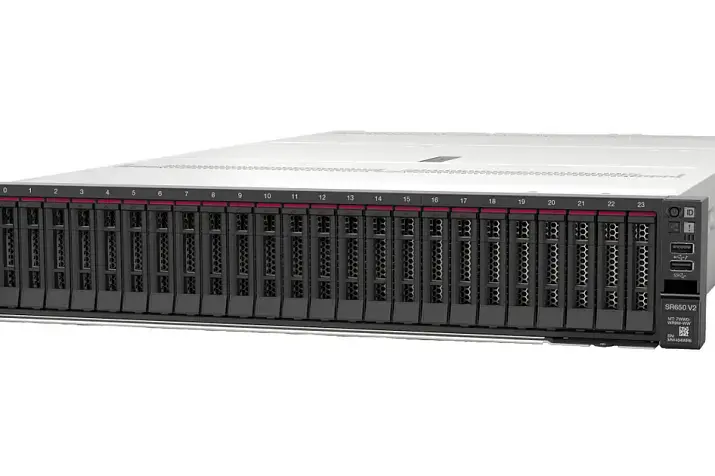
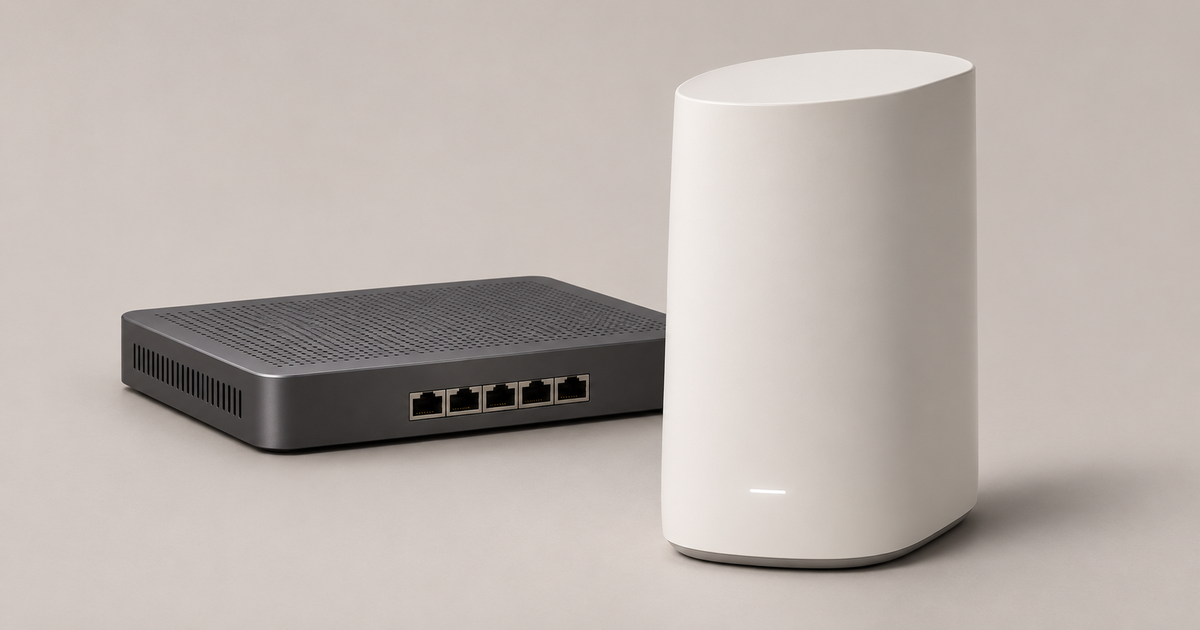
A home router is usually a small desktop enclosure with external or internal antennas. An enterprise router often looks like a flat metal rack-mount unit, although compact office models are also available.
Inside are a processor, RAM and memory containing the firmware. Specialised chips may handle some packet processing. Wireless models also have radio modules. Firmware determines the features and management methods, and updates fix bugs.
WAN and LAN ports
On a home router, WAN usually identifies the port connected to the ISP. LAN ports connect local devices such as a computer, TV, storage device or switch. The connectors are often physically identical RJ-45 sockets, with different roles.
Home router ports are usually labelled and colour-coded. On enterprise devices, their roles are often assigned in software: one interface connects to the ISP, another to the local network and a third to a backup link.
SFP slots and the console port
The SFP and SFP+ slots on enterprise routers accept replaceable modules for compatible fibre connections or other supported transmission media. An arbitrary module will not necessarily work.
Speed, wavelength, reach, fibre type and manufacturer restrictions all matter. For more detail, see the Servermall article “SFP/SFP+/QSFP: modules, cables, and compatibility in server networks”.
The console port provides local administrative access. Even if it looks like an RJ-45 socket, it is not a conventional Ethernet port: its purpose and electrical interface may differ. USB console ports are also available.
USB may also be used for storage, maintenance or a compatible cellular modem. Check the documentation for its specific purpose: a USB socket does not guarantee support for every peripheral.
Indicators and buttons
Common labels include:
- Power — power status;
- SYS — system status;
- WAN and LAN — the status of the corresponding connections, sometimes including traffic activity;
- Wi-Fi — wireless interface status.
Consult the model’s manual to interpret steady lights, flashing patterns and colours.
The Reset button usually resets settings; its action depends on how long it is held. WPS simplifies the connection of compatible wireless devices. A single button may have several functions, which should be checked in the instructions.
How a router differs from a switch and a modem
An ISP may install a single unit combining an optical network terminal, router, switch and access point. They share an enclosure, but perform different functions.
| Device | Main task | Example of use |
|---|---|---|
| Router | Forwards IP packets between different networks | Connects a home network to an ISP’s network |
| Layer 2 switch | Forwards Ethernet frames within a local segment using MAC addresses | Connects work computers and a printer on the same network |
| Modem or optical network terminal | Provides a connection using the service provider’s access technology | A DSL modem works over a telephone line; an ONT connects to a passive optical network |
| Access point | Connects wireless devices to the local network | Provides office Wi-Fi where a separate device handles routing |
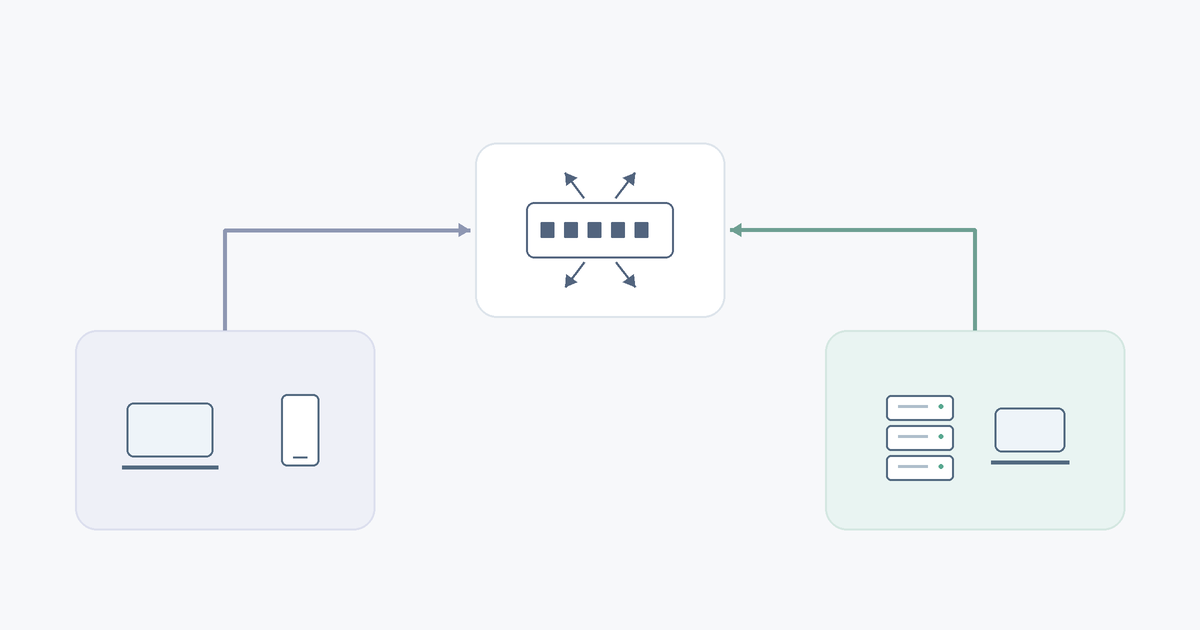
A router handles routing, although home models usually include a built-in switch. If you need more wired connections within one segment, a separate switch is often sufficient.
A Layer 3 switch can also route traffic and typically handles communication between subnets within the local network. This is a common role, rather than a restriction on other uses. Read more in “Layer 1, 2, and 3 Switches: What They Are and How They Differ”.
Types of routers
Connection type and intended use are separate characteristics: an office router can use wired connections and also have cellular backup. Alongside switches and other infrastructure components, these devices fall within the Servermall network equipment category.
Wired and wireless
A wired router connects networks through cable interfaces. Separate access points provide Wi-Fi: the router stays in the server room, while the access points are placed closer to users.
A wireless model combines routing with an access point. It is convenient at home and in a small office. The connection to the ISP can still be wired.
Choosing the Right Equipment
Our specialists will contact you and answer all your questions
Mobile 4G and 5G routers
A portable router connects to the cellular network through a built-in modem and SIM card, then provides internet access over Wi-Fi and, in some cases, a cable. A battery allows it to operate without a permanent mains connection.
Speed depends on coverage, base station load, frequency bands and the mobile plan: the 5G label does not promise a particular result. On fixed business models, cellular connectivity can serve as a backup to a wired link.
Home and office routers
For home models, Wi-Fi, connecting household devices and simple management matter most. Offices more often need several external links, network segmentation and VPN connectivity. Requirements depend on the workload and the cost of downtime: ten active users can put more strain on a network than a larger team working mainly with email.
Edge and core routers
An edge router operates at the boundary between networks, such as a company and its service providers. External connections, routing, access rules and connectivity to branches are important here.
A core router forwards large volumes of traffic in the core of a large network. Its priorities are throughput, scalability and resilience. It may have no need for Wi-Fi or for assigning addresses to work computers.
An industrial router is used in control cabinets, transport systems and remote sites. Temperature range, power requirements and resistance to environmental conditions must be confirmed in the specific model’s specification.
Virtual routers and SD-WAN
A virtual router runs in software, for example in a virtual machine on a server, and uses virtual interfaces. SD-WAN is an approach to centrally managing a distributed network: multiple links are used according to policies and their current condition. Its functions can run on supported hardware or virtual devices; it is not a separate physical connection technology.
Enterprise routers and business needs
An enterprise router connects branches, operates at the company’s network edge or helps connect a data centre. It is expected to deliver predictable performance under load and allow controlled changes.
Performance with features enabled
Basic forwarding, NAT, filtering and VPN encryption impose different loads. Adding up port speeds does not describe the device’s performance when these functions run simultaneously.
For example, Cisco Catalyst 8200 documentation lists separate figures for IPv4 packet forwarding, IPsec and scenarios with security features enabled. Compare like-for-like conditions: packet size, enabled services, software version and operating mode.
Connectivity and resilience
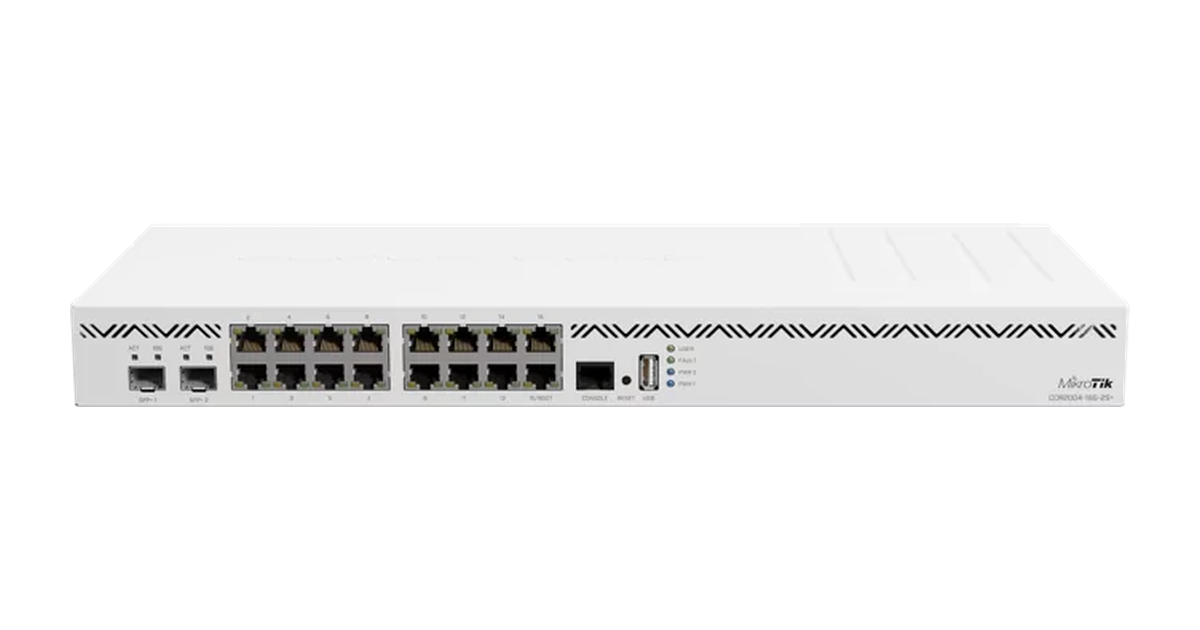
MikroTik CCR2004-16G-2S+ is a rack-mount router with Ethernet interfaces and SFP+ slots.
Source: MikroTik.
Depending on the model, an enterprise platform may support:
- several external links, including a backup provider;
- a substantial number of VPN tunnels for branches and remote employees;
- optical interfaces and replaceable modules, where the hardware design allows;
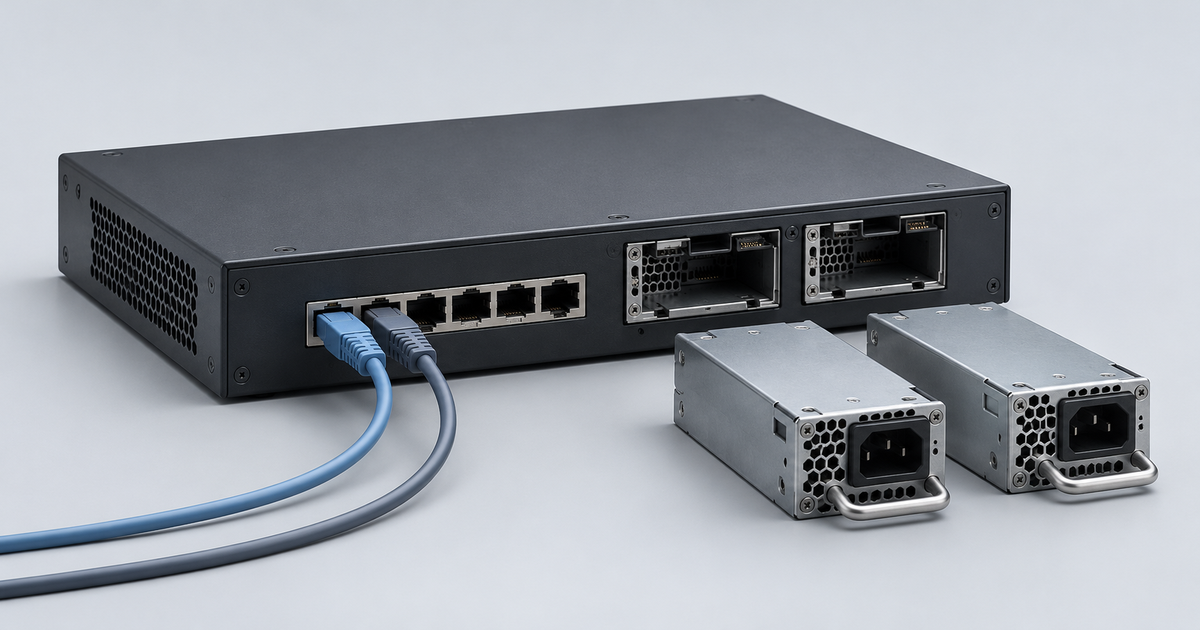
- redundant power or operation as a pair of devices;
- network segmentation and access controls between groups of users;
- centralised event collection and network monitoring.
Redundant power and a second ISP protect against different failures. Switching links does not necessarily preserve existing connections: this depends on addressing, NAT, VPN and the redundancy design.
Management and licences
A command-line interface gives administrators detailed control over a device. Automation, centralised management and event logs help maintain consistent configurations across sites and investigate changes.
Some functions, available performance levels and centralised management capabilities may depend on licences and subscriptions. Check these alongside the hardware configuration, rather than after purchase.
Cisco Catalyst C8200L-1N-4T is an example of a branch platform. You can discuss its configuration, operating mode and licensing for a specific network with Servermall.
Which specifications matter when choosing a router?
For home use
- Ports. Their speeds should match your internet plan and wired devices. A 100 Mbit/s port will limit the connection even if Wi-Fi supports a higher speed.
- Wi-Fi standard. Client devices must also support its capabilities. A generation number alone does not guarantee good reception through walls.
- Frequency bands. The 2.4 GHz band is generally useful for longer-range connections and basic devices, while 5 GHz can provide higher speeds in suitable conditions. For 6 GHz, device support and local restrictions matter.
- Coverage. Consider the layout, walls and installation position. Several floors may require multiple access points.
- Support. Update availability and ease of management matter.
In Wi-Fi Alliance terminology, Wi-Fi 6 uses the 2.4 and 5 GHz bands, while Wi-Fi 6E extends it into 6 GHz. With Wi-Fi 7, available bands and features depend on the implementation and regional restrictions.
A class such as AX3000 is based on theoretical radio link rates, often added together across bands. It is not the download speed of a single laptop: usable throughput is lower and depends on interference, the client, distance and the other parts of the connection.
For business use
- Performance with the required services. For VPN use, check throughput with the required encryption rather than just basic forwarding performance.
- Scale. Tunnel, connection and route capacities should cover your needs with room to spare. The maximum figures in different specification sections may not all be achievable at the same time.
- Ports. Consider the number of ISPs, speeds, connection types and compatible optical modules.
- Resilience. Choose link, power and device redundancy according to the acceptable interruption to connectivity.
- Support and costs. Include updates, maintenance, licences, subscriptions, modules and deployment.
To help Servermall select equipment, describe link speeds, the number of sites, VPN requirements and acceptable downtime. This is more useful than asking for a “powerful router for a server”: a router may handle only part of the server traffic.
For example, copying data between devices on the same subnet usually goes through a switch. Transferring data to remote storage over a VPN, however, depends on the router and the external link. Start by understanding the path your data takes.
Frequently asked questions
Do I need a router if I only have one computer?
Not always: a computer can connect directly to the ISP’s equipment if the connection setup allows it. However, a router is convenient even for one PC: it handles the external connection, applies access rules and lets you add other devices. With a direct connection, security and connection settings must be configured on the computer itself.
Where is the router, and is there one inside a laptop?
At home, it is usually a separate enclosure near the ISP cable or part of an optical network terminal. In an office, it is typically a device in a network cabinet. A laptop has a Wi-Fi adapter, rather than a built-in home router. However, suitable software and settings can allow a laptop to perform software routing.
What does the SYS indicator on a router mean?
It is the device’s system status indicator. The manufacturer defines what its colours and flashing patterns mean. Check the manual for your model: there is no universal SYS behaviour for all routers.
What is router mode?
The device connects different IP networks and acts as a gateway. At home, NAT, DHCP and a firewall usually run as well. In access point mode, the device connects clients to an existing network, while another router remains the gateway. This is different from simply turning Wi-Fi on or off.
Can a router work without internet access?
Yes. A local server and printer remain accessible without an external connection. Within a single subnet, a switch and access point usually handle communication; between subnets, routing is required. External services remain unavailable.
Choosing the Right Equipment
Our specialists will contact you and answer all your questions