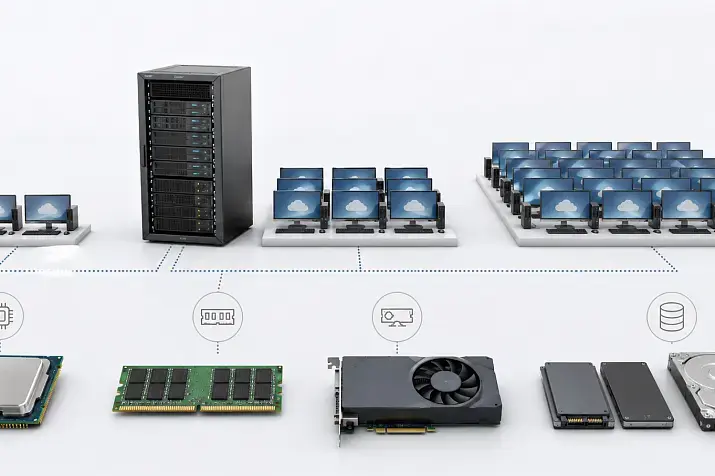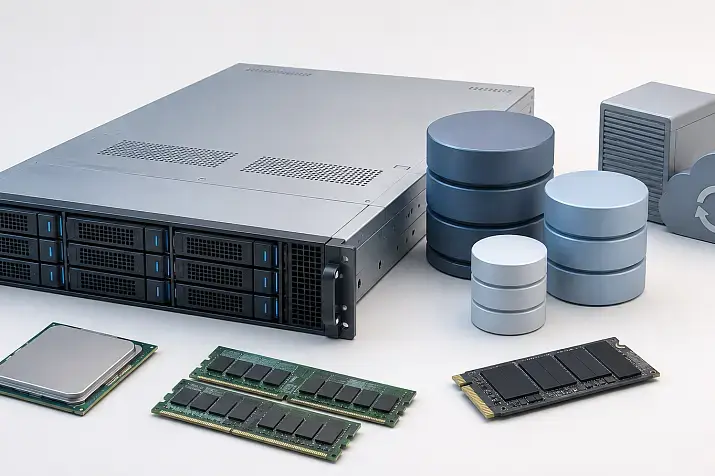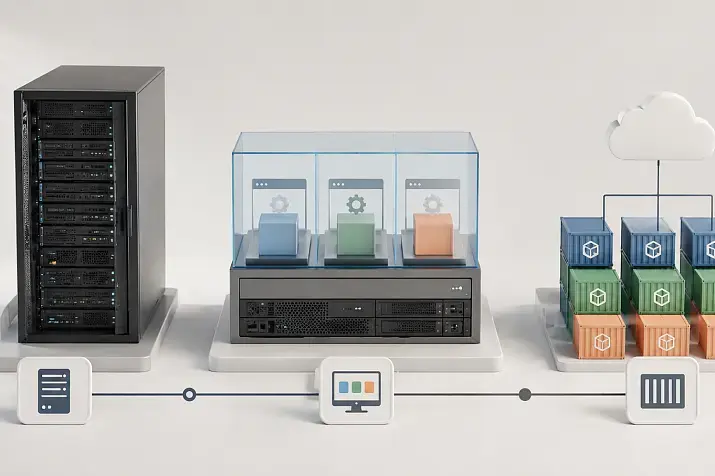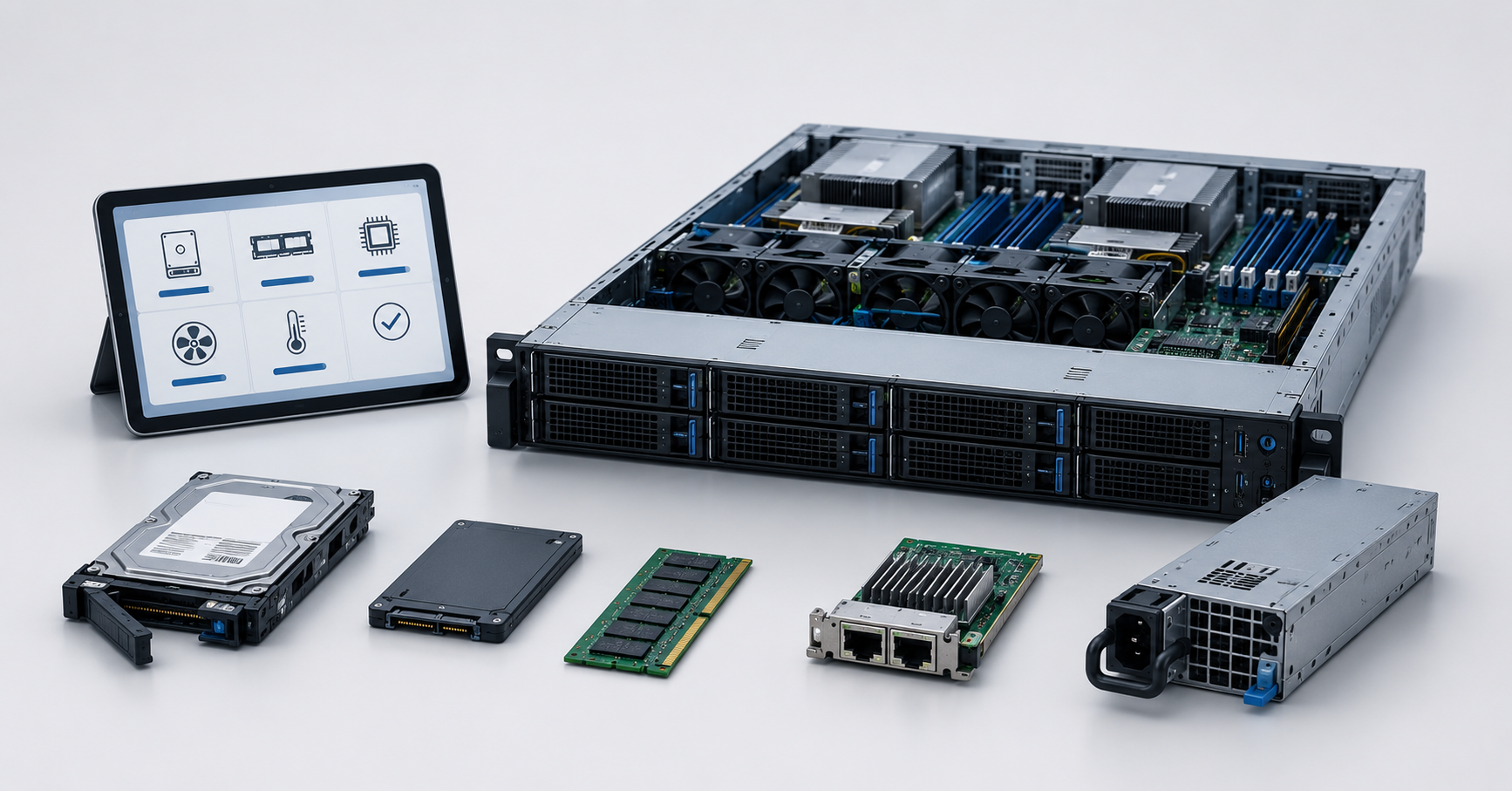
Before buying a refurbished server, you should check not only the model, price and appearance, but also the real condition of its components: SMART data for each drive, iDRAC or iLO logs, RAID array status, memory and processor diagnostics results, firmware versions, power supplies, fans, network ports, configuration and warranty. If the seller cannot provide basic reports or refuses to allow checks, the purchase becomes risky: the server may power on and look functional, but still have worn drives, memory errors, controller issues, outdated firmware or a hidden history of hardware failures.
A refurbished server can be a reasonable purchase for virtualization, a backup node, a test environment, file storage, office infrastructure or a project with a limited budget. But this type of purchase requires more careful acceptance testing than a new server. With a new system, the condition of components is usually confirmed by factory delivery and an official warranty. With refurbished equipment, something else matters more: how transparently the seller shows diagnostics, what exactly was replaced, which tests were passed and which warranty terms are fixed in the documents.
The same server model can be in completely different condition. Two visually identical Dell PowerEdge or HPE ProLiant servers may differ in drive operating hours, memory condition, firmware versions, fan wear, drive tray configuration, remote management license and error history. That is why choosing a refurbished server only by processor generation and memory capacity is not enough.
What a refurbished server means
A refurbished server is server equipment prepared for resale. It may have previously operated in a data center, corporate infrastructure, laboratory, cloud environment or integrator’s environment. After being removed from service, the server is checked, cleaned, completed with missing parts, and, if necessary, faulty components are replaced and diagnostics are performed.
It is important not to confuse a refurbished server with ordinary used equipment. A used server may be sold “as is”: it powers on, boots, the specifications match — and the check ends there. A properly refurbished server should go through a clearer procedure: hardware diagnostics, checking drives, memory, processors, RAID controller, power supplies, fans, network cards and firmware.
It is also worth distinguishing a server after repair. If the equipment was repaired after a specific failure, you need to understand exactly what was replaced: system board, controller, memory, power supply, drive backplane or fans. The fact of repair is not always bad, but it must be transparent. It is worse when the seller cannot explain the server’s history and limits the answer to “everything works.”
For the buyer, the main criterion is verifiability. If there is a serial number, a component list, test results, drive status, hardware event log and a clear warranty, the server can be evaluated properly. If these data are missing, a low price may not be a benefit, but compensation for unknown risks.
Most popular refurbished servers

Free shipping on orders over 500 € in the EU, £500 in the UK, and $3,000 in the USA

Free shipping on orders over 500 € in the EU, £500 in the UK, and $3,000 in the USA

Free shipping on orders over 500 € in the EU, £500 in the UK, and $3,000 in the USA

Free shipping on orders over 500 € in the EU, £500 in the UK, and $3,000 in the USA
What to request from the seller before inspection
Before inspection or payment, it is worth requesting not only a commercial offer, but also technical information. This saves time and helps filter out questionable options early.
At a minimum, you need the exact server model, serial number or service code, processor configuration, memory capacity and type, a list of drives with capacity and interface, the model of the RAID controller or storage adapter, installed network cards, and the number and power rating of power supplies. It is also important to clarify whether drive trays, blanks, rack rails, power cables, front bezels, expansion cards and remote management licenses are included, if they are listed in the offer.
For the server itself, it is advisable to request the BIOS version, remote management controller version, RAID controller firmware, network card firmware and drive firmware. If the seller has already performed diagnostics, they should provide the results: built-in diagnostics report, SMART data for drives, RAID status, hardware event logs and the list of current warnings.
A serial number is not just a formality. It can be used to check the model, some support information, warranty status and sometimes the original configuration. For example, Dell allows checking service status by Service Tag, Express Service Code or product identifier.
Warranty terms must be fixed separately before purchase. It is not enough to hear “there is a warranty.” You need to understand the term, what exactly is covered, whether the warranty covers drives, power supplies, fans, RAID controller and memory, who pays for shipping during replacement, whether return is possible during the first days after acceptance, and how a warranty case is handled.
External server inspection
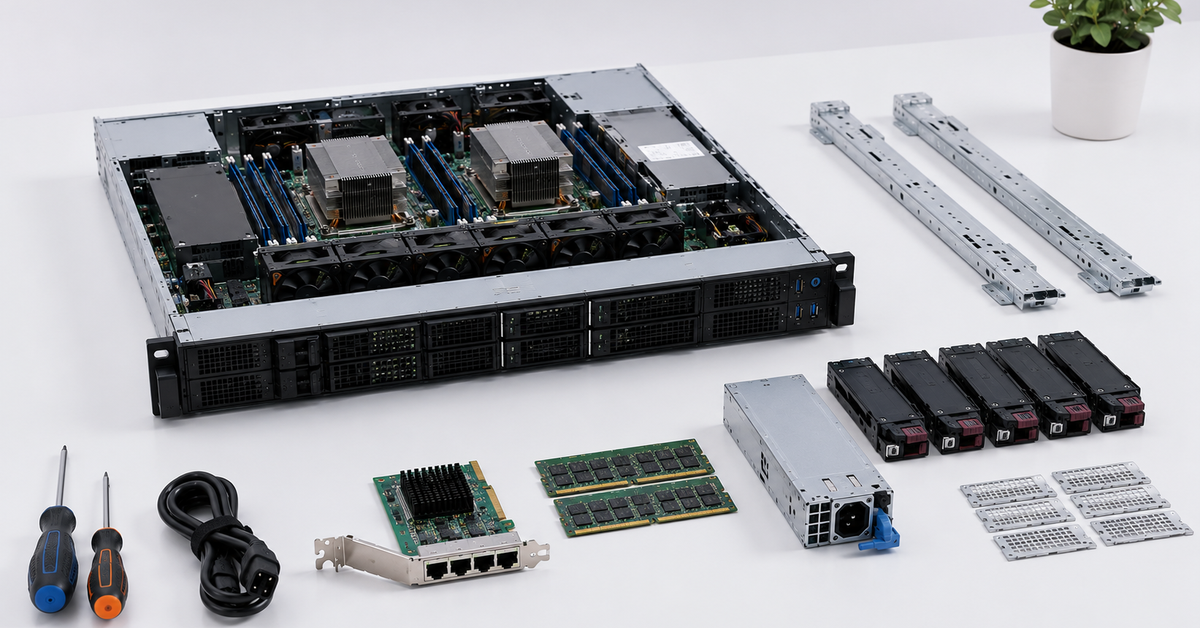
External inspection does not replace diagnostics, but it helps identify obvious risks. A server may look functional in the description, but still have damage to the chassis, ports, drive bays or internal connectors.
First, inspect the chassis. Normal signs of use are acceptable: small scratches, scuffs, traces of rack installation. Deep dents, misalignment, bent rails, a damaged front panel or a lid that does not close properly are reasons to look more carefully. Server equipment is designed for long-term operation, but a strong impact could damage boards, the drive backplane or connectors.
Check the condition of the ports: network, USB, VGA, service ports and the remote management port. Connectors should not be loose, broken or show signs of mechanical damage. If the server is purchased for rack installation, make sure the rails fit this exact model, not “roughly compatible” hardware.
Drive bays should be checked separately. The server must have trays for all declared drives. Empty bays should ideally be covered with blanks: this affects not only appearance, but also proper airflow. Missing trays, blanks or backplane cables can increase the final cost of purchase.
Inside, there should be no signs of moisture, corrosion, burning, severe overheating or rough repair. Dust alone does not always mean a problem, especially if the server worked for a long time in a standard server room and was not serviced very carefully before resale, but thick layers of dust on heatsinks and fans worsen cooling. If the server came from a data center, it may look clean even after many years of operation, so a clean chassis does not prove that the components are in good condition.
SMART and drive condition
Drives are among the riskiest components in a refurbished server. Processors and memory can work for years, while storage devices have a limited service life and depend more heavily on operating conditions. Therefore, checks should start not with the general phrase “the server works,” but with the condition of each drive.
SMART is a drive self-monitoring system. It shows some internal indicators: operating hours, temperature, errors, reallocated sectors, data transfer failures, wear and health warnings. HDD, SSD and NVMe drives have different sets of attributes, so all drives cannot be assessed using one universal line.
For hard drives, check operating hours, power-on count, reallocated sectors, pending sectors, uncorrectable errors, read errors, interface transfer errors, temperature and self-test logs. If an HDD has reallocated or pending sectors, it is better to replace that drive. Even if the array is still working, the risk of further degradation is higher.
For SSD and NVMe drives, the important indicators are wear percentage, total data written, media errors, health warnings, temperature, unsafe shutdowns, available spare area and self-test results. Enterprise SSDs may have a high write endurance, but that does not mean any used drive is safe. If the drive previously worked in an intensive database, logging system or cache, wear may be significant.
SMART does not provide an absolute guarantee. A drive can fail without visible early warnings. But poor SMART indicators are a strong reason to request drive replacement or reject a specific configuration. smartmontools, including smartctl, are used to control and monitor drives through SMART; the package works with modern ATA/SATA, SCSI/SAS and NVMe drives.
You should not rely only on the RAID array status. The array may be displayed as working, while one of the physical drives already has worrying signs. Each storage device must be checked separately.
It is also worth noting that SMART data can be falsified, so a visual inspection of the drives is also useful. If the seller says the drives are new, but they have numerous signs of use, this is a reason to be cautious. A common way to avoid extra risk is to buy a refurbished server without drives and purchase new drives separately.
Choosing the Right Equipment
Our specialists will contact you and answer all your questions
RAID controller and array
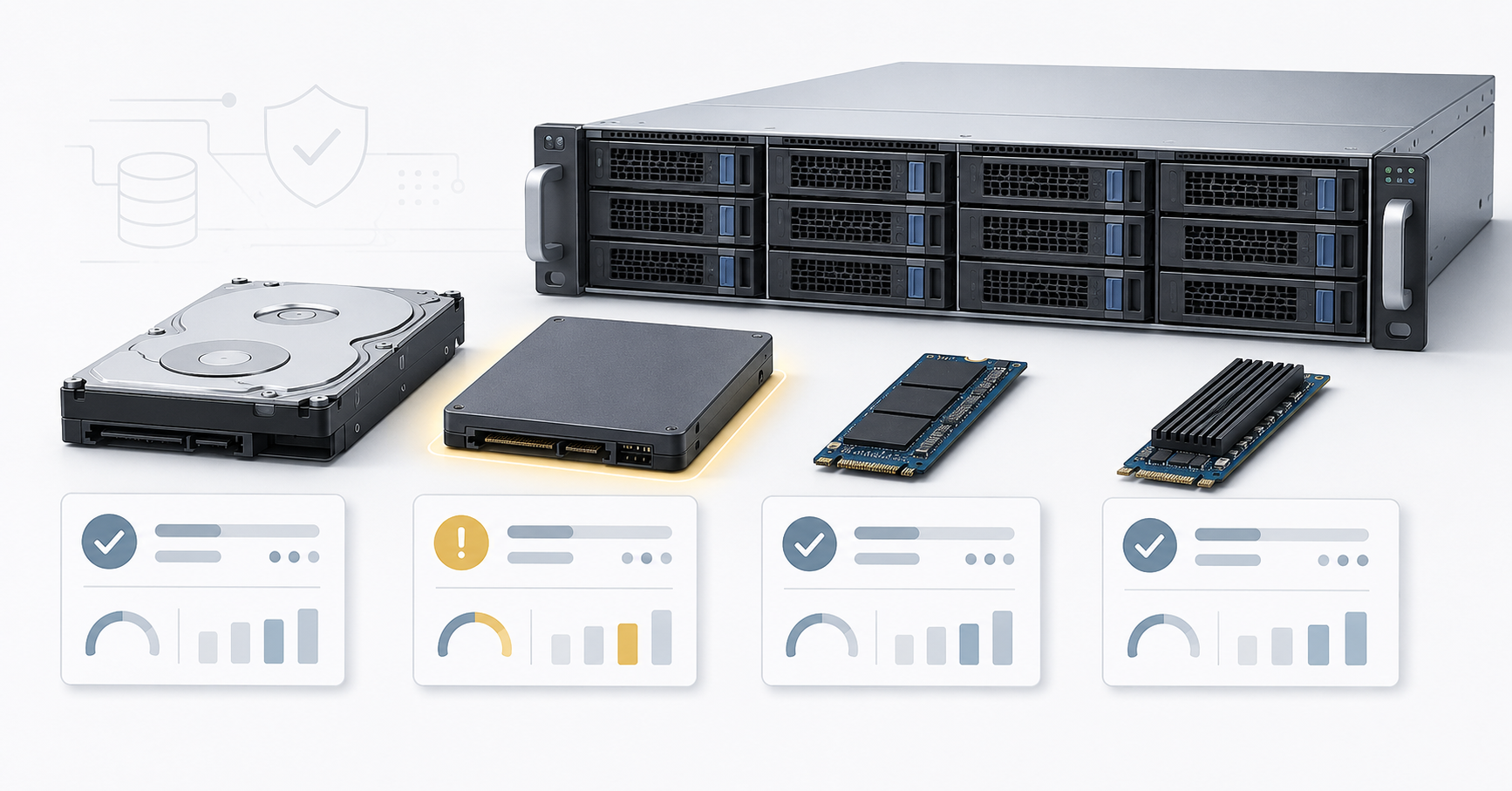
The RAID controller is responsible for the storage subsystem, so its condition must be checked separately from the drives. The listing may say “RAID works,” but that is not enough.
You need to clarify the controller model, supported RAID levels, virtual disk status, physical disk status, hot spare availability, write mode, cache status and the presence of a cache protection module. Depending on the server, this may be a battery or a supercapacitor. If write cache is declared, but the protection module is faulty or missing, performance may drop and the operating mode may switch to a safer but slower mode.
The “Optimal” status is a good sign, but it is not the final answer. You need to look at the details: whether there are drives with warnings, background initialization, consistency checks or rebuilds, disabled cache, or controller errors. For Broadcom/MegaRAID controllers, tools such as StorCLI are used to view physical and virtual disks, warnings and maintenance operations for the array.
If the array is already assembled, it is important to understand which drives it is built on. Sometimes a server contains drives of different age, capacity, interface or manufacturer. This is not always a bad decision, but it can complicate maintenance and reduce predictability. For production infrastructure, it is better when the drives in the array are selected deliberately, not assembled from random leftovers.
iDRAC and iLO logs
Dell and HPE servers have built-in remote management systems. Dell uses iDRAC, while HPE uses iLO. They help power on and reboot the server remotely, view sensors, component status, event logs and some diagnostic information.
These logs matter because the server itself stores part of its hardware event history. They may contain memory errors, overheating events, power supply errors, fan issues, processor errors, disk errors, controller errors, network card errors, sensor errors and configuration changes. Sometimes the operating system has already been reinstalled, while the hardware log still shows what happened to the server earlier.
Ask the seller for the system event log, list of current warnings, built-in diagnostics report, information about power supplies, fans, memory, processors, RAID controller and firmware versions. For HPE, the Active Health System Log is useful: it is collected through iLO and used to analyze configuration and hardware events; HPE describes ways to download the AHS log through iLO and other methods.
A completely empty log on a server with a long operating history is not always a good sign. The log may have been cleared before sale. This does not necessarily mean a problem, but the seller should explain when the log was cleared and provide fresh diagnostics after clearing it. If the log is empty, there are no diagnostics, and the server is sold as “fully checked,” this is also a reason to think about the risks.
Storage systems

Free shipping on orders over 500 € in the EU, £500 in the UK, and $3,000 in the USA

Free shipping on orders over 500 € in the EU, £500 in the UK, and $3,000 in the USA

Free shipping on orders over 500 € in the EU, £500 in the UK, and $3,000 in the USA

Free shipping on orders over 500 € in the EU, £500 in the UK, and $3,000 in the USA
Built-in diagnostics
Server checks should not be limited to booting the operating system. A server may power on successfully and boot Linux or Windows, while still having memory, controller, fan or sensor errors.
Built-in diagnostics run before the operating system boots and check the hardware from the platform’s point of view. They help detect issues that standard software tools may not show. Dell for PowerEdge describes hardware diagnostics as a built-in tool before operating system boot that can check memory, input/output devices, processors, hard drives and other components.
Before purchase, ask the seller to run built-in diagnostics and save the result. The test should cover processors, memory, system board, controllers, fans, power supplies, temperature sensors, drives, network adapters, expansion cards and the management controller.
Successful built-in diagnostics do not replace stress tests, but they are a good first filter. If the server already shows errors at this stage, it should not be purchased without replacing the affected component. Even if the seller offers a discount, you need to understand the repair cost and spare part availability.
Processor stress tests
A server may operate stably at idle, but fail under load. The reasons vary: overheating, unstable power, a faulty system board, memory errors, incorrect heatsink installation, old thermal paste, firmware issues or an incompatible expansion card.
A processor stress test is needed to check server behavior under high load. Before the test, make sure all processors are detected correctly, the number of cores matches the specification, frequencies do not look abnormally low, and the system shows no power or cooling warnings.
During load, monitor temperature, fan behavior, frequencies, power consumption and management logs. If the server sharply lowers frequencies, overheats, reboots, shuts down or records errors in iDRAC/iLO, the purchase should be paused until the cause is understood.
A short test helps find obvious problems. For acceptance, it is better to run the load longer and always check the log after completion. Do not rely only on the fact that the test “did not crash.” It is more important to understand whether hardware warnings appeared, whether the processors overheated and whether the fans were constantly running at maximum speed without a clear reason.
Checking RAM
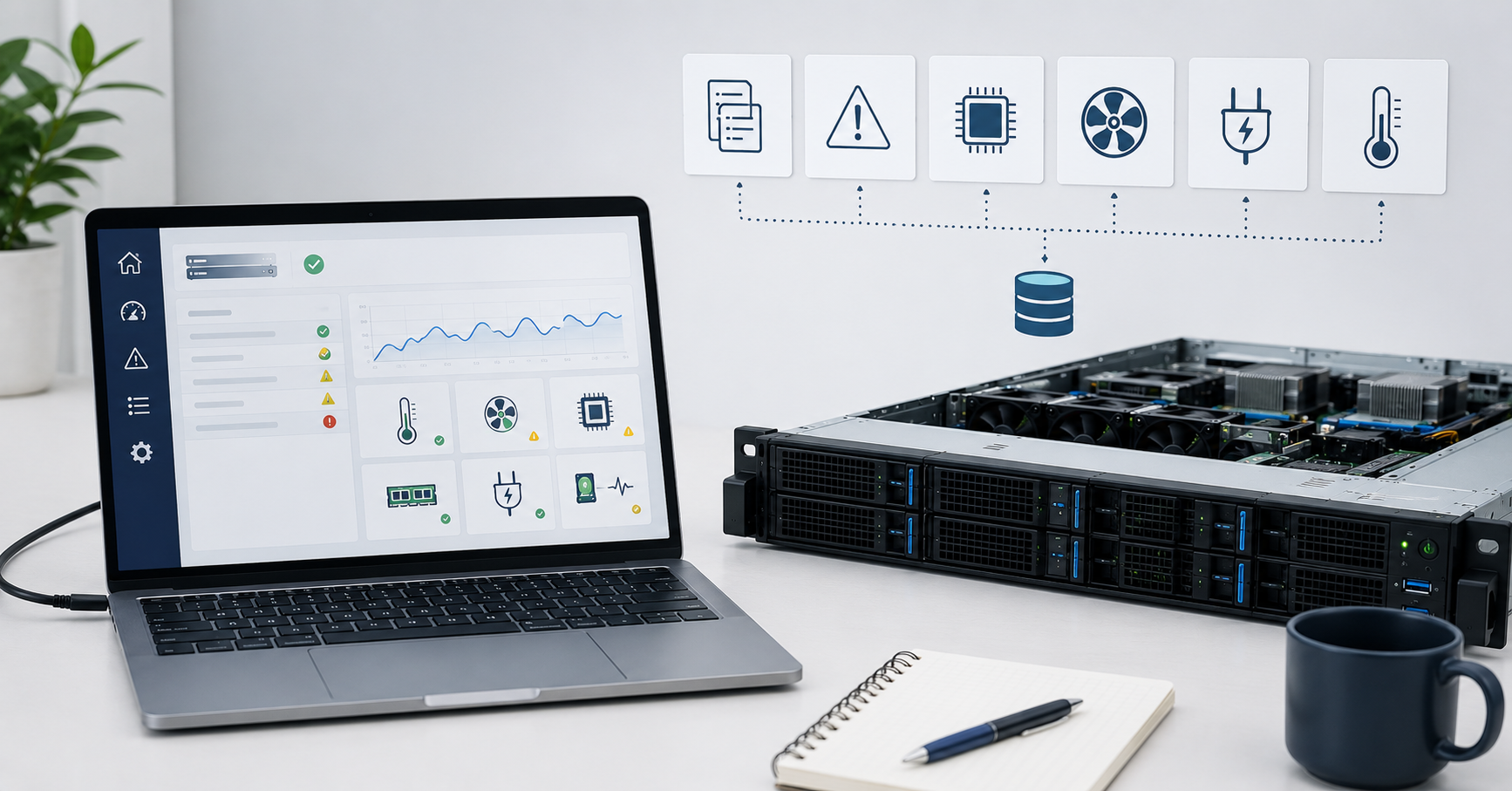
Memory errors may appear rarely. A server can boot, pass a simple check and even run normally for several hours, then start failing under real load. That is why memory should be checked separately.
First, make sure the server detects the full declared RAM capacity. Check the number of modules, their capacity, type, frequency, operating mode and channel population. If modules are mixed from different batches or have different specifications, the server may lower the frequency or work in a suboptimal mode. This is not always critical, but the buyer should understand what they are getting.
Errors corrected by ECC memory are especially important. A single corrected error does not always mean immediate failure, but repeated errors on one module are a reason to replace that module. If the log shows regular events for one slot or one DIMM, it is better not to accept the server in that configuration.
After replacing memory, check again that warnings have disappeared, the server detects all modules stably, and iDRAC/iLO logs do not record new errors. If the seller replaced memory before sale, this is not a problem by itself, but the result of the replacement should be confirmed by testing.
Disk and storage stress tests
SMART shows the condition of a storage device, but it does not replace load testing. A drive may have acceptable indicators, but still show unstable latency, overheat or cause controller errors. A RAID array also needs to be checked not only by status, but by behavior.
Read and write tests are useful for drives. You need to look at sequential reads, random reads, random writes, latency, temperature and errors in the controller log. After the test, SMART should be checked again: some problems appear only after load.
If the server is sold with an already assembled array, check the RAID operating mode, cache status, background operations, hot spare availability and rebuild speed if the array is rebuilding. RAID rebuild can heavily load disks, and if one of them is already weak, problems may appear exactly at that moment.
Destructive write tests must not be run on an array with needed data. For pre-sale checks, it is better to use empty drives, a test layout or a separate test array. If the seller is not ready to run writes on their drives, they should at least provide fresh SMART reports, RAID status and safe diagnostics results.
Server and component firmware
Firmware is the built-in software of server components. It exists in BIOS, remote management controller, RAID controller, network cards, drives, and sometimes in power supplies and other devices.
Old firmware may contain bugs, incompatibilities or limitations. After components are replaced, versions may differ: for example, the RAID controller is updated, while BIOS or iDRAC remains old. Sometimes this does not prevent operation, but in production infrastructure it is better to bring the server to a consistent state.
Before purchase, check the versions of BIOS, iDRAC or iLO, RAID controller, network cards and drives. It is not necessary to demand the newest possible version at any cost. What matters is that firmware is not extremely old, does not have known critical issues and matches the manufacturer’s recommendations for the specific server generation.
Updating everything without a plan is also wrong. Firmware should be updated using official packages and in the correct sequence. If the seller says “firmware is updated,” ask for a version list. If the firmware is old, but the seller is ready to update it before shipping and run diagnostics again, this is a normal option.
Power supplies, fans and cooling
Power and cooling are often checked superficially, although server stability depends on them. A machine may pass a basic startup check, but show issues under load: overheating, fan errors, power supply failures, excessive noise or instability at peak power consumption.
If the server comes with two power supplies, check that both are installed, have the same or compatible power rating, are correctly detected by the system and operate in a redundant configuration. If one power supply is faulty, missing or different in specification, redundancy will be conditional.
Fans should be detected without errors. If the server immediately keeps fans at maximum speed after startup and does not reduce RPM, the reason may be a faulty sensor, unsupported expansion card, old firmware, cooling problem or configuration error. For a server room, this is not only a noise issue: constant maximum speed may indicate a deeper problem.
Under load, monitor processor, memory, disk and internal zone temperatures. Not all servers show the same set of sensors, but the hardware log should not record overheating or fan warnings.
Network cards and remote management
Network ports should be checked as carefully as drives and memory. The configuration may state a 10GbE or 25GbE card, but it is important to understand exactly which card is installed, whether the server detects it, whether all ports work, whether optical modules will be needed and whether they are included.
Damaged network connectors, link errors, unstable connection or incompatible modules can become an unpleasant surprise after installation in the rack. If the server is purchased for virtualization, storage or high network load, the network adapter must match the task, not simply “be present.”
The remote management port should be checked separately. For production servers, iDRAC or iLO is as important as the processor and memory. They are used for remote reboot, checking hardware condition, mounting virtual media, viewing logs and managing the server without physical access.
Some remote management functions may require licenses. If the seller declares an advanced license, check that it is present in the interface. The absence of a license does not always prevent the server from working, but it can limit maintenance convenience.
Configuration completeness
Configuration completeness affects the final cost no less than specifications. A server with an attractive price may turn out to be less profitable if drive trays, rails, a power supply, backplane cables or network modules have to be purchased separately.
Before purchase, check the presence of processors, heatsinks, all memory modules, drives, drive trays, blanks in empty bays, RAID controller, cables from the drive backplane, network cards, riser cards, power supplies, fans, rack rails, power cables and a front bezel if needed.
Riser cards and cables are especially often forgotten. Without them, you cannot install some expansion cards or connect the required drive backplane. Also check whether optical modules for network cards are included if they are needed. Sometimes the network card itself is present, but the modules must be purchased separately.
If the server is purchased for a specific task, the configuration must be checked not only against the listing, but also against the future scenario. For virtualization, memory capacity and network cards matter. For storage, drive cages, controller, trays and drives matter. For GPU tasks, riser cards, power, free space and support for the required accelerators matter.
Choosing the Right Equipment
Our specialists will contact you and answer all your questions
Refurbished server diagnostics checklist
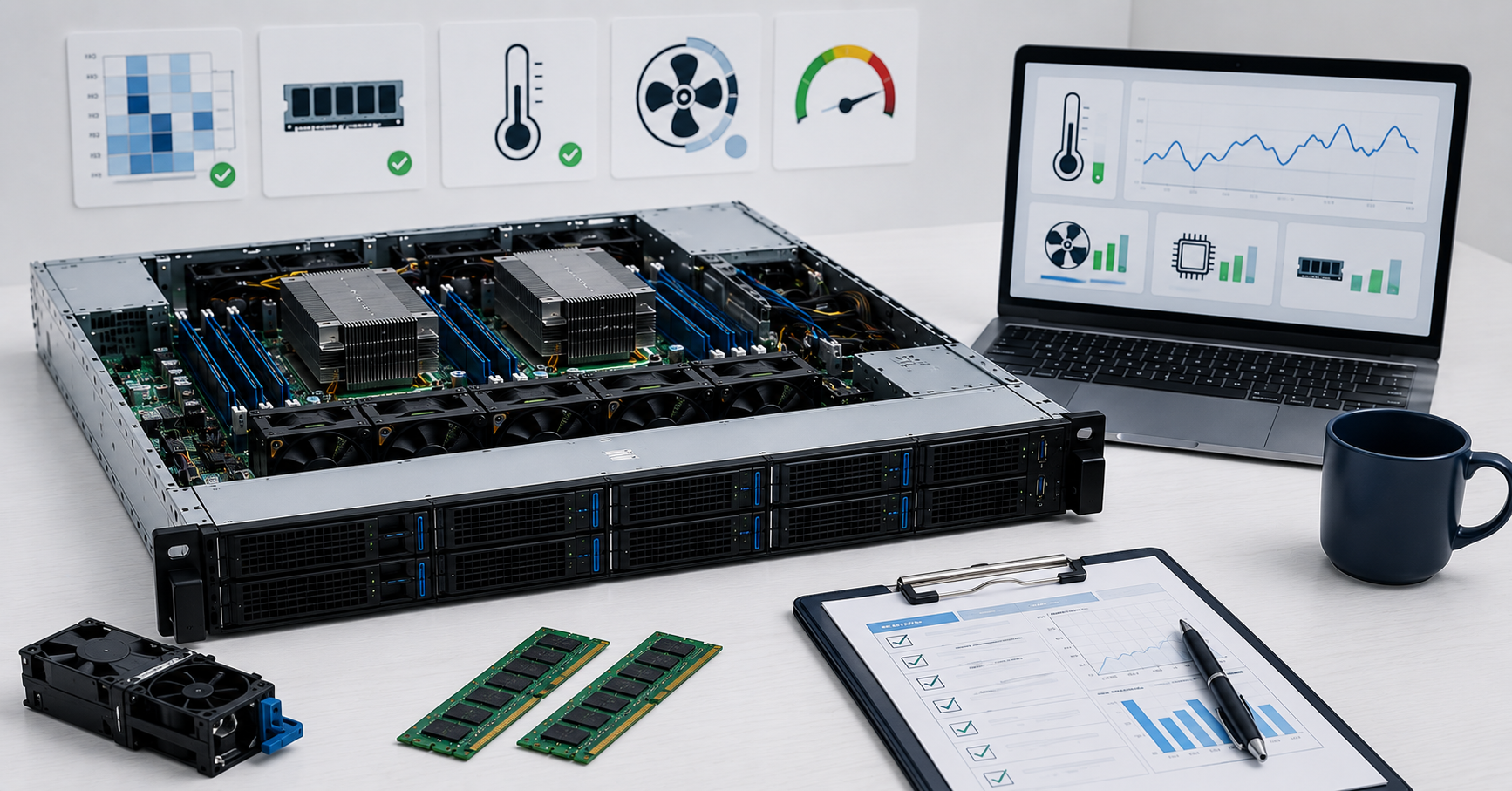
| What to check | How to check | What is normal | Warning signs | What to do if there is a problem |
|---|---|---|---|---|
| Drives | SMART, self-tests, controller log | No critical errors, normal temperature | Reallocated sectors, media errors, high wear | Request drive replacement |
| RAID | Controller utility, management interface | Array is operational, drives have no warnings | Controller errors, unexplained rebuild, disabled cache | Check the cause or replace controller/drives |
| Memory | Built-in diagnostics, RAM test, iDRAC/iLO log | Full capacity is detected, no errors | Repeated errors on a module or slot | Replace module and repeat test |
| Processors | Built-in diagnostics, load test | All CPUs are detected, temperatures are stable | Overheating, reboot, unexplained frequency drop | Check cooling, power, system board |
| iDRAC/iLO | Web interface, event logs | No current critical errors | Cleared log without a fresh test, sensor errors | Request a full diagnostics report |
| Firmware | BIOS, iDRAC/iLO, RAID, network cards | Versions are consistent and not too old | Very old versions, version mismatch after component replacement | Update using official packages and repeat testing |
| Power supplies | Management interface, load test | Both units are detected and work normally | One unit is not detected, power errors | Replace the unit or recalculate the price |
| Fans | Sensors, log, load test | RPM changes according to load | Constant maximum speed, sensor errors, overheating | Check fans, firmware, expansion cards |
| Network ports | Connection, transfer test, log | All declared ports work | Link errors, damaged connectors | Check card, module, cable |
| Configuration | Visual check, specification | All declared items are present | Missing trays, riser cards, rails, cables | Complete the configuration or reduce the price |
| Warranty | Contract, invoice, warranty terms | Clear term and scope of coverage | No return option, unclear component coverage | Fix the terms in writing |
Warranty and return terms
A refurbished server warranty is not a formality, but part of assessing purchase reliability. Even a well-tested server remains previously used equipment, so replacement and return terms matter.
You need to understand who provides the warranty: manufacturer, seller or integrator. For older-generation servers, official manufacturer support may already be over, and the seller’s warranty becomes especially important. If official support is still active, it should be checked by serial number.
The warranty terms should specify the term, list of covered components, replacement procedure, response times, shipping, diagnostics and returns during the first days after acceptance. Drives should be discussed separately. Some sellers provide a warranty for the server, but limit warranty coverage for storage devices or replace them under separate rules.
It is important to record the actual configuration and serial numbers. If after purchase it turns out that a drive was replaced, a power supply is different, or the RAID controller is not the one listed in the offer, resolving the dispute without documents will be harder.
When to buy, request replacement or refuse
| Situation | Risk level | Decision |
|---|---|---|
| SMART has no critical errors, diagnostics passed, warranty is clear | Low | Purchase can be considered |
| HDDs have many operating hours, but no errors | Medium | Buy with a discount or replace drives immediately |
| There are reallocated or pending sectors | High | Request drive replacement |
| SSD shows high wear | Medium or high | Assess remaining endurance, request replacement or discount |
| Memory errors repeat | High | Replace module and repeat test |
| RAID controller records errors | High | Replace controller or refuse the purchase |
| Firmware is old, but seller is ready to update it | Low | Acceptable after update and repeated check |
| Hardware event log was cleared and there is no fresh diagnostics | Medium or high | Request a full test run |
| Configuration does not match the offer | Medium | Recalculate the price or refuse |
| Seller does not provide reports and does not allow checks | High | Better to refuse |
| No warranty and no return option | High | Buy only with conscious acceptance of the risk |
Final check before payment
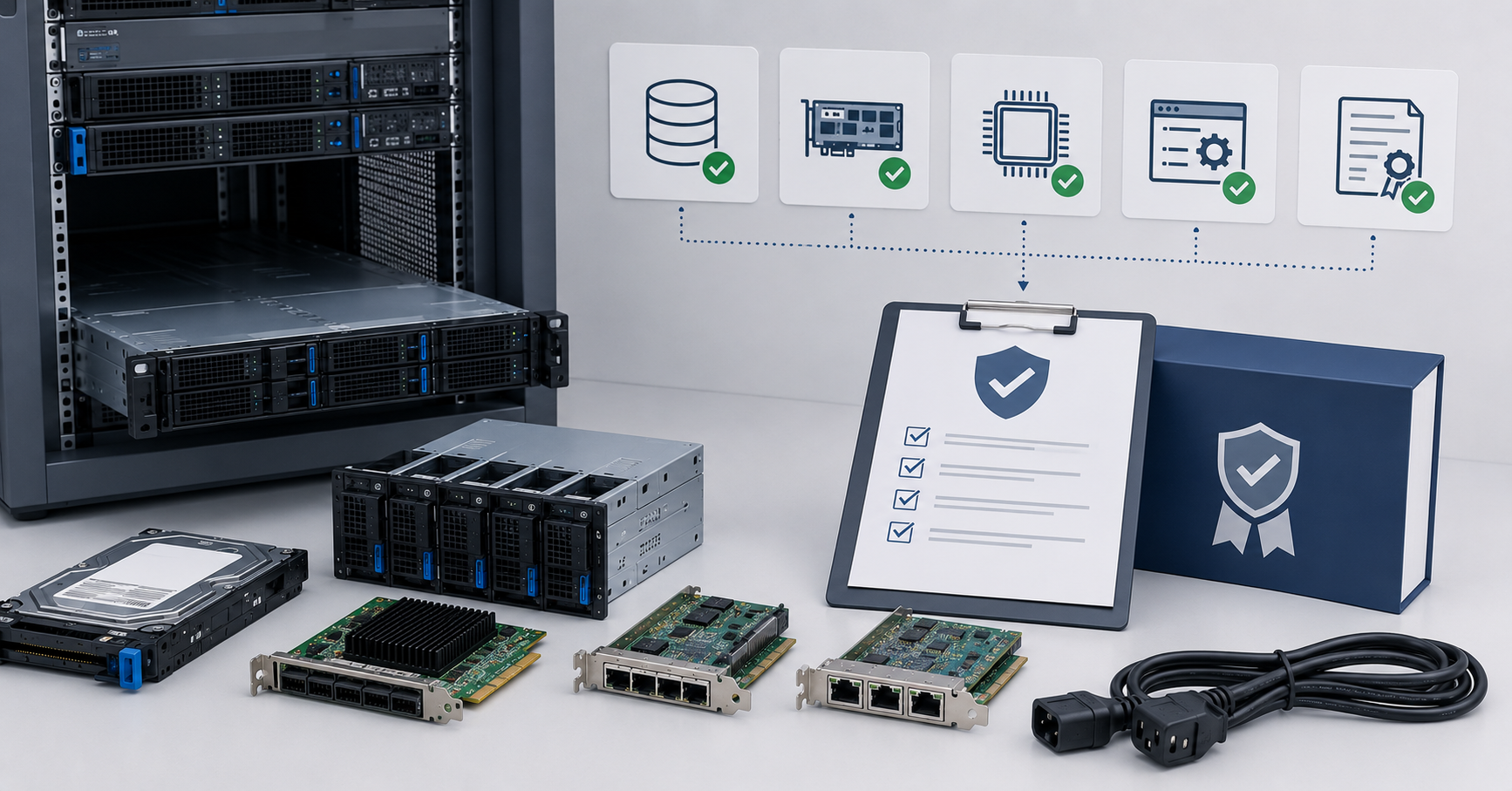
Before payment, verify the model and serial number, check the actual configuration, obtain SMART data for each drive, inspect RAID status, export iDRAC or iLO logs, run built-in diagnostics, stress-test processors, test memory, check disk reads and writes, and review temperatures, fans and power supplies.
You should also check network ports, firmware versions, remote management license availability, warranty and return terms. All diagnostic reports should be saved before payment, or at least before the end of the acceptance period. If the server is being purchased for an important system, acceptance should not be limited to 15 minutes: it needs proper time for testing.
A good sign is when the seller calmly provides reports, explains the configuration, gives time for checks and records the warranty in writing. A bad sign is when the check is replaced by the phrase “the server powers on, so it works.” For server equipment, that is not enough.
What counts as a safe purchase in the end
A refurbished server can be considered a normal purchase candidate if its condition is confirmed by diagnostics, drives have no critical errors, memory passes tests, the RAID controller works without warnings, the management log does not show repeated hardware failures, firmware is in acceptable condition, power supplies and fans are operational, the configuration matches the offer, and warranty terms are clear before payment.
Conversely, if the seller does not show SMART data, does not provide iDRAC or iLO logs, cannot explain RAID status, refuses stress tests, does not record the configuration and gives a vague warranty, the risk is too high. A refurbished server can be a reliable and economically sound solution, but only when its check is not based on trust in the listing. The more transparent the diagnostics before purchase, the lower the chance that the savings will turn into urgent drive replacement, downtime or unplanned repair.
Choosing the Right Equipment
Our specialists will contact you and answer all your questions
Content:
Free shipping on orders over 500 € in the EU, £500 in the UK, and $3,000 in the USA

Free shipping on orders over 500 € in the EU, £500 in the UK, and $3,000 in the USA

Free shipping on orders over 500 € in the EU, £500 in the UK, and $3,000 in the USA
Free shipping on orders over 500 € in the EU, £500 in the UK, and $3,000 in the USA

Free shipping on orders over 500 € in the EU, £500 in the UK, and $3,000 in the USA

Free shipping on orders over 500 € in the EU, £500 in the UK, and $3,000 in the USA