If a server has become louder, loses performance under sustained load, or behaves unstably without obvious hardware errors, the first things to check are not software issues but airflow organization, the temperature of the air entering the server, and the presence of confirmed thermal throttling. In practice, the right recommendation is almost always the same: first make sure the room cooling system is working, that air is moving through the server and the rack the way the manufacturer intended, then correlate BMC telemetry with system behavior under load, and only after that draw conclusions about replacing components, updating firmware, or a lack of platform capacity.
Server cooling is often seen as a secondary topic: if there is no emergency shutdown, everything must be fine. In reality, heat removal problems much more often show up not as a catastrophe but as gradual degradation. Fans begin running at higher speeds, frequencies under sustained load fall below what you expect, performance fluctuates depending on the time of day or the server’s position in the rack, and after an upgrade of storage or PCIe cards the system suddenly becomes even louder and less predictable. The server may not show fatal errors and may remain fully operational, yet still no longer work in an optimal mode.
This is especially important in infrastructure where not only nominal hardware power matters, but also repeatability of results. For databases, virtualization, CI/CD, analytics, inference workloads, and any long-running compute job, what matters is not peak frequency over a short interval but the system’s ability to hold its expected performance for hours. This is where cooling stops being a matter of “comfort” or acoustics and becomes a matter of actual compute output.
Why airflow matters more than it seems
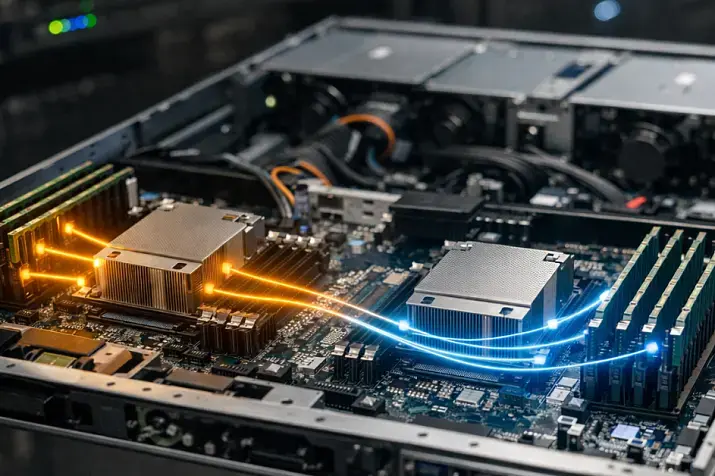
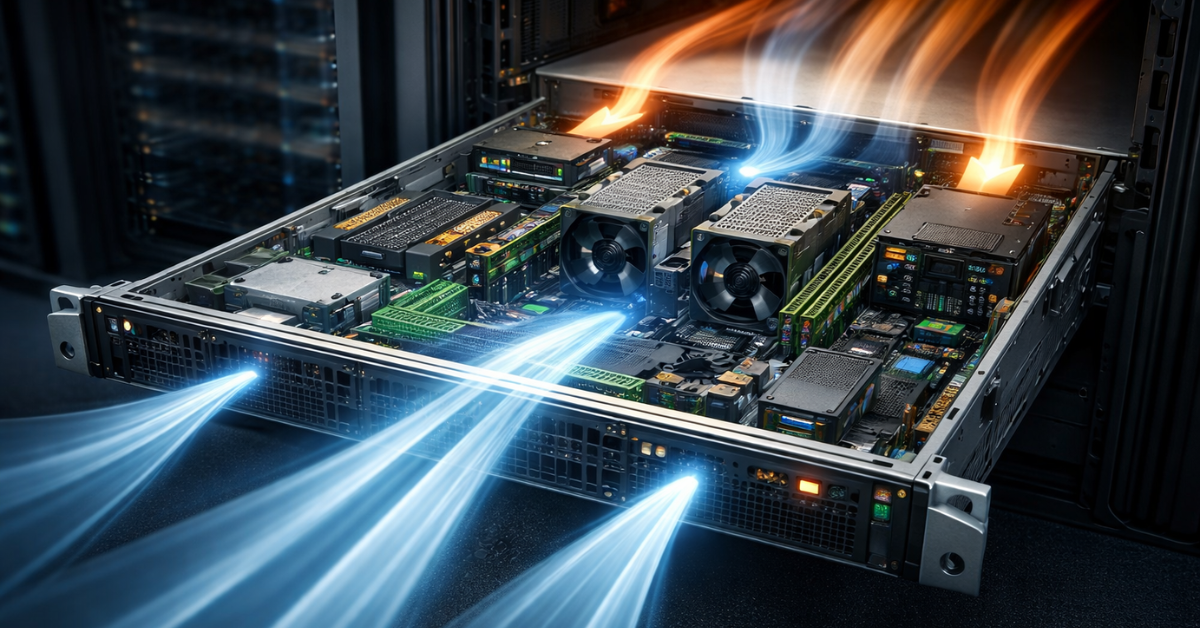
In a server, cooling is not organized as free airflow over components, but as a directed air path. In a typical design, cool air enters through the front, passes through drive cages, fan modules, CPU heatsinks, memory, VRM, the PCIe area, and exits through the rear of the chassis. That means every chassis element contributes to the air channel: covers, the shroud, cages, blanks, heatsink height, cable routing, the set of expansion cards, and even empty bays.
This leads to a basic but often ignored conclusion: airflow is not only about fan speed. You can raise the RPM, but if the air route inside is broken, the system will be fighting the consequences rather than the cause. The flow will begin to bypass hot zones, become turbulent, recirculate, and lose efficiency. That is exactly why a server that “doesn’t look critical by the sensors” may already be operating with reduced thermal headroom.
In practice, airflow is usually disrupted by a few typical things:
- empty rack units without blanking panels;
- open or incorrectly assembled compartments inside the server itself;
- dense cable management in front of the chassis intake;
- non-standard PCIe cards and adapters that change airflow resistance;
- missing stock air ducts;
- dust on filters, grilles, and heatsinks;
- overly aggressive “quiet” profiles;
- attempting to run a high-density configuration in a chassis with minimal cooling margin.
The case of empty rack units is especially illustrative. At an everyday level it looks trivial: empty space is just empty space. From an engineering point of view, it is often a direct path to hot air recirculation. If empty spaces are not covered with blanking panels, hot exhaust can return to the cold zone and re-enter server intakes. As a result, the room temperature may appear normal, air conditioning may be working, but a specific server or the top part of the rack is already getting preheated air.
Most popular refurbished servers

Free shipping on orders over 500 € in the EU, £500 in the UK, and $3,000 in the USA

Free shipping on orders over 500 € in the EU, £500 in the UK, and $3,000 in the USA

Free shipping on orders over 500 € in the EU, £500 in the UK, and $3,000 in the USA

Free shipping on orders over 500 € in the EU, £500 in the UK, and $3,000 in the USA
Room temperature and inlet temperature are not the same thing

One of the most common mistakes is to look at the overall temperature in the server room and treat it as the main indicator. For servers, what matters more is not how many degrees a room sensor shows, but what air actually reaches the chassis inlet. In well-organized infrastructure, the difference between those two things may be small. In problematic environments, it can be very noticeable.
If hot and cold air separation is broken in the rack, if the front is partially blocked by cables, if the server is installed in the upper zone with a local hot spot, or if cooled air simply reaches it less effectively, the inlet temperature will be higher than you would expect from the room’s overall climate. That produces a typical effect: formally the server room is within limits, but a particular node throttles, gets noisy, and loses stability.
That is why it is useful to distinguish several levels in the thermal picture:
- the air temperature in the room;
- the air temperature at the server inlet;
- the temperature of individual components;
- the exhaust temperature;
- the difference between inlet and outlet under a given load.
Only this combined view lets you understand where the problem actually begins: in the room, in the rack, in the chassis itself, or in the specific hardware configuration.
What thermal throttling means in practice
Thermal throttling is the automatic reduction of performance in order to keep the platform within acceptable thermal limits. It is important to understand that this is not necessarily an emergency mode. On the contrary, most often it is a normal protective response. The server does not crash, does not shut down, and does not necessarily show a critical error. It simply stops delivering the performance it could deliver under normal thermal conditions.
That is where the danger lies. Throttling is hard to notice without measurement if you look only at service availability. Virtual machines keep running, the application keeps responding, and short-interval tests may look normal. But under sustained load, frequency begins to drop, task execution time increases, result variance grows, and in some cases overall system power consumption becomes less efficient because fans and components are constantly fighting for thermal balance.
At the same time, not every frequency drop is thermal throttling. There are also platform power limits and energy policy constraints. That is why correct diagnostics begin with separating a thermal limit from a power limit. If the frequency has dropped, that alone is not proof of overheating. But if the drop in frequency coincides with an increase in temperature-related events, higher fan speed, and is confirmed by throttling counters, the picture becomes much clearer.
At the operational level, throttling usually looks like this:
- the server becomes noticeably louder under a load where it used to be quieter;
- frequencies on a sustained task are lower than expected;
- the same benchmark produces different results in the morning and in the afternoon;
- after installing a new expansion card, the system became hotter and noisier;
- servers at the top of the rack behave worse than those at the bottom;
- short tests look normal, while long ones do not.
Choosing the Right Equipment
Our specialists will contact you and answer all your questions
Why a server starts running hotter and loses cooling margin

Thermal problems almost never have a single cause. Usually they are a combination of several factors.
At the server level
The first layer is the configuration itself. A chassis may be designed for a certain TDP range, a certain number of drives, a certain mix of PCIe devices, and a specific layout. As soon as the configuration becomes denser, the cooling margin shrinks. Sometimes the critical factor is not the processor but a less obvious component: a high-performance network card, an HBA, a densely populated NVMe set, a GPU, a non-standard riser, or even a missing blank.
This also includes everything that breaks factory aerodynamics: removed air ducts, open covers, replacing stock parts with incompatible ones, contamination, fan degradation, and outdated thermal profiles in firmware.
At the rack level
Even a properly assembled server can start performing worse in a poorly organized rack. Empty spaces without blanks, messy cables, weak separation of hot and cold flows, a dense upper zone with several hot nodes in a row — all of this worsens inlet conditions. Sometimes the server is physically fine, but it is installed in a place where it simply has no normal thermal headroom.
At the room level
Some server rooms look “cool enough,” but the cooling is distributed unevenly. One zone is fine, while another develops hot spots. This depends on air delivery patterns, overloaded rows, seasonality, filtration, dust, and even how the rack’s thermal profile changed after expanding the infrastructure. Problems are especially noticeable in summer or during periods of maximum load.
At the settings level
Modern servers manage cooling not only mechanically but also through policies. BMC, iDRAC, iLO, and similar controllers use thermal profiles, fan offsets, power modes, and protective algorithms. If the selected profile is too “quiet,” if settings were not reviewed after adding a card, or if the fan policy does not match the new configuration, the system may either keep spinning fans up to maximum all the time or, on the contrary, try too hard to stay quiet and fail to remove heat aggressively enough before throttling starts affecting performance.
How to distinguish a cooling problem from other causes of degradation
One reason thermal problems live for so long is that they are easy to confuse with almost anything: a bad update, a change in workload, a driver issue, a power policy problem, degradation in the storage path, or simply “platform instability.” That is why it is useful to look at a combination of symptoms rather than a single sign.
| Symptom | What it may mean | What to check first |
|---|---|---|
| The server suddenly became louder | BMC is compensating for degraded cooling | inlet, RPM, configuration changes |
| Sustained workloads run more slowly | thermal limit or power limit | frequencies, throttle counters, power policy |
| Fan speed increased after installing a PCIe card | the airflow path and thermal balance changed | card compatibility with the chassis, cooling profile |
| The top of the rack is hotter and less stable | local hot spot, recirculation | blanking panels, rack layout |
| Morning and afternoon test results differ | inlet conditions change with temperature | inlet/exhaust and the load of neighboring nodes |
If the server is noisy but frequencies are not dropping, that still does not mean there is no problem. The system may still be holding temperature only at the cost of higher RPM, and some margin may remain. If frequencies drop but there are no signs of thermal events, you need to look toward power limits and overall energy policy. But if several signs converge at once — higher RPM, worse results under sustained load, elevated inlet temperature, and temperature events in BMC — the probability of a thermal issue is very high.
Step-by-step diagnostics without guesswork
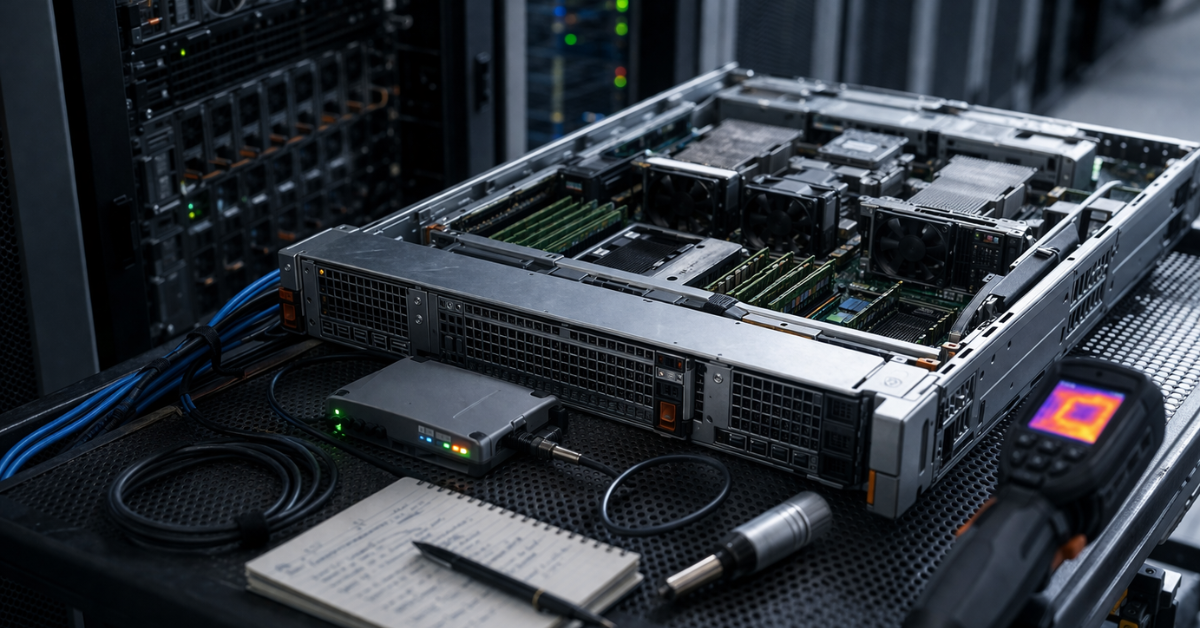
Good diagnostics move from simple to precise and do not begin with an immediate hardware replacement.
First, you need to document the problem scenario. When does it appear: always or only during the hottest part of the day? Under what kind of load: short peak, steady sustained, storage-heavy, network-heavy? On one server or on a group? If degradation is observed on several nodes in the same rack, that is already a strong clue pointing to the rack or room level.
Next, you need to look at BMC telemetry. What matters is not only absolute temperatures, but also dynamics: inlet temperature, exhaust temperature, fan speed, thermal warnings, the event log, the cooling profile, and the history of hardware changes. If the server suddenly “took off” in noise after an expansion card was installed, that is often not a bug but a response to a changed thermal regime.
The next layer is the operating system and behavior under load. You need real frequencies during a sustained test, not a short burst. You need to check thermal throttling counters if the platform exposes them. You need correlation between moments of frequency drop, RPM increase, and thermal telemetry. Without that relationship, it is far too easy to mistake ordinary heating for the cause of every problem.
After that, a physical inspection is mandatory. Are empty rack units closed? Are drive bay and slot blanks in place? Are there cables blocking the front intake? Are heatsinks and grilles clean? Has the stock shroud been removed? Sometimes a problem people try to solve with BIOS and BMC settings turns out to be a simple violation of the air channel.
Finally, you need to honestly assess whether the platform still matches the task. If the configuration has become significantly denser, if the rack is already operating at its limit, and if the situation gets bad in summer even after basic cleanup and correction, the question may not be “fine tuning” but the fact that this architecture has simply run out of cooling margin.
Which metrics are actually useful
Modern servers have many sensors, but not all of them are equally useful in practice.
| Metric | What it shows | Interpretation mistake |
|---|---|---|
| Inlet temperature | the quality of the air at the intake | confusing it with room temperature |
| Exhaust temperature | how much the outgoing airflow is heated | looking at exhaust without considering the load |
| Delta inlet/exhaust | the overall thermal work of the chassis | interpreting it without relation to the configuration |
| Fan RPM / PWM | the system’s response to the thermal situation | assuming high RPM already solves the problem |
| CPU/GPU frequencies under sustained load | the actually achievable performance | checking only a short test |
| Thermal events / throttle counters | the fact of temperature-related limits | replacing them with a general feeling that “the server is hot” |
The main methodological mistake is to look only at CPU temperature. It is an important indicator, but by itself it says almost nothing about the cause. A high CPU temperature may result from poor inlet conditions, broken airflow, aggressive workload, an unfortunate PCIe layout, an insufficient fan profile, or an inherently dense configuration. That is why an isolated sensor reading is almost always misleading.
Storage systems

Free shipping on orders over 500 € in the EU, £500 in the UK, and $3,000 in the USA

Free shipping on orders over 500 € in the EU, £500 in the UK, and $3,000 in the USA

Free shipping on orders over 500 € in the EU, £500 in the UK, and $3,000 in the USA

Free shipping on orders over 500 € in the EU, £500 in the UK, and $3,000 in the USA
Choosing the Right Equipment
Our specialists will contact you and answer all your questions
What to do after the problem has been confirmed
Fixing the issue should begin not with the most expensive step, but with the most logical one.
First, restore proper airflow: close empty rack units, return blanks, check the shroud, remove obstructions at the front and rear, and tidy the cables. Then clean the server and the rack, check the fans and the condition of the heatsinks. After that, review the cooling profile and firmware currency. If the problem started after an upgrade, you need to assess whether the new configuration actually matches the thermal capabilities of the chassis at all.
Only after this basic work does it make sense to discuss further steps: redistributing servers within the rack, changing the layout, relocating especially hot nodes, reconsidering the mix of expansion cards, or moving to a different class of platform.
What you should not do:
- rely on a single sensor;
- open the server lid and assume it will “breathe better” that way;
- blindly reduce noise with profiles and offsets;
- ignore rising RPM if the service has not degraded yet;
- treat the absence of emergencies as proof that cooling is organized correctly.
When air cooling is no longer enough
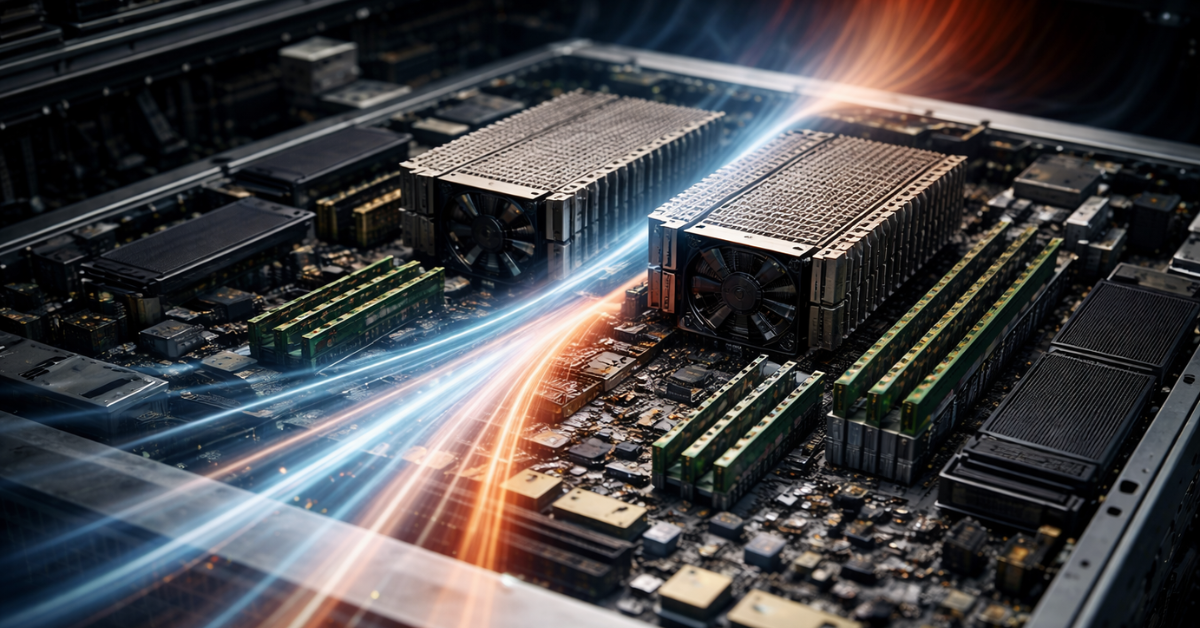
There are scenarios where the problem cannot be solved simply by tidying things up. If the configuration has become too dense in terms of CPU, GPU, NVMe, and PCIe, if the rack operates with pronounced unevenness, if thermal headroom is minimal even in normal conditions, and in summer or under sustained load the system quickly becomes noisy and constrained, then it is time to think not only about tuning but also about architecture.
In some cases, redistributing nodes and arranging the rack more intelligently helps. In others, a different chassis is needed, one with a better-organized air path and built-in margin for a dense configuration. In still others, the whole idea of placing this specific workload in this server room needs to be reconsidered.
Properly organized cooling is not “a server that does not overheat into an error,” but a server that consistently holds the required performance, does not generate unnecessary noise, and does not live on the edge of its thermal budget. That is the criterion by which the result should be judged.
If everything has to be reduced to one sentence, the practical conclusion is this: server cooling should be diagnosed as a system, not as a set of separate temperatures. Air at the inlet, the flow path through the chassis, the BMC reaction, real frequencies under sustained load, and the physical state of the rack matter more than any single “nice-looking” sensor in isolation. Only this approach makes it possible to distinguish local overheating from an architectural problem and fix the cause rather than the symptoms.
Sources
- ASHRAE TC 9.9. — 2021 Equipment Thermal Guidelines for Data Processing Environments: Reference Card
- Cisco — Cisco UCS Site Preparation Guide
- The Linux Kernel Documentation — Intel thermal throttle events reporting
- Dell — PowerEdge: How to change the Server Thermal and Fan Settings
- DMTF — Redfish for Thermal Equipment
Choosing the Right Equipment
Our specialists will contact you and answer all your questions
Content:
Free shipping on orders over 500 € in the EU, £500 in the UK, and $3,000 in the USA

Free shipping on orders over 500 € in the EU, £500 in the UK, and $3,000 in the USA

Free shipping on orders over 500 € in the EU, £500 in the UK, and $3,000 in the USA
Free shipping on orders over 500 € in the EU, £500 in the UK, and $3,000 in the USA

Free shipping on orders over 500 € in the EU, £500 in the UK, and $3,000 in the USA

Free shipping on orders over 500 € in the EU, £500 in the UK, and $3,000 in the USA