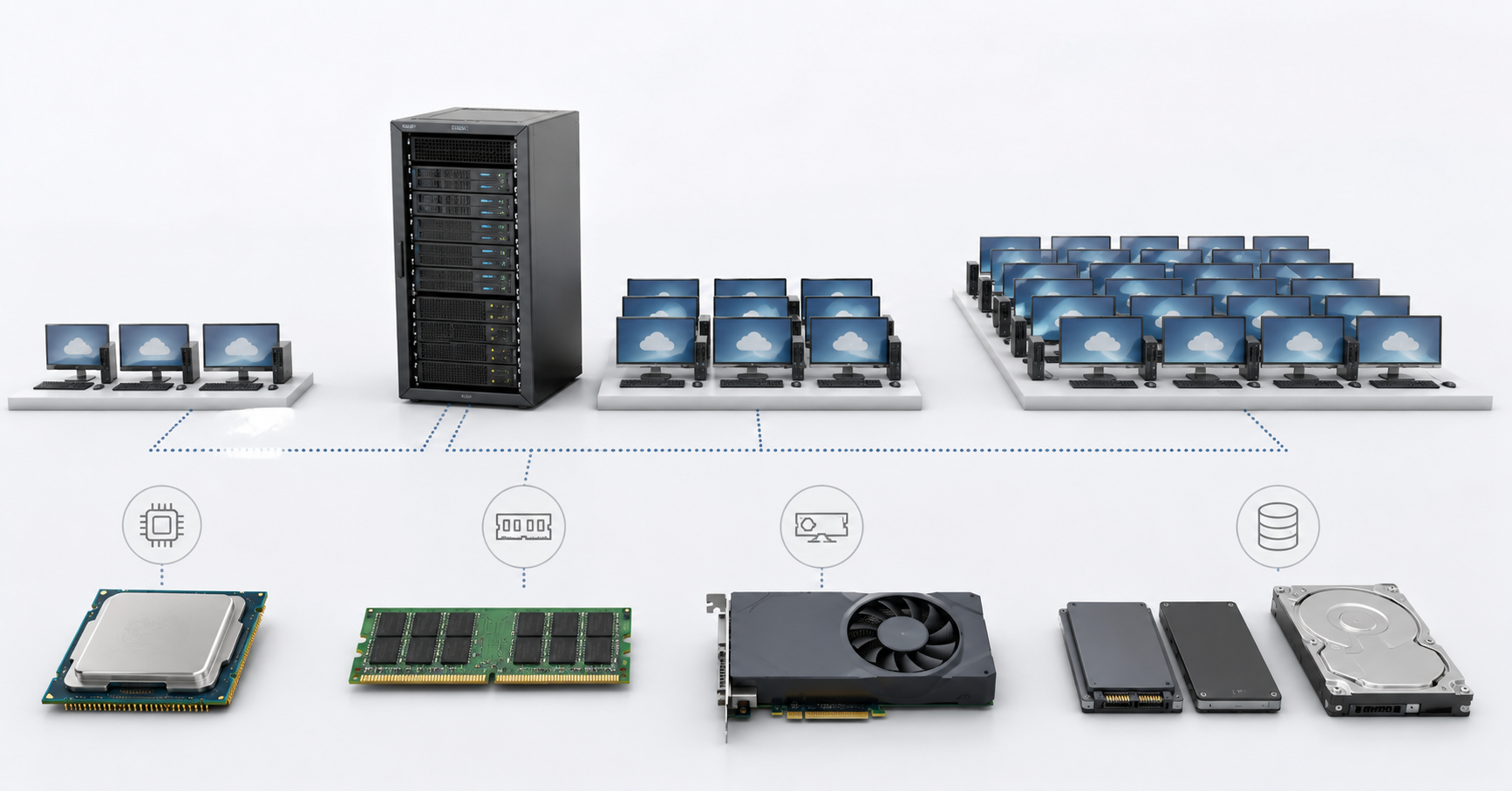
A VDI server is sized not by the total number of employees, but by the number of concurrent users, the type of tasks they perform, and peak loads. For 10 office users, one server with a reserve of processor power, memory, and fast SSD/NVMe drives is often enough, although if these users work with "heavy" CAD systems, the situation can change completely. For 50 regular office users, it is already important to calculate user profiles, storage, and fault tolerance separately. For 100 users, it is usually better to consider not one maximally powerful server, but several nodes, so that the infrastructure can withstand maintenance, workload growth, and the failure of one server.
VDI is a virtual desktop infrastructure. The user sees a familiar desktop, but the computing is performed on the server: applications run there, virtual machines are stored there, and operations with disks, memory, network, and, if necessary, graphics are processed there. Only the connection client remains on the local device: a thin client, laptop, PC, or tablet.
Because of this, VDI cannot be sized like a regular file server or a server for one business system. What matters here is not only "how many cores and gigabytes of memory" there are, but also how quickly applications open, how many users log in in the morning, how a browser behaves with dozens of tabs, and whether there are video calls, scanners, USB keys, electronic signatures, CAD, or 3D graphics.
It is also worth noting separately that VDI is not mainly about optimizing direct costs; the overall implementation is often quite sensitive in terms of budget. In addition to server costs, you also need to consider the cost of software licenses, including "guest" operating systems, hypervisors, and orchestration systems. In this article, however, we will focus strictly on the hardware side.
How VDI differs from regular virtualization
In regular server virtualization, workloads are often more predictable: a database, a web server, mail, or an accounting system. In VDI, the workload is closer to the behavior of real people. A user may read a document for 20 minutes and then open a browser, spreadsheet, messenger, video call, and heavy PDF at the same time. If dozens of users do this, short bursts become a shared load on the entire server.
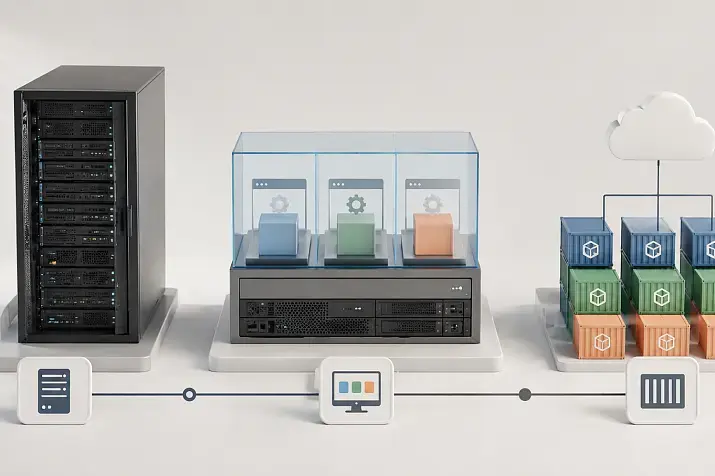
VDI can be built in different ways. In one model, each user is assigned a separate virtual machine. In another, several users work on one session server. In some cases, desktops are persistent, and the user keeps their assigned environment. In others, the desktop is non-persistent: the machine is created during login and removed after the user logs out, while the employee's profile and data are loaded separately.
The calculation depends on the chosen model. Personal desktops are convenient for users who need an individual environment, but they consume more resources. Pools of identical desktops are easier to maintain, but they require careful profile management. The session-based model can provide high user density, but it is sensitive to "noisy neighbors", when one heavy user affects the others.
That is why the same server can support 100 office employees but fail to support 20 engineers working with CAD, large models, and multiple monitors. Microsoft's recommendations for sizing remote desktops separately highlight workload type, the number of concurrent users, response time expectations, login peaks, and resource reserve, and also state that sizing tables should be used only as a starting estimate.
Most popular refurbished servers

Free shipping on orders over 500 € in the EU, £500 in the UK, and $3,000 in the USA

Free shipping on orders over 500 € in the EU, £500 in the UK, and $3,000 in the USA

Free shipping on orders over 500 € in the EU, £500 in the UK, and $3,000 in the USA

Free shipping on orders over 500 € in the EU, £500 in the UK, and $3,000 in the USA
First, users need to be divided into profiles
The phrase "we need VDI for 50 people" says almost nothing about the server. Fifty accountants, fifty warehouse operators, fifty developers, and fifty design engineers are completely different infrastructures with different requirements.
Users are usually divided into at least several profiles.
An office user works with email, documents, spreadsheets, an internal portal, a simple CRM, or an accounting system. Processor load comes in short bursts. Memory requirements are moderate. A full graphics accelerator is usually not required.
A browser application user only looks lightweight on paper. A modern browser with several web services, CRM, ERP, cloud documents, and corporate portals can consume a lot of memory and processor time, and may also benefit from a dedicated graphics accelerator. Especially when there are many tabs and pages constantly refresh data.
A user with video communication adds another layer of load. Video calls, screen sharing, camera, headset, and messengers require not only server resources, but also proper multimedia optimization. Sometimes the problem is not on the server, but on a weak thin client, poor Wi-Fi, or a suboptimal traffic route.
A user with peripherals may be light in terms of CPU and RAM, but difficult to implement. Printers, scanners, USB keys, smart cards, electronic signatures, cash register, warehouse, or medical equipment must be checked in advance. Not every device works reliably through a remote desktop.
A graphics user works with CAD, 2D/3D models, visualization, engineering calculations, video, or graphic editors. Here the processor, memory, graphics card, video memory per user, and application compatibility with graphics virtualization are all important.
| User profile | Typical tasks | CPU per user | RAM per user | Disks | GPU | What to check in advance |
|---|---|---|---|---|---|---|
| Office | Email, documents, spreadsheets, simple CRM | Low or medium load in bursts | 4–6 GB | SSD, moderate IOPS requirements | Usually not needed | Morning login, opening office files, printing |
| Browser-based | CRM, ERP, portals, many tabs | Medium, sometimes high | 6–8 GB | SSD/NVMe, active cache usage | Usually not needed, but desirable | Real tabs, reports, heavy web pages |
| Office + video | Documents, calls, screen sharing | Medium and above | 8–12 GB | SSD/NVMe | Sometimes useful | Camera, sound, thin client, network quality |
| Light graphics | 2D, simple models, several monitors | Medium | 12–16 GB | Fast SSD/NVMe | May be needed | Screen resolution, drivers, interface responsiveness |
| CAD/3D | Design, models, visualization | High | 16–64 GB | NVMe, highly stable latency | Needed | Real projects, video memory, licenses, user density |
These values should not be treated as a universal standard. They are starting points for a preliminary estimate. The final configuration must be tested on real applications, because an "office user" in one company may work only with email, while in another they may keep 30 tabs, heavy spreadsheets, and a video call open.
Concurrency matters more than the total number of employees

If a company has 100 employees, that does not always mean that 100 virtual desktops are active at the same time. But being too optimistic is also dangerous. In accounting during a reporting period, in a call center, support team, engineering department, or office with a common work schedule, concurrency may be close to 100%.
A simple logic is used for the calculation:
calculated number of users = total number of users × concurrency coefficient + reserve.
For 10 users, all 10 are usually included. Saving on the coefficient here brings almost no benefit, but can quickly lead to a resource shortage. For 50 users, 40–50 active users can be used in the estimate if some employees work irregularly, but with a normal office schedule it is better to include almost everyone. For 100 users without exact statistics, it is safer to count 80–100 active users and then refine the calculation based on pilot results.
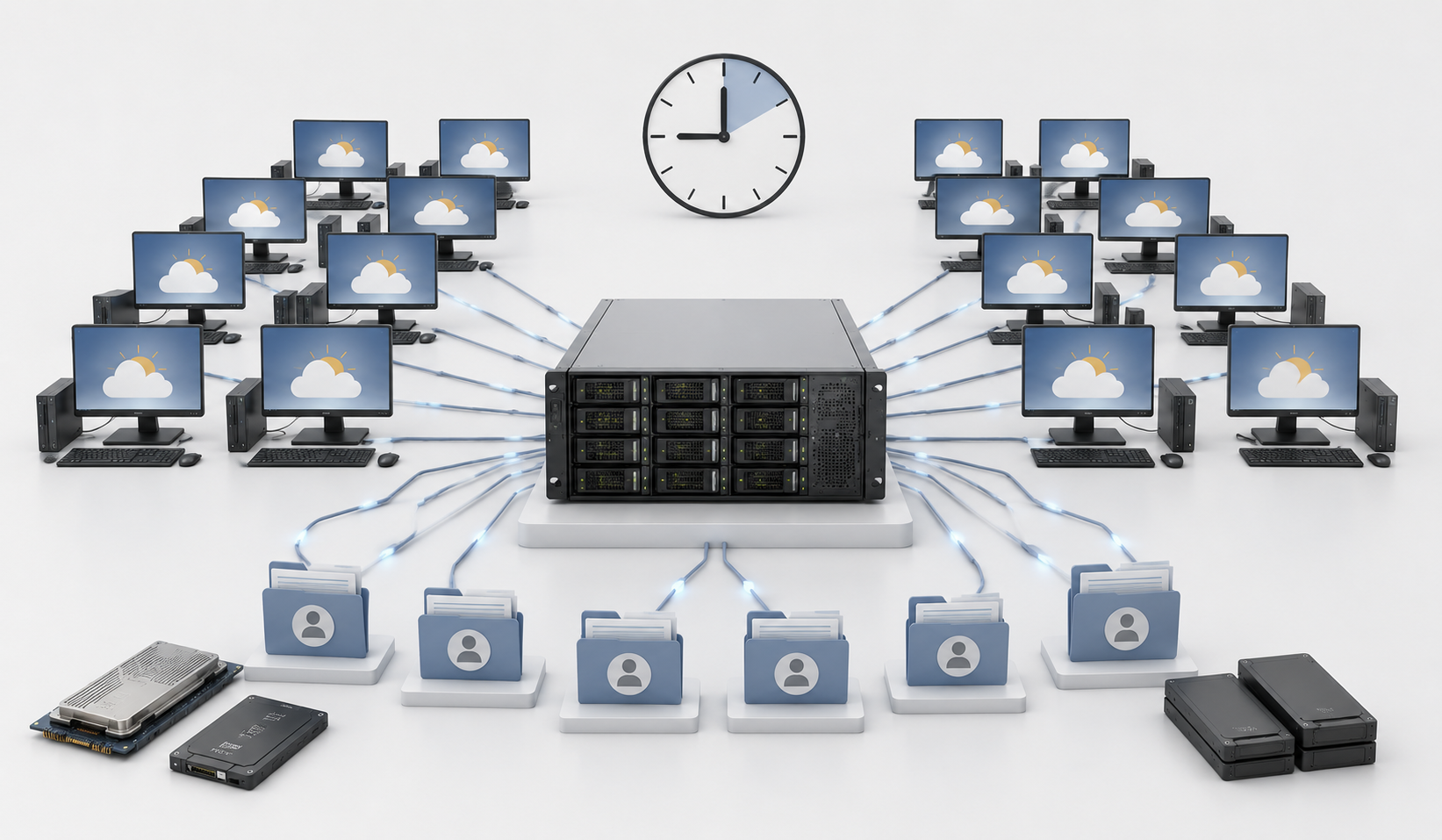
Logins also need to be considered separately. In the morning, the user is not just "sitting at the desktop". They log in, receive a profile, launch applications, open a browser, connect network drives, start a messenger, and sometimes immediately join a video call. If 50 people do this within 10–15 minutes, the load on CPU, disks, profile storage, network, domain controllers, and antivirus can be much higher than in the middle of the day, especially when temporary virtual machines are used and created and started during login.
Choosing the Right Equipment
Our specialists will contact you and answer all your questions
How to size the processor
In VDI, the processor is responsible for the operating system, applications, browsers, office suites, background services, part of graphics operations, antivirus, and user logins. An error in CPU sizing usually appears as interface delays: windows open slowly, tabs freeze, and keyboard input feels delayed.
When sizing, it is important to distinguish between physical cores, threads, and virtual processors. A virtual machine can be assigned several vCPUs, but this does not mean that the server must have as many physical cores as the total number of vCPUs across all desktops. In office scenarios, moderate CPU oversubscription is acceptable because users rarely load the processor at 100% at the same time. But for heavy browser applications, CAD, video editing, 3D, and engineering tasks, excessive oversubscription quickly leads to delays.
For a preliminary estimate, the following scheme can be used:
required physical cores = calculated users × processor load of the profile ÷ target CPU utilization.
Target utilization should not be planned at 100%. If the server is already near the ceiling in normal mode, any peak — morning login, update, antivirus scan, report in a browser system — will be noticeable to users. For VDI, it is better to leave a reserve so that short bursts do not turn into constant complaints.
Another mistake is assuming that the more cores there are in one server, the better. In practice, an overly large node may provide less flexibility. It is harder to maintain, its failure affects more users, and growth in the number of cores does not always increase desktop density linearly. Sometimes two medium-sized servers provide a more stable and manageable design than one large server.
For office VDI, the important thing is usually balance: enough cores, good clock speed, reserve for peaks, and a reasonable number of users per node. For CAD and graphics, core clock speed may be no less important than the number of cores, because some applications do not parallelize tasks perfectly.
Service virtual machines should not be forgotten either. Domain controllers, connection brokers, profile servers, monitoring, backup, antivirus infrastructure, and management components also consume resources. If only desktops are counted, the server will be overloaded already at the implementation stage.
How to size RAM
Memory in VDI often runs out earlier than it seems in the initial calculation. If the processor is overloaded, the user sees delays. If RAM is insufficient, the system starts using disk more actively, and the problem becomes twofold: memory slows down, disk load grows, and latency increases.
Memory can be calculated using the following formula:
RAM = desktop memory + service machine memory + hypervisor memory + 15–30% reserve.
For 10 users, the reserve should be closer to the upper end of the range because a small infrastructure tolerates sizing mistakes less well. For 50 and 100 users, a reserve is also needed, but it can be distributed between nodes and refined after the pilot.
For an office profile, the starting point is 4–6 GB per desktop. For active browser use — 6–8 GB. For office work with video communication — 8–12 GB. For light graphics — 12–16 GB. For CAD and 3D — from 16 GB and higher, sometimes 32–64 GB per user if large models and heavy projects are involved.
Relying on aggressive memory overcommit is dangerous. In VDI, users are sensitive to delays, and saving on RAM often ends with expensive processors and fast disks failing to prevent freezes. It is better to allocate more memory at the start than to move desktops later, replace modules, and explain to users why the new infrastructure works worse than local PCs.
How to size disks: capacity, operations, and latency
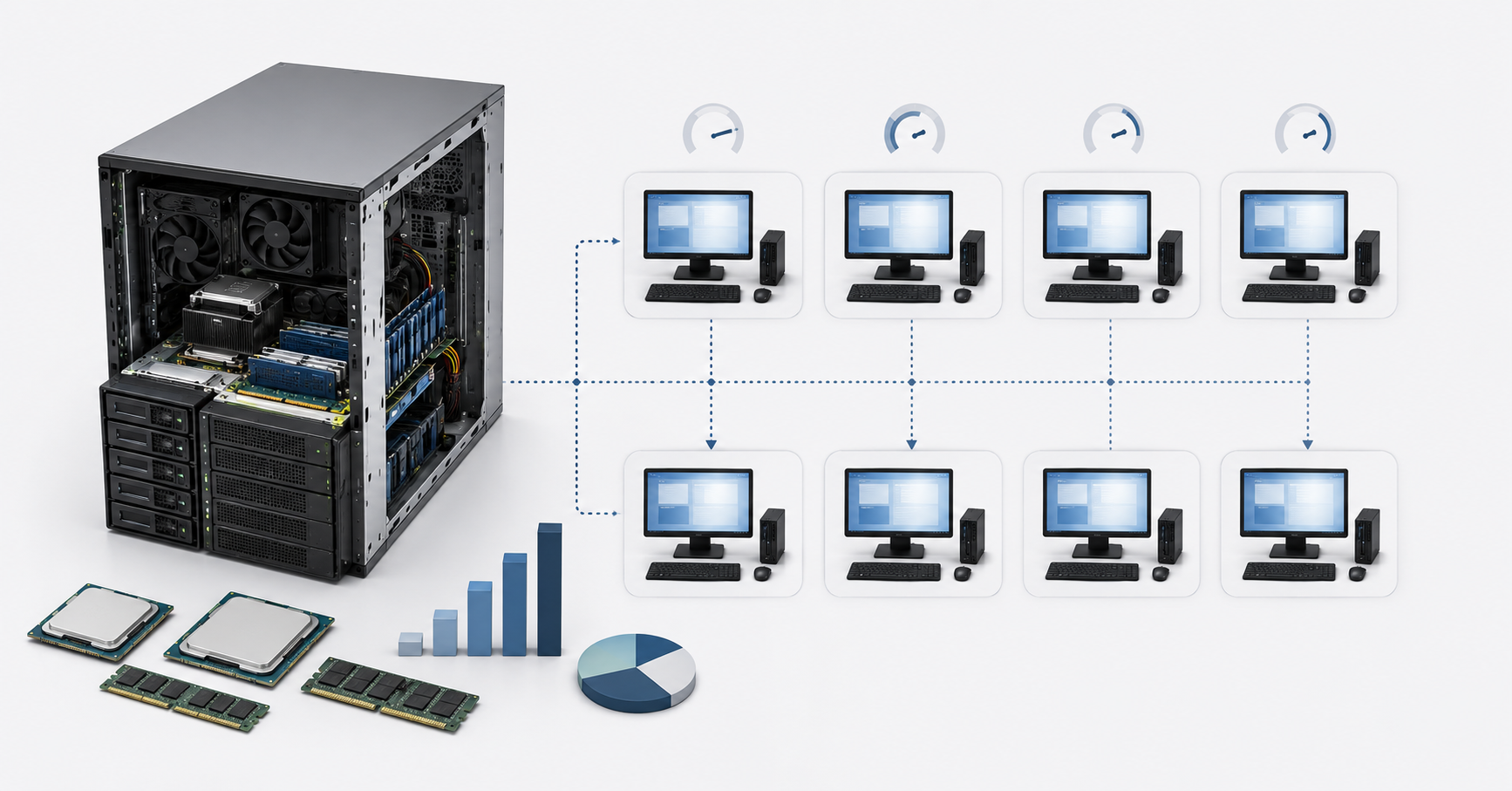
The disk subsystem in VDI is responsible for more than storing virtual machines. It handles system disks, user profiles, temporary files, browser cache, logs, updates, antivirus operations, page files, virtual machine snapshots, and service components.
Three parameters need to be calculated here.
- Capacity. You need to understand how much space desktop images, user profiles, data, service virtual machines, temporary files, snapshots, and growth reserve will take. For a preliminary estimate, the following formula can be used:
capacity = system disks + profiles + user data + service machines + snapshots + 20–30% reserve.
- Number of input/output operations. VDI involves many small read and write operations. Therefore, simple "megabytes per second" speed does not describe the full picture. The system may read and write small blocks, access profiles, update cache, launch applications, and serve dozens of users at the same time.
- Latency. For a virtual desktop, not only throughput matters, but also how quickly the storage responds to a request. If the profile storage is overloaded or located behind a slow network, the user will see delays even with decent processors and a large amount of memory.
HDD should not be used as the main storage for active desktops. They can be left for archives, backups, or cold data, but not for everyday VDI workloads. For a small installation, enterprise SSDs are suitable. For 50–100 users, it is better to look toward NVMe or an architecture with a fast storage tier for active desktops and profiles. Microsoft identifies virtual machine disks, user profiles, and applications as different design areas and also links storage choice to performance and user experience.
Snapshots of virtual machines should be handled separately. They are convenient before updates and changes, but they should not live for long. Long-term snapshot storage can degrade performance and quickly consume space. In VDI, where dozens of desktops work at the same time, this mistake becomes noticeable quickly.
When GPU is needed
GPU, or a graphics accelerator, is not needed for every VDI. For ordinary office desktops without heavy graphics, it is most often not required. Documents, email, simple web services, and accounting systems can usually be handled without dedicated graphics.
But there are scenarios where GPU becomes important. These include CAD, 3D modeling, engineering applications, visualization, video processing, graphic editors, high screen resolutions, multiple monitors, and sometimes rich browser interfaces. Video communication can also benefit from graphics acceleration, but the result depends on the platform, client, settings, and how multimedia is processed.
When sizing GPU, it is not enough to look only at the graphics card model. Support for virtualization, compatibility with the hypervisor, licensing, drivers, partitioning profiles, and video memory per user are all important. If a graphics card can be shared between several desktops, this does not mean it can be shared indefinitely. The more video memory each user needs, the fewer users will "fit" on one card.
For light 2D graphics and several monitors, a small profile or even the processor may be enough. But for CAD and 3D, testing on real projects is mandatory. For heavy engineering graphics, it is sometimes more effective to allocate separate GPU servers to the engineering department instead of mixing those desktops with office users on the same nodes. NVIDIA's sizing methodology for virtual graphics workstations also recommends starting with the user profile, application, graphics requirements, and video memory, and then checking user density through testing.
It is important to remember that a graphics card does not remove the need for CPU, RAM, and fast disks. If an application lacks processor clock speed or memory, installing a GPU will not make the desktop fast on its own.
Most popular GPU
Free shipping on orders over 500 € in the EU, £500 in the UK, and $3,000 in the USA
Free shipping on orders over 500 € in the EU, £500 in the UK, and $3,000 in the USA
Free shipping on orders over 500 € in the EU, £500 in the UK, and $3,000 in the USA
Free shipping on orders over 500 € in the EU, £500 in the UK, and $3,000 in the USA
Example sizing for 10 users
For 10 office users, one server can most often be considered. This may be a small office, accounting team, sales department, remote team, or pilot project. But even here, the configuration should not be built "right up to the limit".
For an office scenario, it is reasonable to plan for 16–24 physical cores in total, 128–256 GB RAM, enterprise SSD or NVMe drives, RAID or another data protection scheme, separate space for profiles, and a reserve. GPU is usually not needed. If desktops are non-persistent, you need to decide where user profiles will be stored and how quickly they will connect during login.
For 10 users with active browser use, video calls, and messengers, it is better to increase the memory reserve immediately. A minimum of 4 GB per desktop may be too modest if a user keeps a corporate portal, CRM, email, spreadsheets, and a video conference open. Here, it is better to target 8–12 GB per user and definitely test video communication quality.
For 10 CAD users, the configuration changes fundamentally. This is no longer a "small office VDI", but a graphics environment. It requires GPU, more memory, fast disks, and a pilot on real projects. Such users cannot be calculated using the same coefficients as employees working with email and documents. One engineer with a heavy model may consume more resources than several office users.
Example sizing for 50 users
For 50 users, it is no longer enough to rely on the average phrase "2 vCPU and 8 GB RAM each". The workload composition must be understood.
Suppose the company has 30 office employees, 15 users actively working in browser systems, and 5 employees using graphics applications. For the first 30, stable document work, email, and printing matter. For the 15 browser users, memory, processor bursts, and web page opening speed matter. For the 5 graphics users, GPU, video memory, CPU, and RAM must be calculated separately.
One server for 50 users is possible only in a simple office scenario and if the risk of downtime is accepted. For a production environment, it is better to consider at least two or three nodes and design a scheme where the failure of one server does not stop all employees. Even if the budget does not allow building a full cluster immediately, this risk should be discussed before purchasing equipment.
In terms of memory, a mixed scenario often leads to a range of 512 GB to 1 TB RAM in total, depending on the profiles. For the processor, not only cores matter, but also clock speed, peak reserve, and distribution of users between nodes. For disks, it is better to use SSD/NVMe, evaluate profiles separately, and avoid placing all active components on slow shared storage.
If there is a CAD group among the 50 users, it is better to calculate it separately. Five engineers may require a separate GPU card or even a separate server node, while the other 45 users remain on regular VDI hosts.
Example sizing for 100 users
For 100 users, the question is no longer only server power, but architecture. One large server may look simpler to purchase, but it becomes a single point of failure. It is harder to maintain, more difficult to update, and in the event of an accident all users lose access to their desktops.
For 100 office users, several medium-sized servers are usually considered. This makes it easier to distribute load, take nodes out for maintenance, add resources, and limit the consequences of failure. GPU may not be needed in this scenario if there are no graphics tasks and no special requirements for several monitors or video.
For 100 users with browser systems, video communication, and messengers, the reserve must be higher. Browser applications often create CPU and RAM load, video communication adds network and multimedia requirements, and profile storage becomes critical. A 1 Gbit/s network in the server part of such an infrastructure usually already looks like a weak point. At minimum, 10GbE should be considered, and with fast storage, several nodes, and active profiles, 25GbE should be considered.
If there is a CAD/3D group among 100 users, it must be separated as its own workload class. For example, 80 office and browser users can be served on regular VDI nodes, while 20 engineers run on GPU nodes with separate video memory and application sizing. Mixing everyone into one dense model is dangerous: office users will suffer from heavy graphics workloads, and engineers will suffer from a lack of predictable resources.
| Quantity and profile | CPU | RAM | Disks | GPU | Architecture |
|---|---|---|---|---|---|
| 10 office users | 16–24 physical cores with reserve | 128–256 GB | SSD/NVMe, RAID, separate space for profiles | Usually not needed | One server is acceptable, but backups are required |
| 10 CAD/graphics users | 24+ cores, clock speed matters | 256–512 GB and higher | NVMe, low latency | Needed, video memory must be sized | A separate GPU server or dedicated node is better |
| 50 mixed users | 2 nodes or one powerful server if the risk is accepted | 512 GB — 1 TB total | SSD/NVMe, profile storage separate | By graphics group | At least two nodes are desirable |
| 50 with a CAD group | Office and CAD should be sized separately | 1 TB and higher for heavy tasks | NVMe, fast profiles | Needed for CAD | GPU users are better separated |
| 100 office users | Several nodes, reserve for peaks | 1–2 TB total and higher | Fast shared or distributed storage | Usually not needed | Several servers, fault tolerance |
| 100 mixed users | Several nodes, reserve for browser and video | 2 TB and higher by profiles | NVMe/SSD, 10/25GbE for the server side | Optional | Well-planned network and storage are required |
| 100 with a graphics group | Regular and GPU nodes should be sized separately | By profiles, often 2 TB+ | NVMe, low latency | Needed, by video memory | Separate GPU nodes for the engineering department |
The table shows guidelines, not ready-made specifications for purchasing. The final sizing depends on applications, hypervisor, desktop model, profiles, fault tolerance requirements, and test results.
Choosing the Right Equipment
Our specialists will contact you and answer all your questions
Peripherals can become the main limitation
When sizing VDI, processors, memory, and disks are often discussed, while peripherals are forgotten. As a result, the server works normally, but the project slows down because of scanners, USB keys, cameras, printers, or electronic signatures.
Before implementation, it is necessary to check what devices users need. Do they work over the network or only via USB? Are drivers needed inside the virtual desktop? How does the device behave when the session reconnects? Are there delays during scanning? Does the selected VDI platform support redirection of this exact device type?
Special attention should be paid to cameras, headsets, and video communication. If the video stream follows a suboptimal route, the server and network may receive extra load. The user will then think that "VDI is slow", although the problem may be in the client device, multimedia settings, or channel quality.
Smart cards, USB tokens, and electronic signatures require separate testing. In some scenarios, it is better to use network devices or specialized solutions than to try to redirect local USB directly into the virtual desktop.
Citrix's VDI assessment methodology also starts not with hardware, but with the analysis of users, applications, work scenarios, devices, and access requirements. This is a useful approach: without such an inventory, server sizing turns into guesswork.
Network and latency
VDI is an interactive system. Users notice not only low speed, but also micro-latencies: slow keyboard input, jerky scrolling, menu opening delays, and cursor freezes. Therefore, the network is no less important than the server.
Several segments must be considered: the channel from the user to VDI, the network between VDI servers and storage, and connections to domain controllers, file servers, databases, internal portals, and printing systems.
For remote users, latency, packet loss, and channel stability matter. Even a powerful server will not fix poor internet or overloaded Wi-Fi. For office users, the local network, routing, and thin client connection quality must be checked.
For the server side of a serious VDI infrastructure, 10GbE should be considered a reasonable minimum. For 50–100 users, fast NVMe storage, active profiles, and several nodes, moving to 25GbE may be justified. Especially if desktops, profiles, and user data actively exchange data over the network.
Fault tolerance and maintenance
A "one server for everyone" design can be acceptable for 10 users if the business is ready for downtime and has a clear recovery plan. For 50 users, this is already a risk. For 100 users, one server almost always looks like a weak architectural decision, even if it has enough resources on paper.
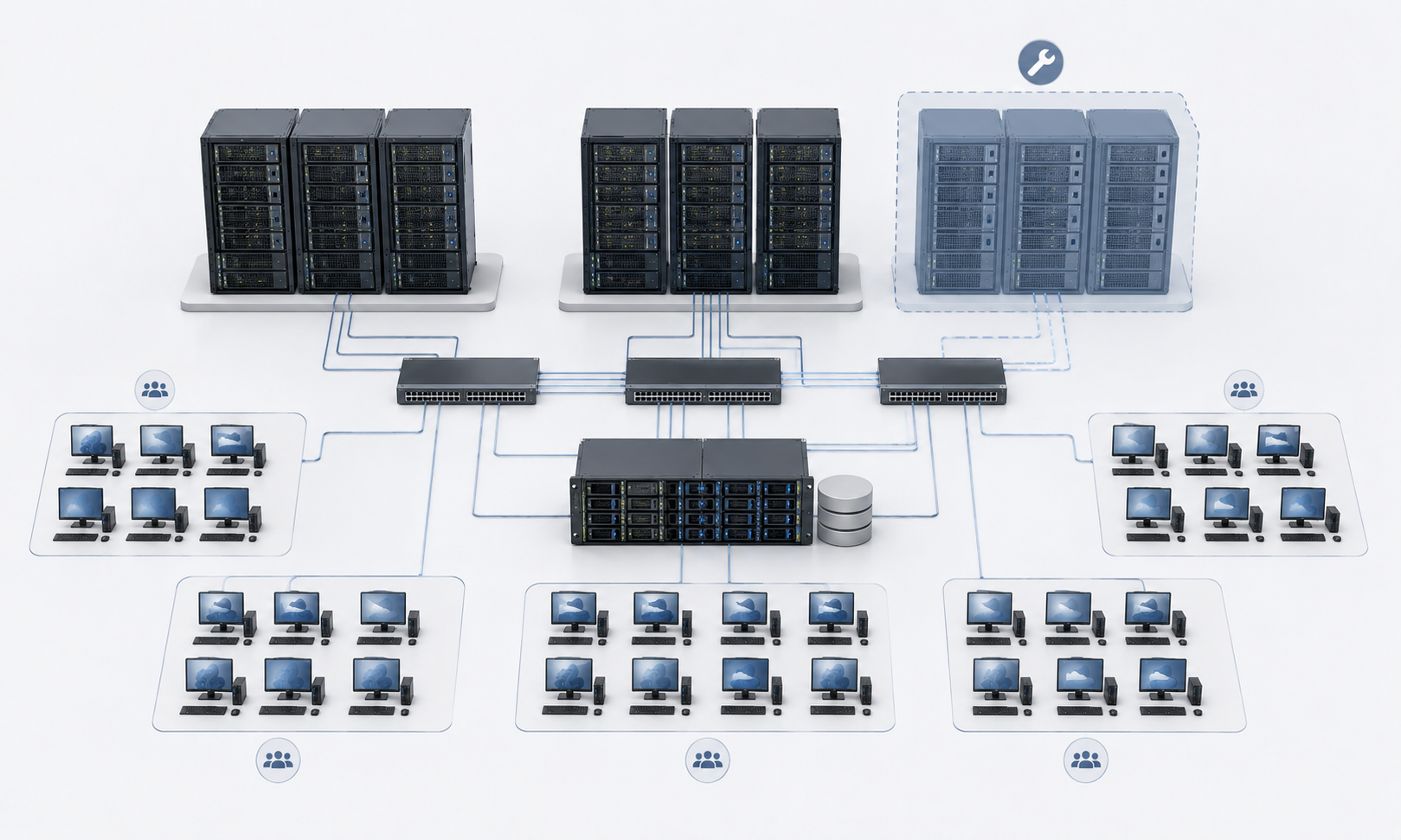
It is important to distinguish between backup and fault tolerance. A backup helps recover after a failure, but it does not provide continuous operation. If all users were working on one server, its failure will stop work until recovery. A fault-tolerant design is built differently: the load is distributed between several nodes, and if one node fails, the remaining nodes take on at least the critical part of the users.
When sizing, it is important to consider not only normal mode, but also maintenance. Servers need to be updated, rebooted, taken out of service, and expanded. If the infrastructure is sized without reserve, any maintenance becomes downtime or operation at the limit.
For 100 users, the failure scenario of one node should be calculated immediately. For example, if there are three VDI servers, you need to understand how many users will be able to work if one of them is lost. It may not be all 100, but at least critical departments should keep access.
Profile storage and the network must also follow this logic. There is no point in building several servers if all profiles are stored on one unprotected storage system or the entire server network goes through one vulnerable element.
Typical mistakes when sizing VDI
- Treating all users as identical. In a table they look like "50 workplaces", but in reality some employees work only with email, some constantly keep CRM open, some participate in video calls, and several people run heavy engineering applications.
- Looking only at vCPU. The number of virtual processors in desktop settings is not equal to real performance. It is important to look at physical cores, clock speed, oversubscription, peaks, and application behavior.
- Saving on memory. A shortage of RAM quickly turns into disk load, and the user sees it as an overall slowdown of the desktop.
- Using slow HDDs for active desktops. VDI depends on small operations and latency, so the disk subsystem must be fast and predictable.
- Forgetting user profiles. If system disks are fast but profiles are stored on an overloaded file resource, logins and application launches will still be slow.
- Ignoring morning logins. The server may work normally during the day but struggle through the first 15 minutes of the workday.
- Assuming that GPU will solve all performance problems. It helps with graphics tasks, but it does not replace the processor, memory, and fast disks.
- Not testing peripherals. Scanners, printers, USB keys, cameras, and electronic signatures may be more complex than CPU sizing.
- Buying one large server without a fault tolerance plan. On paper it may be cheaper, but in real operation such a server becomes a single point of failure.
- Skipping the pilot. VDI depends on real user behavior, so sizing without testing always remains an assumption.
- Assuming that using VDI will reduce infrastructure costs because powerful computers no longer need to be purchased. More often, because of the cost of equipment and licenses, VDI increases expenses but improves manageability and availability.
How to check the sizing before purchasing
Before purchasing a server, an inventory must be carried out. How many users work simultaneously? Which applications do they run? How many browser tabs are usually open? Are there video calls? Are CAD, 3D, graphics, large spreadsheets, heavy PDFs, scanners, printers, USB tokens, and electronic signatures used?
Then users need to be divided into profiles. It is not necessary to create a complex classification with dozens of groups. It is often enough to identify office users, active browser users, users with video communication, users with peripherals, and a graphics group.
After that, it is worth collecting statistics from current workplaces if they are available: average and peak CPU, memory, and disk consumption, profile size, number of applications, and browser behavior. Such statistics do not give a perfect answer, but they help show real differences between users.
The next step is a pilot. It is better to test 5–10 typical users than to move the entire office at once. In the pilot, it is necessary to look not only at average server load, but also at morning logins, application launch, browser opening, video communication, printing, scanning, USB operation, and electronic signatures.
CPU, RAM, disks, network, latency, and subjective user experience need to be measured. If users complain while graphs show that "average load is normal", you need to look for short peaks, storage latency, profile problems, network issues, or peripherals.
After the pilot, the sizing is adjusted. Sometimes memory needs to be added. Sometimes users need to be split into different pools. Sometimes profiles need to be moved to faster storage. Sometimes GPU needs to be added only for a small group, not for all users.
Dell's VDI recommendations for VMware Horizon also consider sizing through user profiles, density, CPU, memory, graphics configurations, and placement architecture, which clearly shows that there is no universal specification "for 100 users" without a workload description.
Which server to choose for VDI for 10, 50, and 100 users
For 10 office users, one server with reserve is usually enough: 16–24 physical cores, 128–256 GB RAM, enterprise SSD or NVMe, disk redundancy, separate space for profiles, and proper backup. If there is video communication and active browser use, it is better to increase memory and test multimedia. If there is CAD, separate GPU sizing is required.
For 50 users, it is better to start by distributing them by profile. If all users are office users, one powerful server can be considered, but for a production environment two nodes are more reasonable. A mixed workload will require more memory, fast disks, well-planned profile storage, and reserve for peaks. If there is a graphics group, it must be sized separately.
For 100 users, it is better to design an infrastructure of several nodes. It is important not only to handle the normal load, but also to survive maintenance, growth, and the failure of one server. An office scenario can work without GPU, but will require reliable storage and networking. A mixed scenario with browsers and video requires a larger reserve. CAD/3D groups are better placed on separate GPU nodes, or at least calculated separately from office users.
VDI works well when sizing starts with real work scenarios. First, you need to understand users, applications, peaks, peripherals, and downtime requirements. Then CPU, RAM, disks, GPU, and network should be calculated. And only after a pilot should the final server decision be made.
Choosing the Right Equipment
Our specialists will contact you and answer all your questions
Content:
Free shipping on orders over 500 € in the EU, £500 in the UK, and $3,000 in the USA

Free shipping on orders over 500 € in the EU, £500 in the UK, and $3,000 in the USA

Free shipping on orders over 500 € in the EU, £500 in the UK, and $3,000 in the USA
Free shipping on orders over 500 € in the EU, £500 in the UK, and $3,000 in the USA

Free shipping on orders over 500 € in the EU, £500 in the UK, and $3,000 in the USA

Free shipping on orders over 500 € in the EU, £500 in the UK, and $3,000 in the USA