Why the question “Which RAID should I choose?” is trickier than it looks
RAID in a server is primarily about availability and continuity: surviving a drive failure (sometimes two), keeping services running, buying time to replace hardware, and restoring performance. But RAID does not replace backups: it won’t save you from data deletion, ransomware, logical errors, file system corruption, broken automation, or, especially, the loss of an entire server or rack.
In 2026, RAID is no longer just “RAID 5 or RAID 10.” In practice, you choose an approach first, and only then a level:
- Hardware RAID (a controller with firmware and cache)
- Software RAID (e.g., Linux mdadm, Windows Storage Spaces — the OS builds the array)
- RAID inside the file system (ZFS: mirrors and RAIDZ)
Below you’ll find a practical “decision matrix” of RAID levels, a breakdown of hidden risks (cache, write hole, rebuild/URE, SMR drives, firmware), and checklists to make RAID predictable instead of an illusion of protection.
What RAID in a server is — what it’s “made of”
Mini glossary
- Stripe — data is split into blocks and distributed across disks for speed.
- Chunk size (stripe size) — the block size the RAID writes to one disk in a stripe (affects read/write efficiency).
- Mirror — identical data on two (or more) disks.
- Parity — “check data” that allows recovery when a disk fails.
- Hot spare — a hot standby disk that automatically joins the array after a failure.
- Rebuild / resync — array reconstruction after replacing/adding a disk.
- Patrol read / scrub — background read (and/or integrity) verification to detect issues early.
- Write-back / write-through — write-cache policy (faster vs safer during power loss).
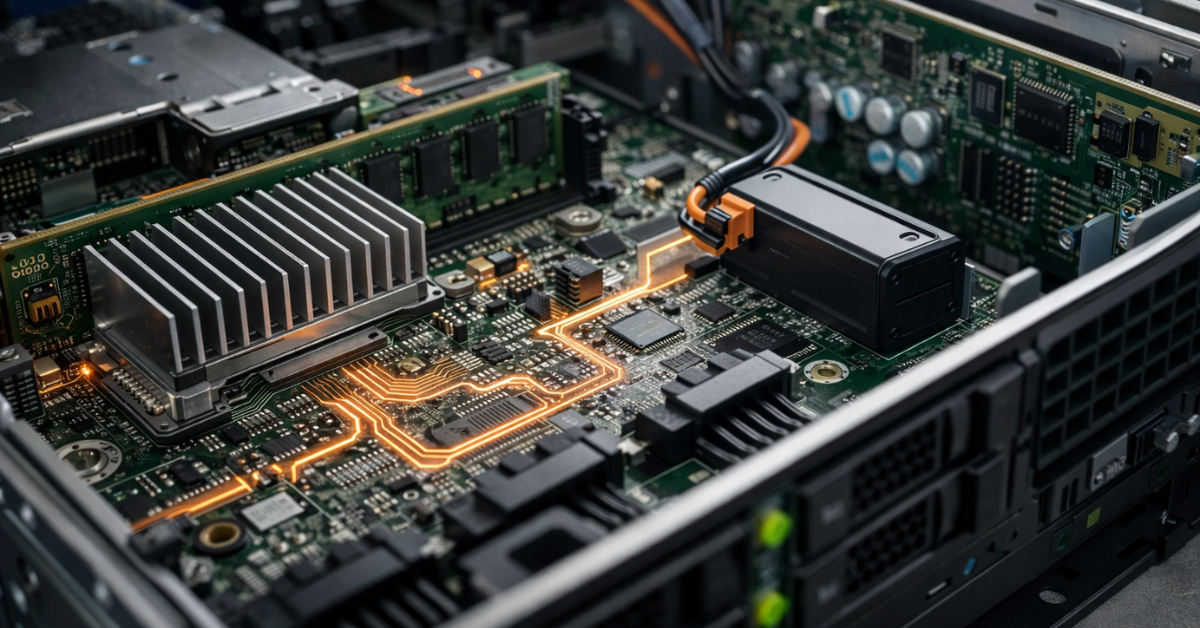
- BBU / CacheVault — controller cache protection (battery/supercap + flash to protect cache contents) so “not-yet-written” data isn’t lost when power is cut.
Where RAID “lives”
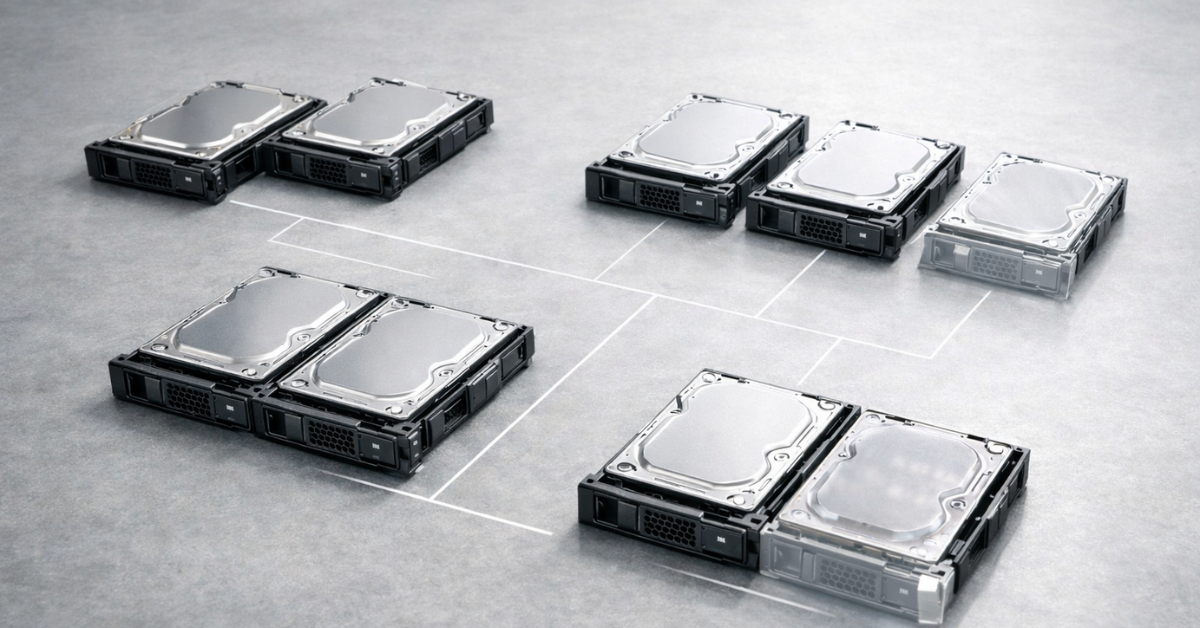
Hardware RAID
The array is built on the controller: firmware + cache (usually DRAM); often there is cache protection (BBU/CacheVault). The controller works together with the backplane/expander and hot-swap bays. The upside is that “hardware” cache can greatly accelerate writes; the downside is dependence on the controller model, firmware, and metadata format.
HBA + software RAID
The controller runs in HBA/IT mode (essentially a “transparent” adapter) and the OS builds the array. This is easier to move between servers and easier to diagnose, but it requires disciplined monitoring and correct rebuild/alert configuration.
ZFS (mirrors and RAIDZ)
RAID is part of a ZFS pool: the file system itself controls data integrity, can scrub, and generally “thinks” about storage more broadly than a classic RAID controller. RAIDZ can use 1/2/3 parity blocks (raidz1/2/3).
What affects the result more than the “RAID number”
- Drive type and behavior under load. HDD/SSD/NVMe have different latency and failure profiles. For HDDs, CMR vs SMR matters; for SSDs, endurance (TBW/DWPD) and firmware quality matter.
- Workload type. Random write, sequential write, and latency-sensitive services (VMs/DBs) have different requirements. The same RAID can be perfect for an archive and terrible for a database.
- Recovery window (rebuild time) and second-failure risk. The larger the drives (and the more complex the RAID), the longer rebuild takes. The longer rebuild takes, the higher the chance of a second failure or a read error during recovery.
RAID levels: what exists and what you actually use
RAID 0
The simplest configuration: data is “striped” across multiple disks. Minimum number of drives: one (though RAID 0 is typically two or more). When it’s acceptable: temporary data, cache, scratch, test environments where losing the array is expected. When it’s not: anything you care about. RAID 0 does not survive the failure of any drive.
RAID 1
Simple, understandable reliability: one disk mirrors the other. Minimum number of disks: two. Good for: OS/boot, small databases, critical services with modest capacity needs. Limitation: capacity efficiency is ~50%; writes can be slower, while reads can be faster in some scenarios.
RAID 10 (1+0)
Mirrors combined into RAID 0: often the best all-around choice for production. It combines RAID 0 speed with RAID 1 resilience and can survive the loss of two drives (but not any two). Good for: virtualization, databases, mixed workloads, high IOPS, predictable latency. Cost: ~50% usable capacity; requires at least 4 disks.
RAID 5 / RAID 6
Parity-based levels: they save capacity but come with a write penalty and rebuild risk on large HDDs.
- RAID 5 survives 1 drive failure. On large HDDs, rebuild can be long and risky: you operate in degraded mode, and any second issue can be catastrophic; access performance also drops significantly during rebuild. Minimum number of disks: 3. Cost: capacity equal to one drive in the array — and that’s basically its only real advantage.
- RAID 6 survives 2 drive failures — much safer for large shelves, but even heavier on writes (read-modify-write). It requires careful cache/stripe tuning and a more capable controller (and sometimes a separate license). Minimum number of disks: 4. Cost: capacity equal to two drives.
RAID 50 / RAID 60 (nested)
A common practice for large disk shelves: multiple RAID5/6 groups are combined into RAID0 on top. When it’s appropriate: many disks, you need a balance of capacity and fault tolerance, and you consciously manage groups. Important: it’s not a magic bullet — rebuild time and risks don’t disappear; the profile just changes.
JBOD / single disk
Sometimes the right answer is not “classic RAID,” but separate disks — if you use distributed storage on top (Ceph), or if you build a ZFS pool from individual disks/mirrors and want maximum transparency and control.
RAID levels — minimum disks / tolerated failures / performance / where to use
(Definitions of RAID levels and data distribution follow common industry practice and RAID group metadata specifications, including SNIA DDF.)
| Level | Min. disks | Tolerated failures | Strength | Typical “pain” | Best for |
|---|---|---|---|---|---|
| RAID 0 | 2 | 0 | maximum speed/capacity | any failure = data loss | scratch, cache, temporary data |
| RAID 1 | 2 | 1 (per mirror) | simplicity, predictability | 50% capacity | boot, small services, “minimal risk” |
| RAID 10 | 4 | 1 per mirror (sometimes more if failures are in different pairs) | best latency and IOPS, fast rebuild | 50% capacity, more disks | VMs, databases, mixed workload |
| RAID 5 | 3 | 1 | capacity efficiency | heavy writes, rebuild risk on large HDDs | archives/files where writes are moderate and hygiene is good |
| RAID 6 | 4 | 2 | safer than RAID5 on large capacities | writes are even heavier, rebuild is long | file storage, archives, HDD shelves |
| RAID 50 | 6+ | 1 per group | compromise for large shelves | more complex design/recovery | large arrays with moderate writes |
| RAID 60 | 8+ | 2 per group | higher resilience than RAID50 | cost in disks/writes | large HDD shelves for capacity |
| JBOD / single | 1 | 0 | transparency, “top-level” control | failure = loss of one disk | Ceph, ZFS mirrors, architectures where resilience is provided above |
Hardware RAID vs software RAID vs ZFS/RAIDZ: what to choose and why
Hardware RAID (controller)
Pros
- Write cache can dramatically speed up random writes (especially on HDD arrays).
- Offloads some logic to the controller; familiar operations (hot-swap, alerts, vendor tools).
- Often the straightforward choice for classic servers and “traditional” storage.
Cons and risks
- Dependency on model/firmware/metadata: moving an array to another controller isn’t always easy.
- Array migration: even within the same brand, there may be generation-compatibility nuances.
- Unprotected cache during sudden power loss is a direct data-integrity risk.
Write-back vs write-through — why it matters
- Write-through: a write is completed only after it’s physically written to disks. Slower, but safer during power loss.
- Write-back: a write is acknowledged once it’s in controller cache. Faster, but requires cache protection (BBU/CacheVault) and ideally a UPS.
Note: many MegaRAID controllers automatically switch to write-through if the battery/CacheVault isn’t ready or the module health is bad — specifically to avoid risking data integrity.
Software RAID (Linux mdadm / OS level)
Pros
- Transparency and portability: it’s easier to “read” the array on another server; less lock-in to a specific controller.
- Often cheaper (HBA instead of RAID controller), especially when hardware write cache isn’t required; easier to implement tiered storage (cold on HDD, warm on SATA SSD, hot/cache on NVMe).
- Integrates well with modern monitoring/automation practices.
Cons
- CPU/chipset overhead (usually acceptable on modern servers, but it should be considered).
- Requires discipline: alerts, регулярные checks, correct replacement procedures.
- Results depend heavily on configuration and operations.
Operational minimum (what you must have):
- Monitor array state and degradation (/proc/mdstat + monitoring agent).
- Control rebuild/resync and don’t run degraded for weeks.
- Test drive replacement procedures and ensure alerts actually reach you.
ZFS: mirrors and RAIDZ
How RAIDZ differs conceptually
ZFS stores checksums and can verify integrity on reads, and it can regularly “sweep” the pool via scrub. RAIDZ options:
- raidz1 — tolerates 1 failure
- raidz2 — 2 failures
- raidz3 — 3 failures
A key limitation: changing the layout
ZFS is not “switch RAID5 to RAID6 in two clicks.” Pool and vdev architecture requires upfront design: expansion and layout changes have constraints and depend on version/features. “Adding parity” or radically reworking the layout usually means redesign + migration. For context, it’s useful to understand the ongoing work direction around RAIDZ Expansion.
RAID implementation type — selection criteria
| Approach | Where it’s best | What you must provide | Typical mistakes |
|---|---|---|---|
| HW RAID (controller) | classic servers/shelves, HDD arrays where write speed and hot-swap matter | protected cache (BBU/CacheVault) + UPS, consistent firmware, monitoring battery/cache health | write-back without protection, controller lock-in with no migration plan |
| Software RAID (mdadm/OS) | general-purpose servers where portability and transparency matter | state monitoring, replacement procedures, rebuild plan, correct alignment/partitioning | “set and forget,” no alerts, degraded for weeks |
| ZFS (mirrors/RAIDZ) | storage focused on integrity, familiar ZFS ops, scrubbing | ECC preferred, regular scrub, disk monitoring, well-designed vdev layout | bad pool design “to the limit,” expecting easy layout changes without migration |
How to choose RAID for specific tasks

Virtualization (VMware / Proxmox / Hyper-V)
If dozens/hundreds of VMs live on this storage and latency matters, choose RAID 10 (or ZFS mirrors). Why: virtualization creates many small random operations, and RAID10 handles random writes better and rebuilds faster/more predictably. Note: on NVMe, mirrors/RAID10 are usually preferred too — IOPS are high, but degraded mode and rebuild still matter.
Databases (PostgreSQL / MySQL)
For production DBs with latency requirements, the priority is RAID10/mirrors. Why: databases are sensitive to latency “tails,” and parity RAID5/6 can suffer from read-modify-write on writes and hurt latency. RAID5 is acceptable only when the workload is mostly reads, writes are moderate, cache is protected, and rebuild risks are understood.
File storage / HDD archive
If you need capacity and resilience on large HDD volumes, the common choices are RAID6 or RAID60. Why: large drives rebuild slowly, and a second fault during rebuild is a real risk. Dual parity reduces catastrophic failure probability. But: write performance depends on cache/stripe/workload; for “lots of small files + writes” you may need a different design (tiering, SSD journal, ZFS metadata mirrors, etc.).
Backup repository
If this is backup storage, prioritize integrity and predictable recovery, not maximum speed. A typical choice is RAID6/RAIDZ2, plus settings that reduce corruption risk during power events (UPS, safe cache policy). Key point: don’t confuse production storage and backup storage — they have different workload profiles and requirements.
NVMe for high IOPS
If your goal is low latency and high IOPS, you’ll usually want RAID1/RAID10 (or ZFS mirrors). Why: parity on very fast media can become CPU/write-path bound and produce uneven latency. NVMe is often chosen for predictable latency, and RAID10 is simpler to keep predictable.
When “not RAID, but…”
If you use distributed storage (Ceph and similar) and fault tolerance is provided by cluster-level replication, it’s often more reasonable to use JBOD/HBA and design the cluster correctly than to “duplicate resilience” with a RAID controller (not always bad, but often complicates diagnostics and recovery).
Mini decision algorithm
- How much downtime can you tolerate (RTO)? Minutes → RAID10/mirrors. Hours → capacity-oriented options may work.
- How much data can you lose (RPO)? If “almost none,” think backups/replication first; RAID mostly reduces downtime.
- What’s more expensive: capacity or recovery? Are disks cheaper than downtime/incidents?
- What drives are you using? HDD/SSD/NVMe, CMR/SMR, SSD endurance.
- Do you have a UPS and protected cache? If not, be careful with write-back and parity levels.
- How long will rebuild take at your capacity? If “very long,” plan for dual parity or mirrors.
Hidden pitfalls: what simple guides don’t tell you
Rebuild on large drives: long and risky
On large HDDs, rebuild can take many hours or days (depending on workload and controller policy). During that time, the array:
- runs degraded;
- is under extra read load;
- is more vulnerable to a second issue (up to total array failure).
Hence the practical rule: RAID5 on large HDDs in production is often a bad idea unless you understand and mitigate the risk via rebuild windows, disk quality, and monitoring.
URE (read errors) during rebuild — the risk logic
During rebuild, the controller/OS reads remaining disks heavily. The more data you must read and the older/more stressed the disks are, the higher the chance of hitting an unreadable sector or a burst of read errors. On RAID5, this can mean total data loss because you have no parity headroom left. On RAID6, you do.
Write hole (especially RAID5/6)
Write hole is a class of issues where a sudden power loss causes part of a stripe to be written and part not; parity and data can get out of sync. The result can be silent data corruption (especially nasty because it may not be detected immediately). What helps in practice:
- protected write-back (BBU/CacheVault) + UPS;
- correct cache policy;
- at the ZFS level — checksums and scrub (but power/UPS still matters).
Controller cache and protection (BBU/CacheVault)
Cache is performance — but only if it’s safe. Without protection, write-back becomes “faster writes at the cost of integrity.” That’s why controllers switch to write-through when the battery/module isn’t ready: it’s a normal protective behavior.
SMR drives: why they can “kill” rebuild and latency
SMR (shingled magnetic recording) handles sustained random writes and area rewrites poorly: rebuild, random write, and spiky workloads can cause extreme latency and unpredictable rebuild times. For server arrays under load, you typically want CMR.
Hot spare: when it helps and when it gives false confidence
Hot spare is useful if:
- you don’t have staff on-site 24/7;
- downtime is critical;
- you want rebuild to start automatically immediately after failure.
But it does not replace monitoring or having spare drives on the shelf, and it doesn’t solve “same-batch drives fail together.” Sometimes having a spare on the shelf is better than keeping it spinning in the array, especially in aggressive environments (vibration/temperature) or when drives are prone to cascading failures.
Stripe/chunk and alignment (4K/64K/1M): how to avoid read-modify-write hell
If partitioning, file system, and RAID parameters aren’t aligned, a small write can turn into a chain: read old data → recalculate parity → write back multiple blocks. The practical goal is to ensure typical application I/O fits the stripe cleanly, avoiding extra parity work and fragmentation. There’s no single “correct” value — the principle is alignment and workload fit.
Monitoring: what exactly to watch
The minimum you should have in alerts/dashboards:
- array state: optimal / degraded / rebuilding
- predictive drive errors (SMART, media errors, bad blocks)
- cache status: write-back/write-through, BBU/CacheVault health
- read/write error counts and growth, timeouts
- drive replacement events, rebuild start/end, rebuild speed
Practical setup and operations: minimum RAID hygiene
Checklist: before going live
- Check firmware currency: RAID controller / backplane/expander / drives (and vendor-recommended compatibility).
- Enable alerts: SNMP/email/agent into monitoring (and verify notifications actually arrive).
- Cache policy:
- write-back — only with protected cache (BBU/CacheVault) and ideally a UPS;
- otherwise — write-through.
- Test failure procedure:
- simulate a disk failure;
- verify replacement order and rebuild start;
- make sure degradation is visible in monitoring.
- Run an initial scrub/patrol read (if supported) and review the report.
Checklist: ongoing operations
- Scrub / patrol read: typically every 2–4 weeks for active storage and every 1–3 months for “cold” archives (adjust for volume and load).
- Regularly check BBU/CacheVault status and ensure the controller didn’t switch to write-through “for a reason.”
- Track degradations and don’t leave arrays in degraded mode “until later.”
- Have a drive replacement policy (especially if drives are the same batch and have similar power-on hours).
- A clear incident plan: who replaces, where the spare is, how fast, where to watch rebuild progress.
Common RAID selection mistakes
- RAID5 on large HDDs for production databases or VM storage.
- Write-back without BBU/CacheVault and without a UPS.
- “Built it and forgot it”: no monitoring, no alerts, no degraded-state checks.
- No backups because “we have RAID.”
- Same-batch drives with no strategy: no spares, no replacement plan, no error tracking.
- Using SMR drives “because they’re cheaper” in an array that must rebuild under load.
- Poor alignment/stripe choices → unexpectedly bad writes and “uneven” latency.
- Living in degraded mode for weeks: “we’ll replace it later.”
- No tested recovery and replacement procedure — first time is on production.
- Blind belief in a “magic RAID level” without considering RTO/RPO and rebuild time.
When choosing a server for RAID, look not only at “disk count,” but also at the controller, hot-swap backplane, drive compatibility, and the ability to use protected cache (BBU/CacheVault). This directly affects write performance, behavior during power events, and rebuild predictability.
To help ServerMall engineers propose the right configuration quickly, prepare:
- your use case (VM/DB/files/archive/backups, read/write profile);
- preferably (but not required — we can advise) drive type and capacity (HDD/SSD/NVMe, CMR/SMR, SSD endurance requirements);
- preferred RAID level/approach (HW RAID / mdadm / ZFS);
- downtime (RTO) and data-loss (RPO) requirements;
- whether you have a UPS and whether you need cache protection (BBU/CacheVault).
FAQ
Can I “switch RAID5 to RAID6” without losing data?
Sometimes — yes, but it depends on the implementation (controller/software), available free space/disks, and supported migration paths. In production, treat it as a project: confirm the supported path, take backups, and plan a risk window.
What’s best for Proxmox/VMware?
Most often: RAID10 or mirrors — low latency, good random write, and more predictable rebuilds.
Do I need RAID if I have backups?
If downtime matters — yes, RAID reduces the chance of a service stop due to a single drive. But backups solve a different problem: recovery from logical errors, ransomware, and human mistakes.
Can I mix drives of different sizes/models?
You can, but the array usually “shrinks” to the smallest drive, and mixing models/batches can create uneven performance and different failure behavior. In production, it’s better to standardize drives and firmware.
Why did the controller switch cache to write-through?
A common reason is that the battery/CacheVault isn’t ready, is faulty, or requires service. The controller does this to avoid data loss during power loss.
What’s more important: RAID or UPS?
For data integrity, power and correct write completion (UPS + protected cache) can be more critical, especially with write-back and parity RAID. RAID without backup power won’t save you from “torn” writes.
RAIDZ1 vs RAID5 — what’s the practical difference?
Both tolerate one failure, but ZFS adds an integrity model and регулярный scrub, and RAIDZ is part of the pool/file system. At the same time, ZFS design requires an upfront vdev layout and an understanding of expansion/rebuild constraints.
What’s the minimum number of disks for RAID10?
Minimum 4 disks (two mirror pairs striped together).
Can I operate without a hot spare?
Yes, if you can guarantee fast physical access and have spare drives on hand. Hot spares are useful where minutes matter and no one is nearby.
Is software RAID “worse” than hardware RAID?
Not necessarily. Software RAID often wins on transparency and portability; hardware RAID wins on cache and familiar tooling. The right choice depends on your workload, monitoring discipline, and migration/support requirements.
Sources
- SNIA — Common RAID Disk Data Format (DDF)
- Red Hat Docs — Managing RAID
- Broadcom MegaRAID — Cache/BBU/CacheVault guidance
- OpenZFS Docs — RAIDZ (raidz1/2/3), zpool concepts
- OpenZFS — RAIDZ Expansion (development context/limitations)