Hard drives with the same form factor and “similar” specs (capacity, 7200 rpm, SATA) can behave very differently in a server. The reason is simple: an enterprise/server HDD is designed for 24×7 operation, multi-drive bays, RAID/ZFS, and predictable recovery from errors. A desktop drive is designed for low noise, smooth standalone use, and typical consumer workloads.
In this article, we’ll break down the practical differences that truly affect array stability, rebuild/resilver time, the risk of drives dropping out, and total cost of ownership. The focus is on SATA drives (we’ll mention how this differs from SAS as well).
For those choosing right now
Signs you need a NAS/enterprise-class HDD
- Hardware/software RAID or ZFS: any array where timeouts and predictable error behavior matter.
- 24×7 operation and a constant background of activity (virtualization, replication, scheduled backups).
- 8+ drives in one bay: vibration, thermal density, and “neighbor” drives start affecting errors and latency.
- Regular rebuild/resilver: the drive must read and write for many hours/days in a row, often at elevated temperatures.
- Critical data and a high SLA: the cost of downtime and recovery is higher than the price difference between drive classes.
- Consistent performance matters more than silence: a server needs predictability, not living-room comfort.
- You need to rely on the datasheet (workload/AFR/read error rate/tolerances) and treat a 5‑year warranty as normal for the class — see WD Gold datasheet.
When a desktop HDD is acceptable
- A single drive without RAID (or JBOD for non-critical tasks), where “getting stuck” on an error doesn’t break an array.
- Cold archive: infrequent reads/writes, with data duplicated elsewhere.
- Low and irregular load: no nightly backup windows, constant scanning, indexing, or VM I/O.
- You have verified backups and you accept more frequent replacements/downtime.
- No 24×7 requirement, and the chassis/bay doesn’t create strong vibration and heat.
Important: a desktop drive in RAID may not “die” faster, but it can behave worse at the critical moment — spending a long time trying to recover a sector, hanging on read/write commands, and triggering the controller to drop the drive. This is less about endurance and more about firmware behavior.
Bottom line for purchasing. If you run RAID/ZFS, 24×7, or a multi-drive bay, start with the drive class (NAS/enterprise) and workload/error/vibration specs — not only price per TB. A desktop HDD makes sense where a failure (and long self-recovery) won’t cascade into array degradation and downtime.
What the numbers in the spec sheets mean
Workload (TB/year): why it’s not “marketing”
Workload (annual data transfer) is an estimate of how many terabytes the drive is designed to move per year while staying within its reliability targets. For enterprise and NAS Pro lines, values up to 550 TB/year are common. This is documented and typically accompanied by notes describing the conditions under which the metrics are validated.
What matters:
- Workload is not speed and not a “write limit” — it’s a class of usage scenarios.
- Vendors often normalize it as TB per 8760 power-on hours (one year of continuous operation).
- In servers with backups/replication/VMs, annual traffic can easily reach hundreds of TB/year, and a “cheap” drive may ultimately cause instability or accelerated wear.
Checklist: what to read next to workload
- Whether 24×7 operation is stated.
- The temperature and conditions under which MTBF/AFR* are validated.
- Notes about how exceeding workload affects reliability/endurance.
- Warranty and the intended environment (desktop vs multi-bay/server).
*MTBF is mean time between failures. AFR is annualized failure rate.
MTBF/AFR/UBER/Non-recoverable read errors — how to read them (and what they don’t promise)
- MTBF is a statistical population metric, not a promise that “this unit will last X hours”. Datasheets usually state that MTBF/AFR does not predict the reliability of an individual drive.
- AFR estimates the percentage of drives failing per year under specified conditions; it’s useful for comparing lines within the same class.
- Non-recoverable read errors / UBER describe the probability of an unrecoverable read error. In large arrays this becomes practical: during rebuild/resilver the drive reads huge volumes, and the chance of hitting such an error increases.
Common interpretation mistakes
- Comparing MTBF across brands without matching conditions (temperature, workload, duty cycle).
- Ignoring derating at higher temperatures/workload.
- Treating UBER as “theory” and not planning for rebuilds on tens of terabytes.
- Choosing by “capacity and RPM” without reading operating-environment sections.
Bottom line for purchasing. Workload and validation conditions are effectively the “passport” of the scenarios the drive is designed for. MTBF/AFR are useful as statistics under the same assumptions, and UBER/read error rates map directly to rebuild risk.
Main difference №1: firmware and error-recovery policy (ERC/TLER/CCTL)
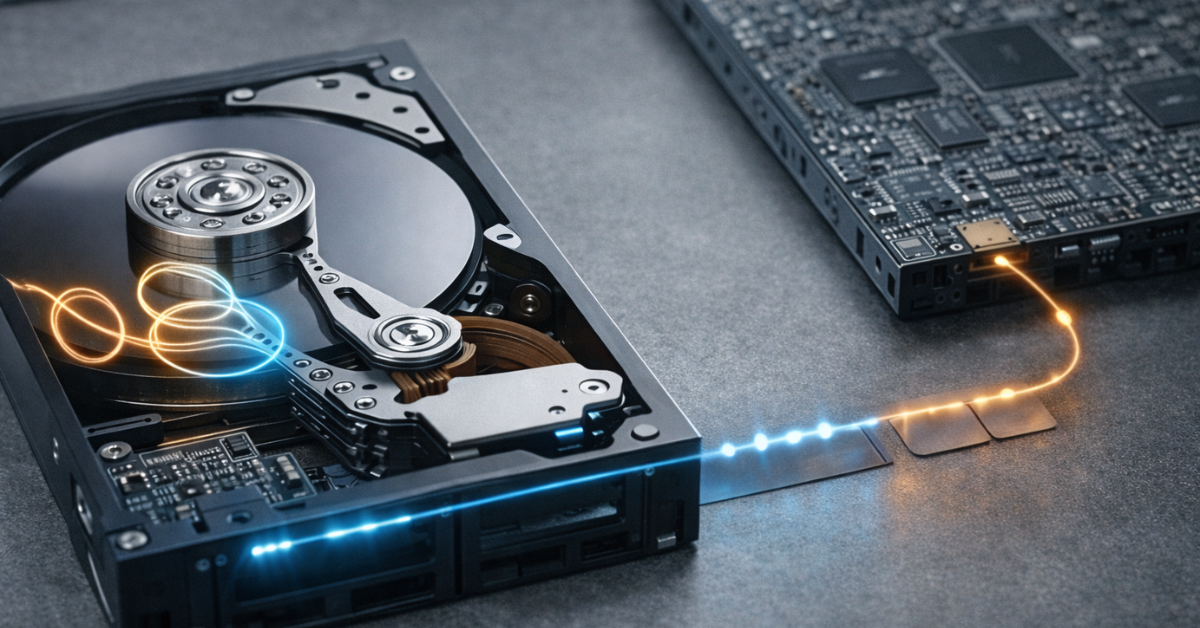
When a drive hits a problematic sector, it has two competing instincts:
- try to recover the data at all costs — repeated retries, internal tests, remapping;
- return control to the host quickly so the array/controller can decide what to do next.
On a single PC drive, the first approach is often better: users prefer “the drive thought for a while and then read it”. In RAID/ZFS it’s different: if a drive stays silent for too long, the controller treats it as a failure/timeout and drops the drive from the array.
What ERC/TLER/CCTL are and why they matter
ERC (Error Recovery Control) on Seagate drives allows setting a time limit for internal error recovery so the drive doesn’t “hang” for too long. Seagate explains the mechanism and intent on its official page: Seagate ERC.
WD and others use similar concepts under different names, including TLER/CCTL. For an overview reference: ERC/TLER overview.
Mini case: why RAID dropped a drive without obvious bad blocks
Scenario: the array runs, SMART looks “tolerable”, but once a week/month one drive “falls out” and comes back after a reboot. Controller/kernel logs show timeouts on read or write commands. The cause is often not a “dead” drive — it’s that, when reading a marginal sector, the drive goes into long internal retries. That’s fine in standalone mode, but in RAID the controller has a strict command timeout and marks the drive as non-responsive. The array degrades even though the drive may still be physically alive.
Where you see this — and why “I’ll enable it myself” is not a safe plan
- On enterprise/NAS lines, this behavior is more often part of the firmware policy and/or command support.
- On consumer drives, support/behavior should not be assumed: even if it “worked” before, it may change between revisions.
If you run SATA, it’s useful to know that ERC can be implemented via SCT mechanisms and is documented for some models; a practical reference is the Exos documentation: Seagate Exos X24 manual.
Bottom line for purchasing. For RAID/ZFS, it’s critical not only “how reliable” a drive is, but how it behaves on errors. NAS/enterprise drives are more often tuned to return control quickly, reducing drive dropouts due to timeouts.
Difference №2: vibration, many drives side by side, and stable I/O
In multi-drive systems, a drive lives in conditions a desktop PC is rarely designed for:
- other spindles are spinning right next to it;
- the bay/chassis transmits micro-vibrations;
- constant airflow and heat change the mechanics of head positioning.
Rotational vibration (RV): why it’s real at 8–24 drives
Rotational vibration hurts head positioning: the drive controller has to correct track-following more often, latency rises, and under unfavorable conditions errors and performance “jitter” increase.
That’s why server lines often include vibration-tolerance mechanisms and are validated for multi-bay environments.
Signs vibration is already hurting you
- “Wavy” read/write throughput without obvious cause.
- Latency spikes on some drives during parallel operations.
- Log errors that disappear when drives are moved to a different chassis.
- Improvements after replacing the bay/backplane/fans/mounting.
Multi-bay / backplane / hot-swap: operating nuances
Backplanes and hot-swap add another layer of variables:
- power and signal quality (especially with longer traces/connectors);
- mechanical vibration from the bay;
- thermal “plateau” — drives don’t cool down the way they might in a desktop PC.
Mini case: why a 12-bay chassis makes everything “float”. The same set of drives can behave differently in two configurations. In a regular case everything is stable; in a 12-bay server there are periodic dips and latency growth. The cause is often the combined effect of vibration + constant temperature + tight packing. Server/NAS drives generally handle this better thanks to tolerances and validation for multi-bay.
Bottom line for purchasing. The more drives you pack into one chassis, the more the drive class and “multi-bay” validation matter. In 8–24-bay systems, saving money on “ordinary” HDDs often turns into unstable performance and unexpected array degradations.
Difference №3: thermals, acoustics, and power-saving profiles
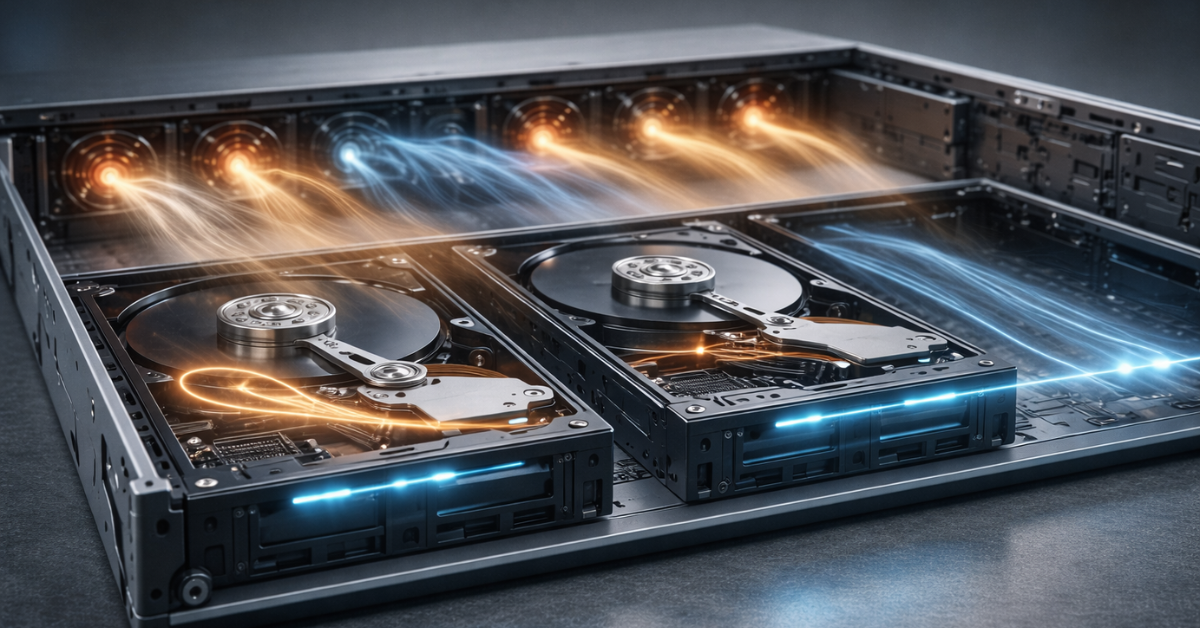
Desktop drives are often optimized for lower noise and idle power savings. In servers the priority is different: predictability under sustained load.
Temperature and reliability derating
Manufacturers tie MTBF/AFR validation conditions to temperature and workload, and warn about derating outside the specified envelope.
Thermal checklist
- the operating temperature range and how temperature is measured;
- airflow requirements and installation density;
- expected “hot rebuild” scenarios (hours/days of continuous operations).
Aggressive power saving and head parking
Some consumer drives use more aggressive head-parking and power-state transitions. Under server loads this can increase first-access latency, accelerate load/unload cycles, and lead to very unstable performance — especially in RAID arrays.
What to watch in specs and monitoring
- load/unload cycle limits and actual SMART values under your workload;
- latency stability under mixed workloads;
- temperatures during long reads/writes (especially during rebuilds).
Bottom line for purchasing. NAS/server class matters not only because of reliability, but because it’s designed for steady thermals and continuous operations without “power-saving” behavior that’s fine at home but harmful in arrays.
Difference №4: recording method (CMR vs SMR) and why a “normal drive” can break RAID
CMR is conventional recording: tracks do not overlap. SMR is shingled magnetic recording: tracks partially overlap, increasing density but making rewrites more complex.
The key practical difference:
- SMR can be acceptable for “mostly sequential writes, few rewrites” workloads.
- In RAID/ZFS — especially with random writes, rebuild/resilver, and scrubbing — SMR often becomes a bottleneck: writes trigger internal data reshuffling, latency grows, and recovery time increases.
Western Digital’s explanation for WD Red highlights intended use and provides selection guidance for NAS and more demanding scenarios: WD on CMR/SMR in WD Red.
Why SMR “killed” rebuild/resilver performance
The array degraded and started recovery. Instead of predictable hours/days, the process drags on and the system becomes sluggish. On SMR, rebuild/resilver is not only reading — it involves intensive rewrites with internal data movement that SMR handles much more heavily. The risk window (when a second failure is critical) becomes larger.
Guide: how not to buy the wrong thing
- Look for an explicit CMR/SMR statement in the datasheet or verify via official vendor guidance.
- If you plan RAID/ZFS and write-heavy workloads, aim for CMR.
- For archives and sequential writing, SMR can be acceptable — but only if you understand the I/O profile and have backups.
- If the model description doesn’t disclose this and the price looks suspiciously low for the capacity, double-check.
Bottom line for purchasing. CMR/SMR can radically change array behavior during rebuilds and under random writes. For RAID/ZFS it’s safer to start with CMR and a proven NAS/enterprise line.
Difference №5: interface and “server-ness” — SATA vs SAS
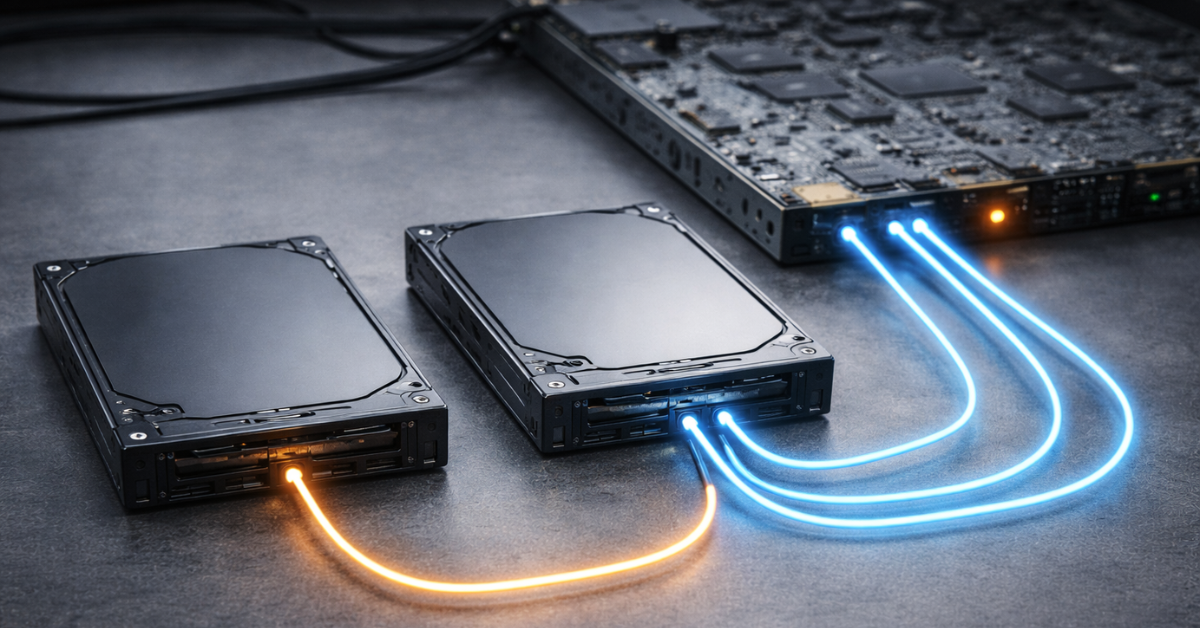
The interface alone doesn’t make a drive “server-grade”, but it reflects the typical ecosystem where the drive is used.
- SAS is more common in enterprise solutions: infrastructure, controllers, and compatibility requirements. SAS drives often run at higher spindle speeds (10K, 15K, 20K rpm; classic SATA is typically up to 7200 rpm). SAS also uses a different command set, is full-duplex, and supports multipath — ideal for high-availability designs.
- SATA is also widely used in data centers because it is much cheaper at the same capacities. In that case “server-ness” comes from the drive class, validation, and firmware profiles — workload/AFR and error behavior — not the interface.
- NL-SAS (Nearline SAS) is a middle option: internally a SATA-like 7200‑RPM mechanism, but with a SAS interface and its advantages.

Important! SAS controllers (and bays) usually support SATA drives, but not vice versa. A SAS drive cannot be connected to a SATA controller/bay (even with “filing it down”) — the command sets differ.
Practical interface selection criteria
- What your controller/HBA and backplane support without surprises.
- Service requirements: hot-swap, and availability of drives in the needed class.
- Compatibility lists from the server/controller vendor (if available).
Bottom line for purchasing. SATA vs SAS is a platform/ecosystem question. For array reliability, drive class and behavior under errors/load matter more than the interface itself.
Practical selection: which HDD where (server, NAS, desktop, archive)
Datasheet parameter → what it means → what it affects
| Parameter | Plain-language meaning | Practical impact for RAID/24×7 | Red flags |
|---|---|---|---|
| Workload (TB/year) | Annual data volume the drive is designed to handle | Higher means better tolerance for backups, VM I/O, and rebuilds | Not stated, or too low for 24×7 |
| MTBF/AFR | Population reliability statistics | Useful for comparing lines under the same assumptions | No conditions/notes; “nice numbers” without context |
| Non-recoverable read errors / UBER | Probability of an unrecoverable read error | Directly affects rebuild risk at large capacities | Not stated, or worse than typical enterprise values |
| Multi-bay operation / vibration tolerance | Tolerance to neighboring-drive environments | More stable latency and fewer surprises in 8–24-bay systems | No mention of multi-bay for dense installations |
| Warranty | Warranty term | Indirect indicator of class and intended duty cycle | 2–3 years for claimed “server” use |
| 24×7 / Power-On Hours | Continuous duty cycle | Important for always-on storage | 24×7 operation not stated |
| Load/Unload cycles | Head-parking cycle rating | Important with aggressive power management | Counter grows quickly under your workload |
Reference documents for verifying parameters: WD Gold datasheet, Toshiba MG datasheet, Seagate Exos X24 manual.
Scenario → recommended HDD class → why
| Scenario | Recommended class | Why |
|---|---|---|
| 1 drive in a PC / gaming machine | Desktop | Low risk of cascading issues; price/noise matters most |
| Home NAS 2–4 bays, light load | NAS | Optimized for 24×7 and multi-bay |
| NAS 4–8 bays, active writes, backups | NAS Pro / nearline enterprise | Better workload rating and sustained-load behavior |
| Server with RAID and 8–24 drives | Enterprise / nearline enterprise | Timeouts, vibration, rebuild load, predictability |
| ZFS (TrueNAS/Proxmox), frequent scrubs/resilver | NAS Pro / enterprise, CMR | ZFS is disk-intensive; SMR is often problematic |
| Archive/backup “write once read rarely” | Desktop or NAS (with caveats) | If the profile is sequential and you have data redundancy |
| Video surveillance | Surveillance-class | Firmware tuned for continuous stream writing |
Line examples as datasheet references
- WD Gold (enterprise) — see WD Gold datasheet.
- Toshiba MG (enterprise) — see Toshiba MG datasheet.
- Seagate Exos (enterprise) — see Seagate Exos X24 manual.
- Error-recovery behavior and the purpose of ERC — see Seagate ERC (official).
What to check first in a datasheet
- Workload (TB/year) and conditions/notes.
- 24×7 operation and thermal conditions.
- AFR/read error rate (presence and order of magnitude).
- Multi-bay/vibration mentions for dense bays.
- Warranty and intended workload.
Bottom line for purchasing. Drive class must match the scenario: RAID/ZFS and multi-drive bays require NAS Pro/enterprise specs and behavior. For archives and single-drive use you can save money — but only with backups and a clear understanding of the workload profile.
Server commissioning checklist (so you don’t “kill” good drives with bad settings)
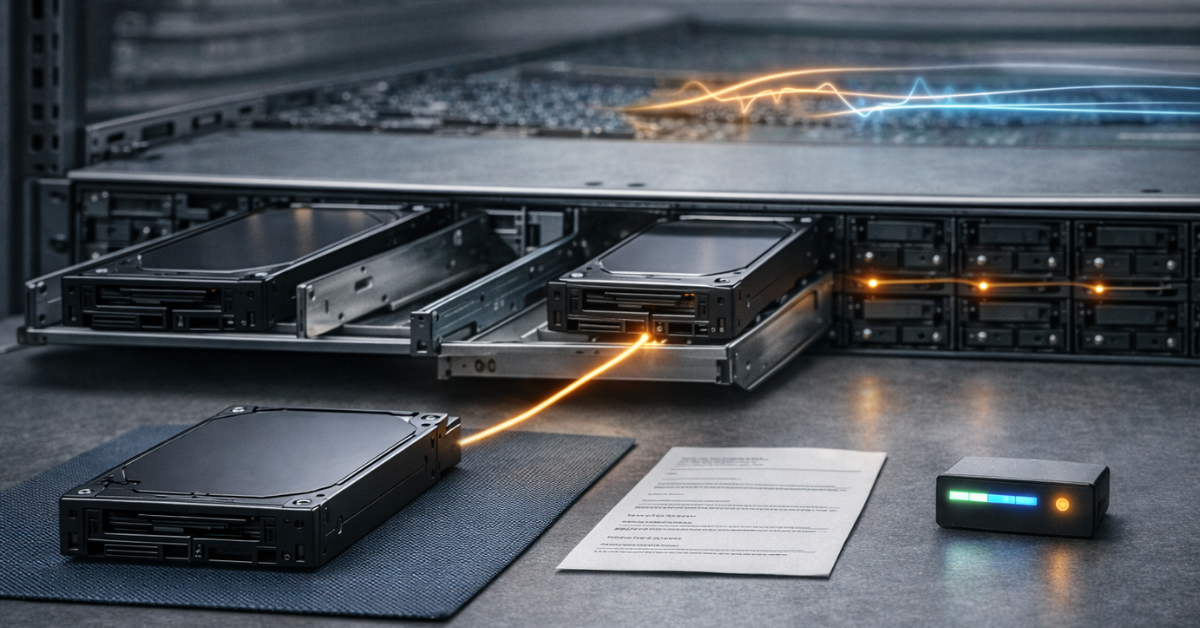
Controller/RAID settings
- Check rebuild-rate policies: overly aggressive rebuild raises temperatures and reduces responsiveness.
- Enable/configure patrol read / scrubbing on a schedule.
- Set up hot spares and alerts for array degradation.
- Confirm drive compatibility with the controller (especially in mixed arrays).
SMART monitoring: what to watch
- Reallocated sectors / pending sectors.
- UDMA CRC errors (often cabling/backplane issues rather than the drive itself).
- Temperature during load and rebuild.
- Load/Unload cycle count (if it grows quickly, review power policies).
Periodic checks
- Burn-in before production: long reads/surface checks.
- Baseline SMART snapshot before/after.
- Test in the real chassis: many issues show up only in multi-bay environments.
When to replace a drive proactively
- Recurring timeouts/drops from the array even without critical SMART alarms.
- Growing pending/reallocated counts, especially under load.
- Thermal peaks and performance degradation during rebuild windows.
Common mistakes when buying HDDs for RAID
- Mixing SMR and CMR without understanding the consequences.
- Putting consumer drives into 12–24-bay systems and ignoring vibration.
- Not watching temperature and rebuild policies.
- Buying by “capacity and RPM” without reading workload/conditions.
- Ignoring UDMA CRC and blaming “bad drives” for cabling/backplane faults.
Bottom line for purchasing. A good drive can be “killed” by bad conditions: overheating, unrealistic rebuild policies, a problematic backplane, and no monitoring. Commissioning and ongoing observation are as much a part of reliability as the drive model itself.
Common myths and questions (FAQ)
Can I use desktop HDDs in RAID? Yes, but the risk is higher: on errors, a consumer drive may spend longer on internal recovery and trigger timeouts/drive dropouts. For production RAID, NAS/enterprise is safer.
Why pay for enterprise if MTBF is “just statistics”? You pay for the package: workload rating, 24×7 duty cycle, validation conditions, warranty, tolerances, and predictable behavior.
Why does an array degrade without obvious bad blocks? Because degradation can be triggered not by a “bad sector” but by a command timeout: the drive spends too long trying to recover a read, and the controller doesn’t get a timely response.
Is SMR always bad? No. For archives and sequential writing, SMR can be fine. What’s bad is using SMR where random writes and rebuild/resilver (RAID/ZFS) are critical.
Why is SMR especially painful for ZFS? ZFS actively performs scrubs/resilver and often runs mixed workloads. In these modes SMR drives can spike latency due to internal reshuffling.
Do I always need 7200 rpm? Not always. 7200 rpm offers more IOPS but can be hotter/noisier. For archives, cooler/quieter can be better; for VM storage, the opposite may be true.
If I have a 4-bay NAS, do I need enterprise? Not necessarily. NAS or NAS Pro is often enough — make sure it’s rated for 24×7, multi-bay, and CMR for active scenarios.
What matters more: capacity or drive class? In servers, class matters more: it determines behavior under load and on errors. Capacity without RAID predictability can create expensive downtime.
Can I mix different models in one array? You can, but it’s not ideal: different firmware and characteristics mean different latency and rebuild behavior. If you mix, increase monitoring and testing.
Does warranty really say anything? Yes — at least about positioning and duty cycle. Five years is typical for enterprise/NAS Pro.
Why don’t “same TB and RPM” mean the same reliability? Because tolerances, validation, firmware policy, and 24×7/load parameters differ.
Bottom line for purchasing. Most “myths” disappear if you think in scenarios rather than model names and price: RAID/ZFS/24×7/multi-bay require a drive that behaves correctly on errors, matches the datasheet workload, and stays stable under vibration and heat.
Conclusion
A server HDD differs from a desktop HDD not by a label, but by how it survives real server life: 24×7 duty cycle, dense bays, vibration, higher temperatures, and inevitable read errors. In arrays, it’s not only statistical reliability that matters, but also firmware behavior on failures: the drive should not “stick” on sector recovery long enough to trigger controller timeouts. Also remember CMR vs SMR: the wrong recording method can turn rebuild/resilver into a long, risky process.
The practical rule is simple: for RAID/ZFS and multi-drive systems, choose NAS/enterprise-class drives with transparent datasheets, appropriate workload ratings, and predictable error behavior; reserve desktop models for single-drive use and cold archives with backups. And even the best drive won’t help if you ignore commissioning: burn-in, temperature control, rebuild/scrub tuning, and regular SMART monitoring often matter more than the price-per-TB difference.
Content:
Main difference №1: firmware and error-recovery policy (ERC/TLER/CCTL)
Difference №2: vibration, many drives side by side, and stable I/O
Difference №3: thermals, acoustics, and power-saving profiles
Difference №4: recording method (CMR vs SMR) and why a “normal drive” can break RAID
Practical selection: which HDD where (server, NAS, desktop, archive)
Server commissioning checklist (so you don’t “kill” good drives with bad settings)